Settings
Only Admins and Owners see this page; see roles.
The settings that apply to every automation in the workspace: the AI model steps fall back on, what a dry run does with outbound requests, how long a run waits for a person, what manual work is priced at, how much AI may spend, and how much detail logs keep. One form, one Save. The Settings reference describes each field.
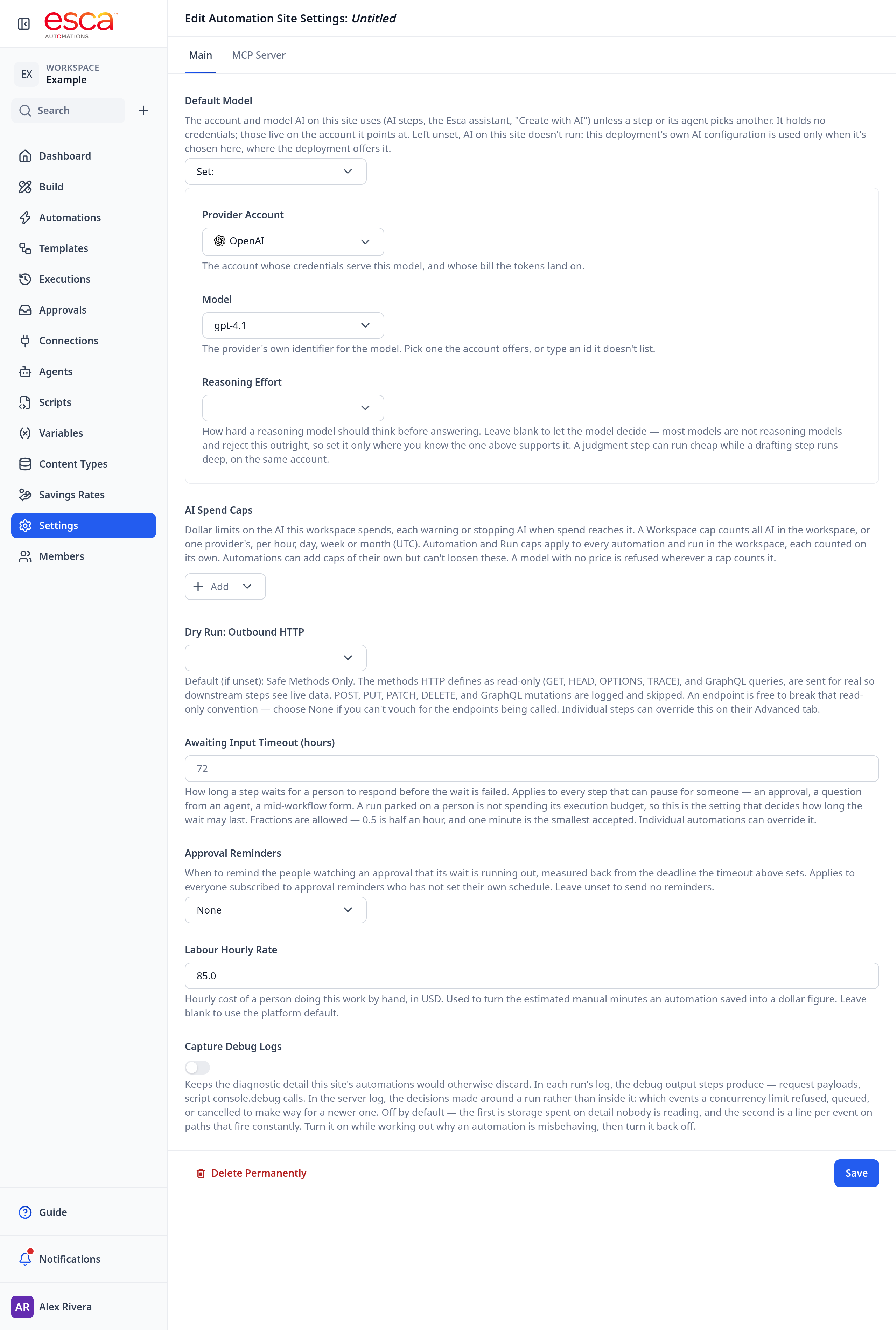
The settings
| Setting | What it controls | Default |
|---|---|---|
| Default Model | The model an AI step runs on when neither the step nor its agent names one. With none set, AI steps and Esca cannot run. See How a model is chosen. | None |
| AI Spend Caps | Dollar limits on what AI may spend in the workspace, each warning or stopping AI when spend reaches it. See Spend caps. | None |
| Dry Run: Outbound HTTP | Which outbound requests an HTTP Request, OpenAPI or GraphQL step still sends during a dry run: None, Safe Methods Only (requests that only read), or All Methods. A step's own setting on its Advanced tab wins. See Dry runs. | Safe Methods Only |
| Awaiting Input Timeout | How long a run waits for a person, in hours, before the waiting step fails. Applies to every kind of pause; see Human in the loop. | 72 hours |
| Approval Reminders | When to remind subscribers about a request still waiting, as lead times before its deadline. A subscriber's own schedule replaces this one. | No reminders |
| Labour Hourly Rate | What an hour of a person's time costs, in US dollars, for Estimated Savings. | $50 |
| Capture Debug Logs | Whether Debug log entries are kept. Costs storage; turn it on while troubleshooting, then off. See Logs. | Off |
Limits
The limits a run or an automation can hit, and where each is set. Settings marked "platform operator" are set for the whole deployment, outside the workspace.
| Limit | Value | Where it is set |
|---|---|---|
| How long a run waits for a person | 72 hours | Awaiting Input Timeout, this page |
| How long a run may live, waits included | 30 days | Platform operator |
| How much working time a run may use, waits excluded | 1 hour | The automation's settings pane, Advanced; the platform operator sets the default |
| How many step executions one run may expand to, loops included | 10,000 | Platform operator |
| How many finished runs are kept per automation before archiving | 100 | The automation's settings pane, Advanced; the platform operator sets the default |
| How many automations may be on at once | No cap | Platform operator |
| How many runs and steps may start per day | No cap | Platform operator |
| How much AI may spend | No cap | AI Spend Caps, this page; the platform operator can add a ceiling on what the workspace spends on this deployment's credentials |
Spend caps
A spend cap is a dollar limit on what AI may spend, and what happens when spend reaches it. Add as many as you need under AI Spend Caps. Every cap that applies is enforced: an automation can add caps of its own in its settings pane, on the Advanced tab, alongside these and never in their place, and the platform operator can set a ceiling on what the workspace spends on this deployment's credentials, its AI configuration and any Server Identity connection together. The Dashboard lists it as the Platform ceiling, and it can't be loosened here. A Workspace Cap that the ceiling would always stop first, set higher and per the same period, shows a warning saying it's never reached.
| Kind | What it counts |
|---|---|
| Workspace Cap | All AI spend in the workspace per hour, day, week or month: AI steps, Esca and field assist. Name a Provider to count only that provider account, or only steps on this deployment's own AI configuration. |
| Automation Cap | What each automation's runs spend per hour, day, week or month, each automation counted on its own. |
| Run Cap | What one run spends across all its steps, each run counted on its own. |
Periods are calendar periods in UTC, and a week starts on Monday. The Workspace Cap, Automation Cap and Run Cap references describe each field.
When Reached decides what a cap does:
- Warn: once spend is past the cap, each AI step that spends writes one warning to its log, such as "This run has spent $1,200.00, past its $1,000.00 warning.", and Esca's chat and field assist show it with their reply. A Workspace Cap or Automation Cap also sends an AI Spend Cap notification, once, when spend first passes it. AI carries on.
- Stop AI: the AI call that reaches the cap finishes, and nothing under the cap makes another. The step it stops fails with a message such as "This run has spent $5.12, reaching its $5.00 cap." and follows its error path if it has one. Under a Workspace Cap or Automation Cap, AI stays stopped until the period resets, and the message says when; under a Run Cap, for the rest of that run. Esca and field assist show the message as an error.
To stop AI once one provider account has spent $100 in a month:
- Under AI Spend Caps, add a Workspace Cap.
- Set Amount ($) to
100, When Reached to Stop AI and Per to Month. - Pick the account as its Provider, and click Save.
A cap counts only AI with a price. A model with no price is refused wherever a cap counts its provider, even under a Warn cap: the step fails before its first AI call with a message such as "Set prices for claude-sonnet-4-6 on Acme Bedrock to run it under this workspace's AI budget." and runs again once the price is set under Model Prices on its provider account. A model on this deployment's credentials needs the platform operator's price even with no cap; see models on this deployment's credentials. The editor's side panel names each of an automation's models that would be refused this way.
A cap stops AI calls, not runs, so the steps that don't use AI keep working. Caps count dry runs too, since their AI calls are real. A run keeps the caps its automation had when it started; a change here, or to the ceiling, applies from the run's next AI step.
Spend went past a Stop AI cap
A cap is checked between AI calls, so spend can pass a Stop AI cap by the call that reached it, plus one call for each other step using AI under the same cap at the same moment. An AI Agent or AI Judgment step stops when the first tool it called returns; a call that uses no tools is the step's last, so its answer stands. An AI Judgment step can also go over by the one retry made when its answer doesn't match the expected shape.
MCP server
The MCP Server tab is where AI assistants such as Claude or ChatGPT are allowed to connect to the workspace. What an assistant can do once connected, and how an automation is offered to it as a tool, is on Results and MCP tools.
To connect an AI assistant:
- Turn on Allow AI Agents to Connect. Off, every assistant is refused and the workspace is left out of the all-workspaces servers.
- Under it, choose a Purpose, Run automations or Build automations, and a Reach, This workspace or Every workspace you may access.
- Copy the address shown, and follow the steps beneath it for your assistant: Claude, ChatGPT, Claude Code or Gemini.
- Click Save.
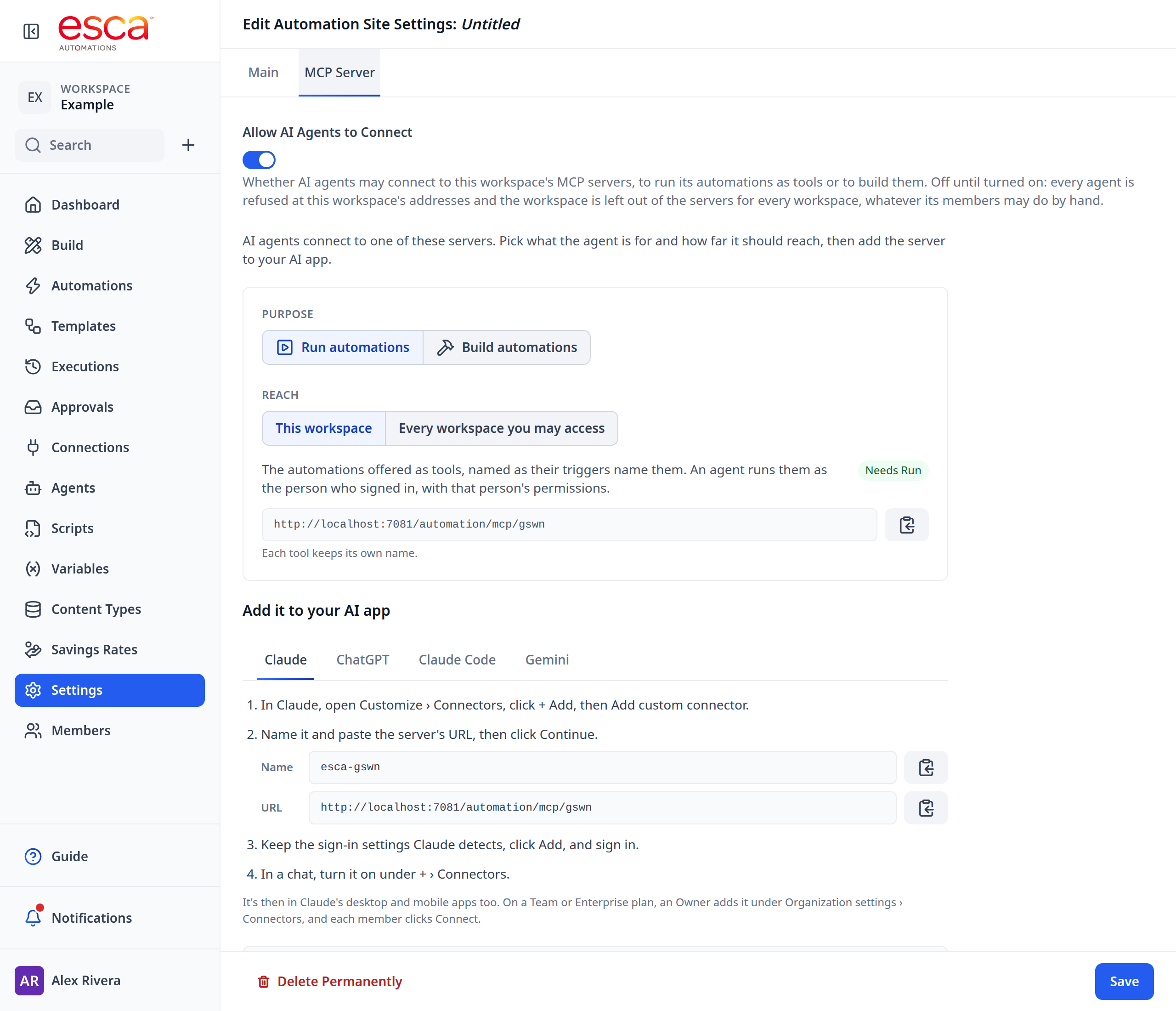
| This workspace | Every workspace you may access | |
|---|---|---|
| Run automations | /automation/mcp/<workspace code> | /automation/mcp |
| Build automations | /automation/manage/mcp/<workspace code> | /automation/manage/mcp |
Addresses are on the platform's host. On an all-workspaces address, tool names start with the workspace's code. Running needs the Run capability and building needs Build; an assistant signs in as a person and can do no more than that person can, and a building assistant can only run dry runs.
Related
- AI agents and models: the model tiers and the fields of a model choice.
- Human in the loop: what happens when a wait times out.
- Results and MCP tools: what an assistant sees when it connects.