Logs and output
From a run's Steps view you can open a step's Logs, what it did and wrote, and its Output, the data it produced. View Logs on the Executions list opens the whole run's log the same way. Secret values are redacted from both, and a step inside a loop has logs and output for every pass.
Logs
View Logs opens one run's log: its steps' status changes merged with the messages the steps wrote, in time order. Opened from a single step, it shows that step alone.
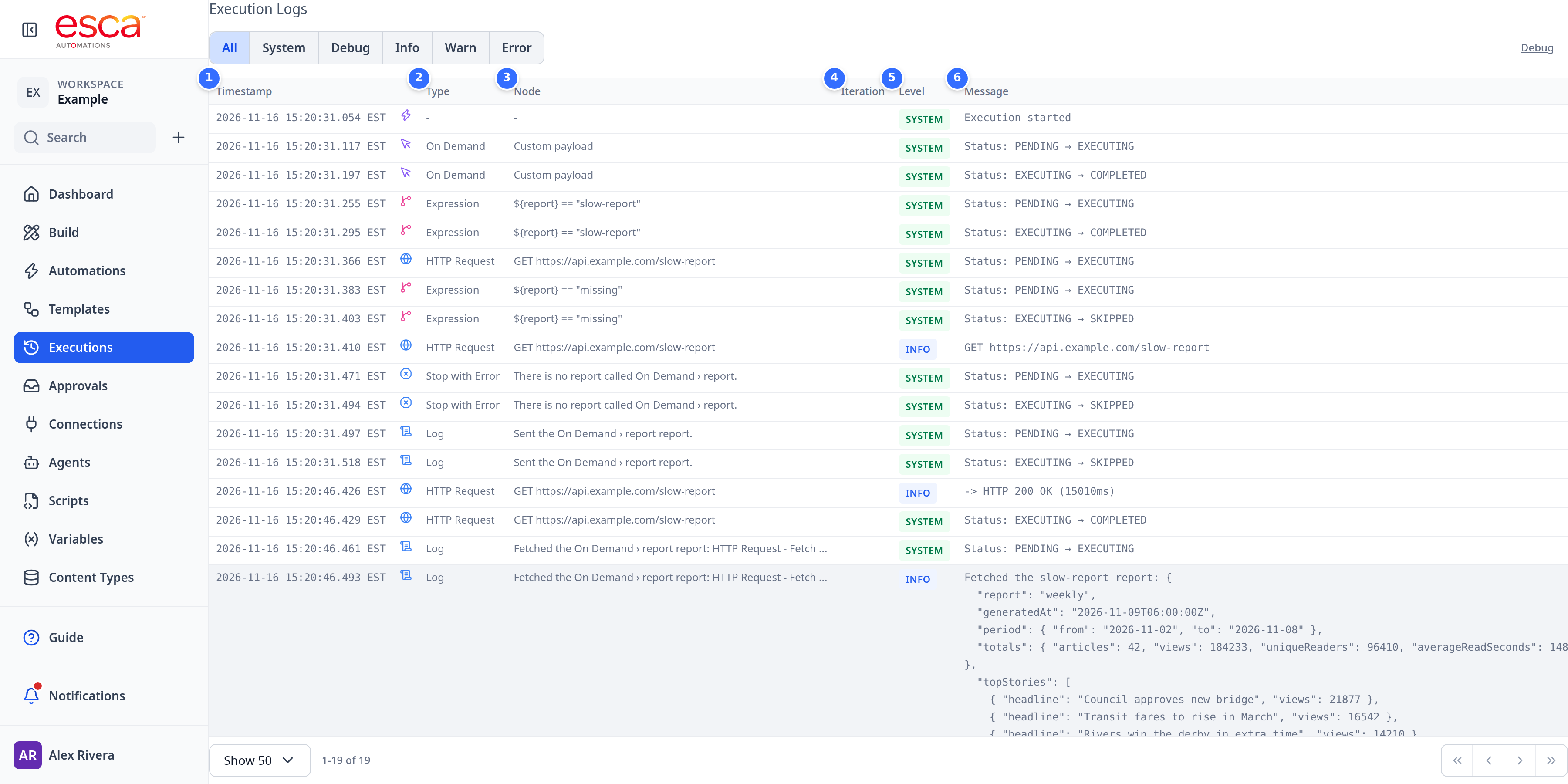
- Timestamp: to the millisecond, in your profile's time zone.
- Type: the kind of step that wrote the entry.
- Node: which step it was, by its title or its summary.
- Iteration: which pass of a loop it came from, such as "slides:0 / tags:1".
- Level: see the table below.
- Message: the entry. A long one shows its first line; click to expand it.
| Level | What it records |
|---|---|
| System | The run's own events: a step starting, finishing, failing or being skipped, and the run starting and ending. |
| Error | A failed step's error message, and the closing line of a run that failed. |
| Warn | Something a step managed despite a problem, such as a tool withheld from an AI agent. |
| Info | What a step did, and anything a Log step wrote. |
| Debug | Detail for troubleshooting, kept only while Capture Debug Logs is on. |
An AI step's log also has a line with its tokens by kind, such as Token usage — 15,487 tokens (1 input · 14,047 cache read · 1,273 cache write · 166 output) · $0.0115. The cost at the end appears only when every AI call in the step was priced.
Filter by level with the buttons above the table. The filter applies to the whole run, not just the page on screen, so Error finds every failure in the run.
Debug entries are dropped unless Capture Debug Logs is on, on the Settings page. It is off by default because the detail costs storage and some paths log a line per event. Turn it on while working out why an automation misbehaves, then off again.
A live run's log opens on the newest entries and loads earlier ones on request; a finished run's log has numbered pages. A very long log says how many entries are on screen out of the total, so a trimmed view is never mistaken for the whole.
Output
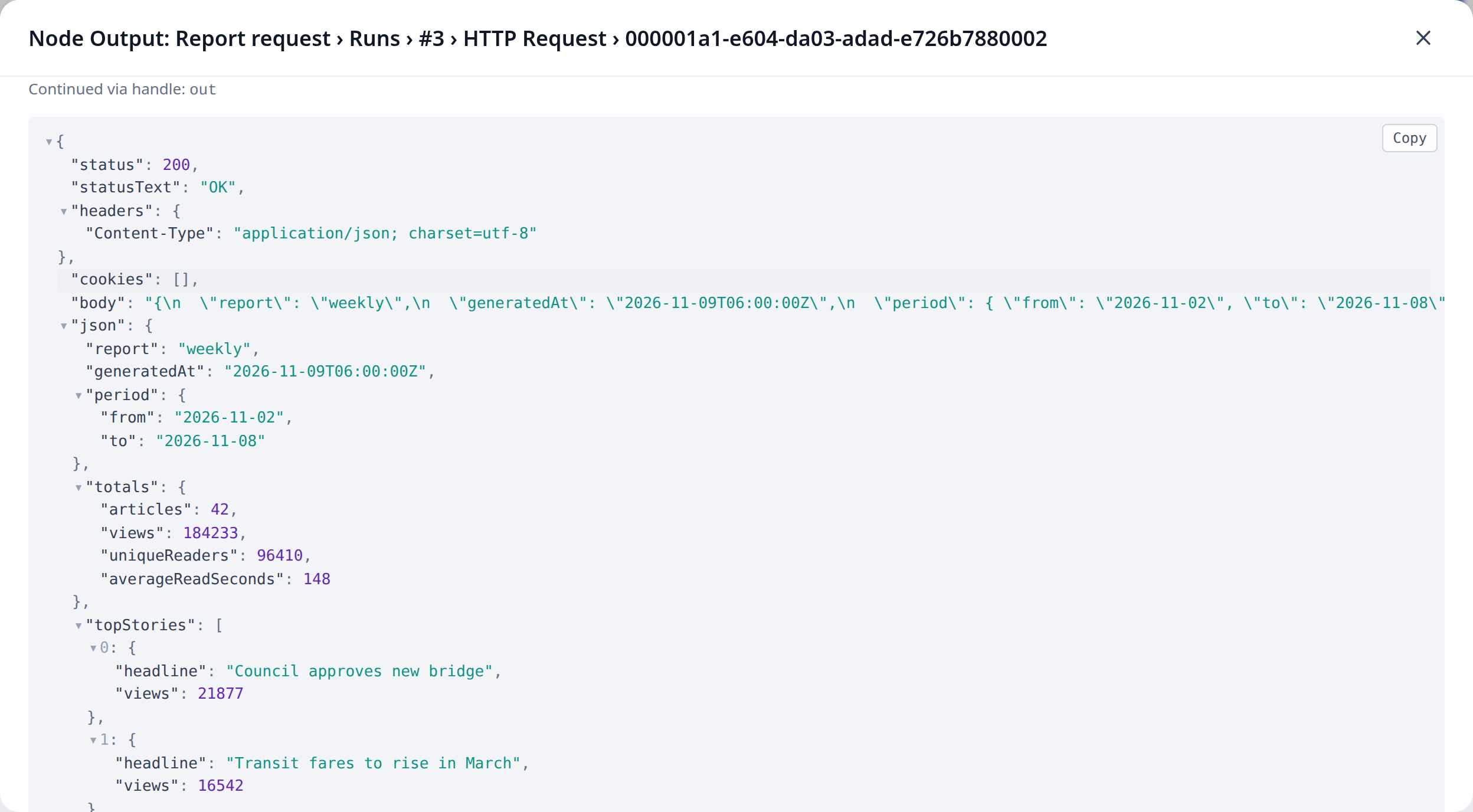
A step's output is the data it produced, shown formatted, or its error message if it failed.
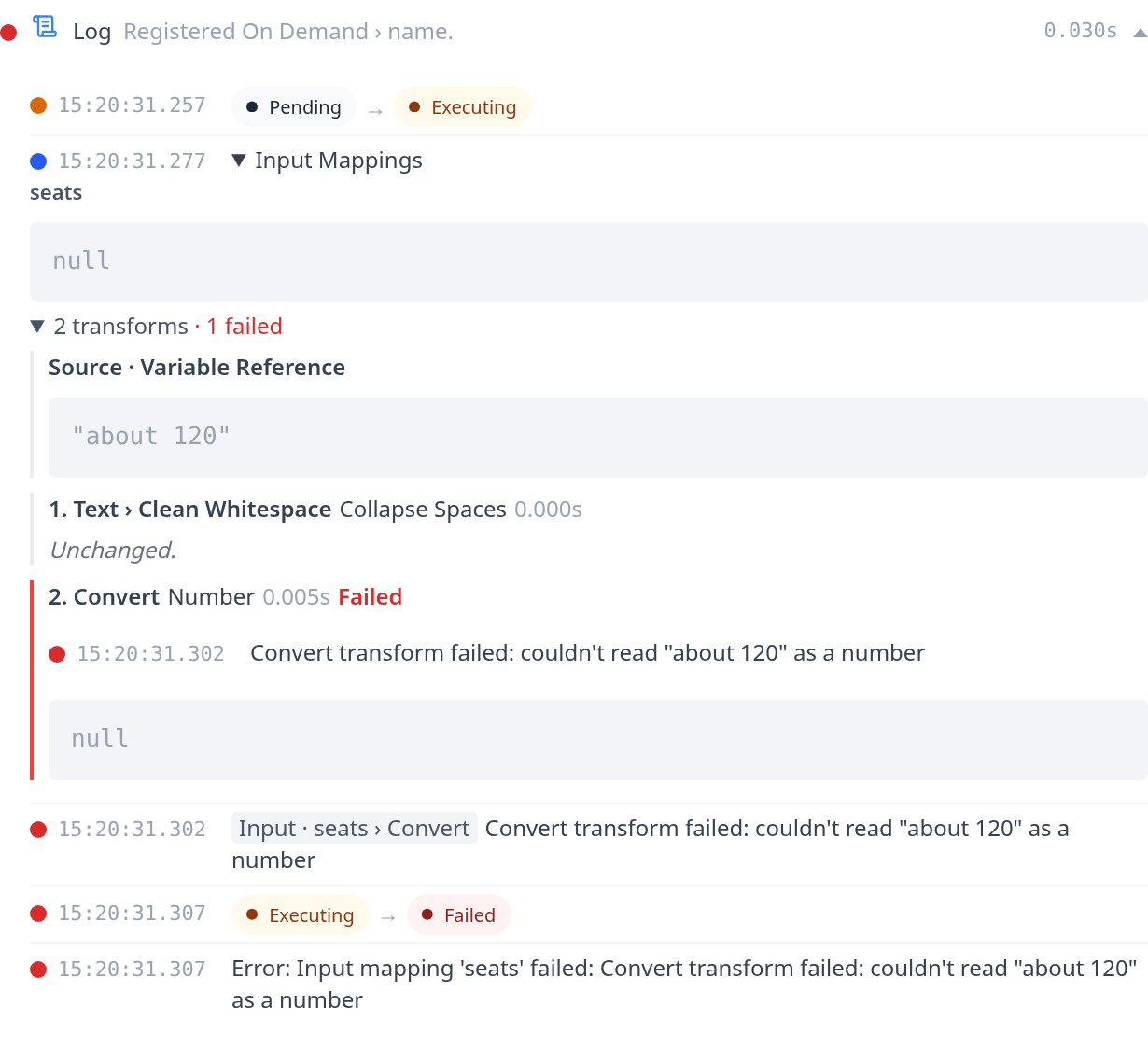
The step's input and output mappings are in the run pane, under the step's entry, listed by name with the value each resolved to. A mapping with transforms expands to show how its value was worked out, source first and then each transform in order, and a transform that failed is flagged so a broken chain stands out. For what each line of the trace means, see The trace.
Related
- Viewing a run: the views a step's logs and output open from.
- Settings: Capture Debug Logs.