Executions
The Executions page is the run history: every run of every automation, newest first, with each run's steps, logs and output one click away. You read runs here and open them from here; a run is stopped from its own page.
Two pages cover what opens from here:
- Viewing a run: the Workflow and Steps views, stopping a run, replaying a finished one, and what each status means.
- Logs and output: the log viewer, and a step's output and mapping traces.
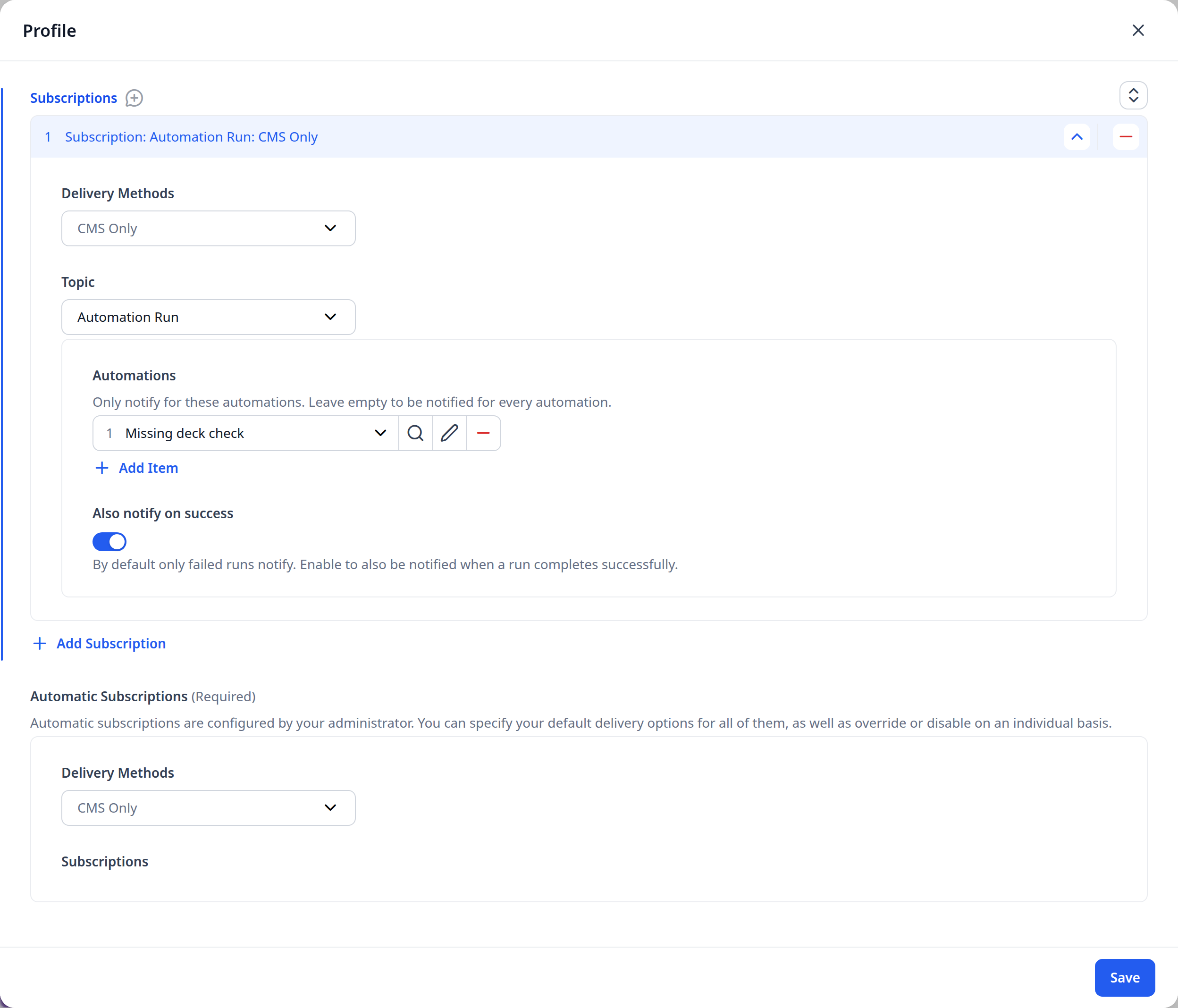
To be told when runs finish, subscribe to the Automation Run topic in your profile's Notifications settings. By default you hear only about failed runs; turn on Also notify on success for the rest, and name the automations you care about or leave the subscription open to all of them. Each notification links to the run, and a failure names the step that failed. See Run notifications.
One automation's runs
Clicking an automation's Runs count on the Automations list, or Runs inside its editor, opens this page scoped to that automation: the breadcrumb reads Executions › automation name, buttons back to the editor appear, and the Automation column drops out. A revision's runs are listed under its live automation.
Which buttons you see depends on your role and the automation's state:
| Your role | Draft | Published | With a revision in progress | Archived |
|---|---|---|---|---|
| Builder and above | Edit draft | Open live and Edit, which creates a revision | Open live and Continue editing | Open live |
| Viewer or Operator | View draft | Open live | Open live and View revision | Open live |
A Viewer or Operator opens the editor read-only.
What the table lists
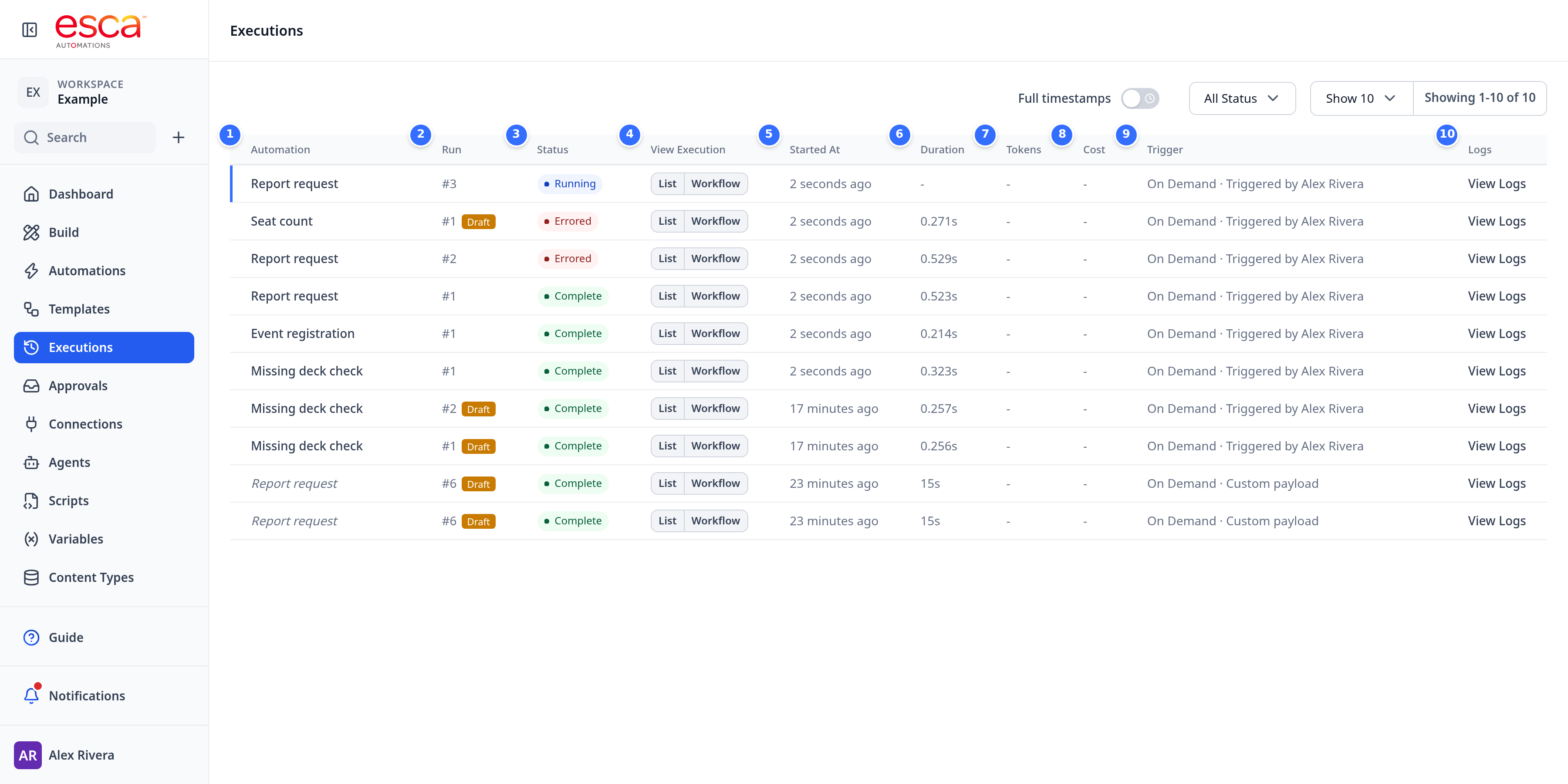
- Automation: which automation the run belongs to, linking to its run history. A run outlives its automation; one whose automation was deleted shows the last name it had, unlinked.
- Run: the run number, with a Draft, Revision or Dry Run badge when the run was not a live run of the published automation.
- Status: Queued Running Complete Errored Cancelled. A run held back by its trigger's concurrency limit reads Queued until a slot frees. A run paused for a person still reads Running; its step shows Awaiting Input in the run's views.
- View Execution: List and Workflow, the run's two views.
- Started At: when the run began.
- Duration: how long it took, or has taken so far.
- Tokens: every token the run's AI used, on every provider, or
-when there was none. Hover over the number for its breakdown: input processed in full, input read from and written to the provider's prompt cache, and output. - Cost: the approximate cost of the run's AI work, priced at the rates set for each model it used.
-when the run used no AI, or when any of its AI calls ran on a model with no price; see What it costs. - Trigger: what started the run, as the canvas names it, and what the trigger says about this run, such as "On Demand - Nightly kickoff · Triggered by Ada Lovelace".
- Logs: View Logs opens the run's log over the page.
A run in progress pulses, and runs that start while the page is open arrive at the top on their own.
Controls
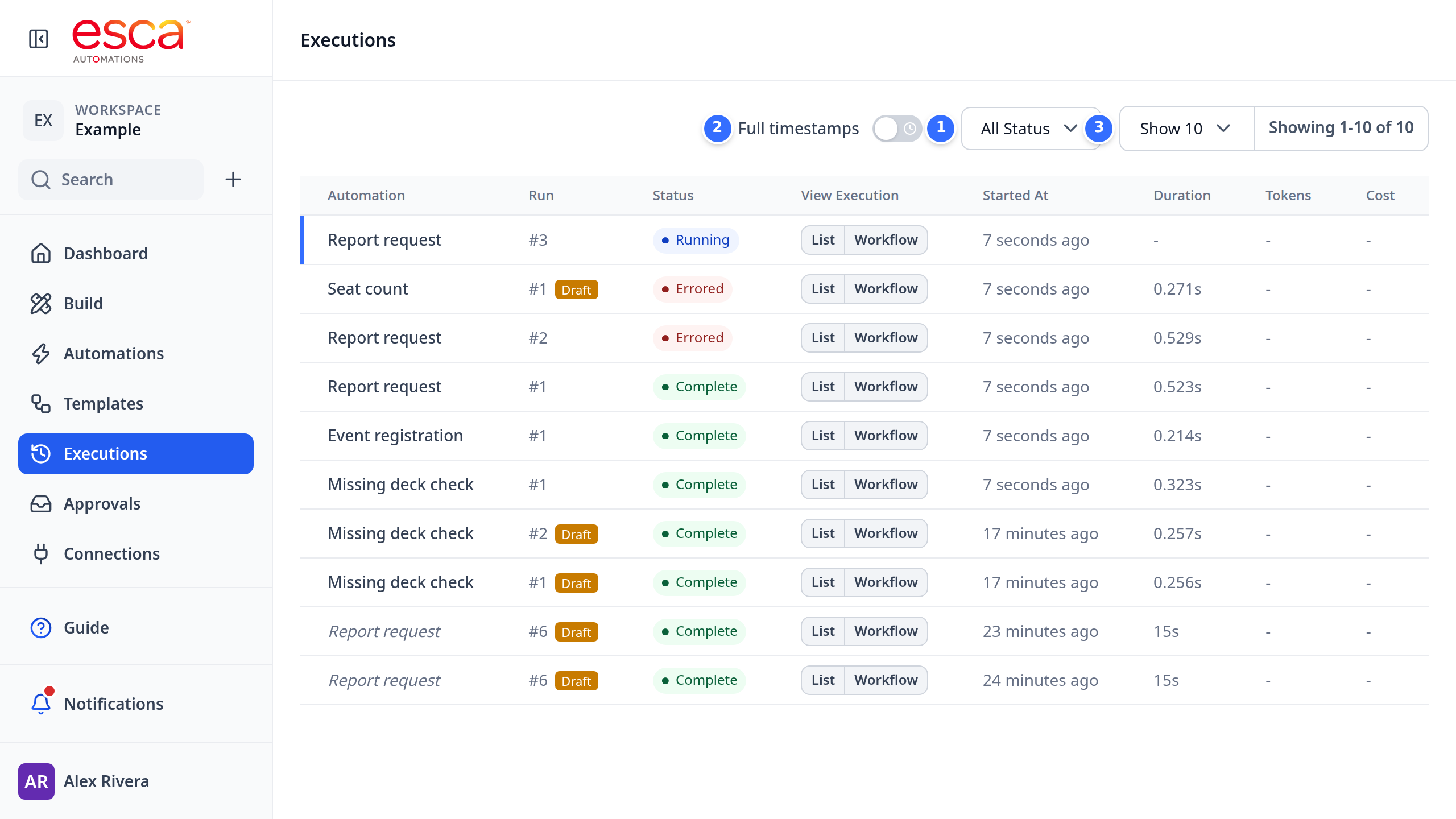
- Status: filter to one status.
- Full timestamps: shows exact dates and times instead of relative ones. Remembered for you.
- Paging: move between pages and set the page size. Changing a filter keeps your place.
- View Older Executions: appears at the foot of the last page when runs have been archived. The 100 most recent finished runs of each automation are kept on this list; older ones are archived hourly and still open from here. The number is set on the automation's settings pane, under Advanced; see Limits.
When nothing has run yet, the page says No Executions Yet.
Run notifications
Subscriptions live in your Brightspot profile, under Notifications, as the Automation Run topic. Brightspot delivers them through the channels your profile has, such as email or the in-CMS bell. Dry runs never notify. A separate Automation Approval topic covers runs waiting on a person.
Spend cap notifications
The AI Spend Cap topic, in the same profile settings, tells you when spend passes a spend cap on the workspace or an automation, or a ceiling the platform operator has set: once each time a Warn cap is passed or a Stop AI cap is reached. Only Builders, Admins and Owners receive it; see roles. It links to the automation, or to the Dashboard for a workspace cap or a ceiling. A run cap sends no notification of its own: the step it stops fails, and an Automation Run notification reports that.
Related
- Dashboard: the summary view of the same activity.
- Running an automation: starting a run from the editor.
- Human in the loop: why a run is waiting on a person.