AI agents and models
An AI step in a flow is not configured from scratch every time. It names an agent, and the agent supplies the standing part of the configuration: how it should behave, which tools it may use, and which model its work runs on. The step supplies only the task.
Ten steps across five automations can share one agent, and each step's form stays short: a prompt, and whatever that step needs on top. Esca, the assistant that drafts automations and scripts in the editor, is not one of these agents; the agents here are the ones your automations run.
What an agent is
An agent is a record you own and edit on the Agents page. It holds:
| Field | What it does |
|---|---|
| Name | What the agent is called wherever it is offered. |
| Description | A line shown under the name on its card. |
| Category | The heading the agent is filed under, and a filter on the page. Pick one another agent uses, or type a new one. |
| Model | The account and model this agent's work runs on. See How a model is chosen. |
| Instructions | Standing instructions applied wherever this agent runs, on top of which each step writes its own prompt. |
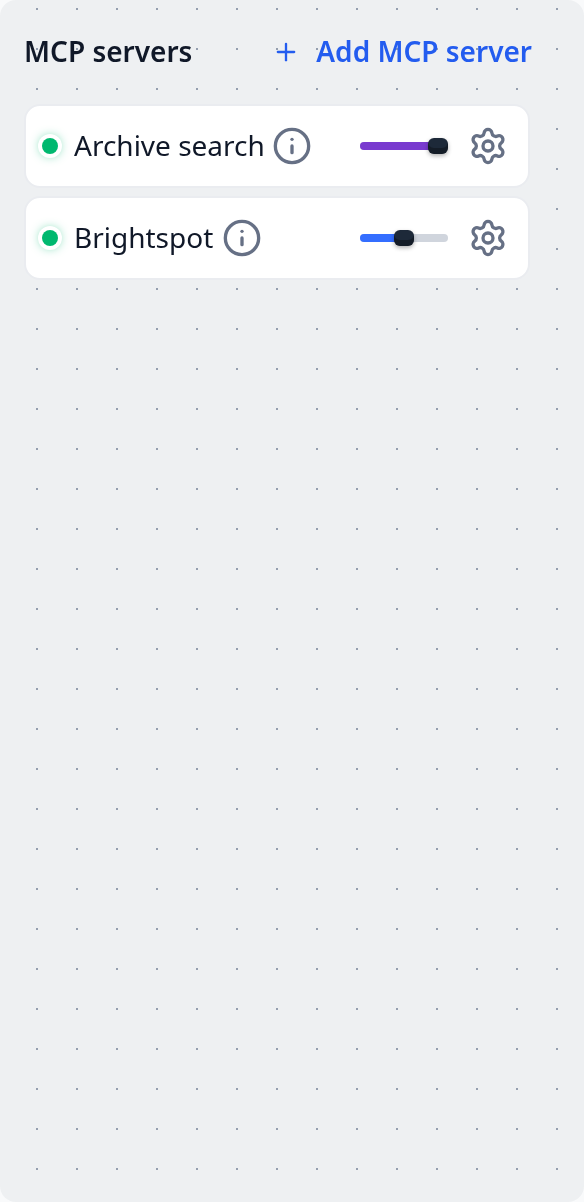
| Tool Sources | The MCP servers whose tools this agent can use. Each offers its read-only tools, the default, or all of its tools. |
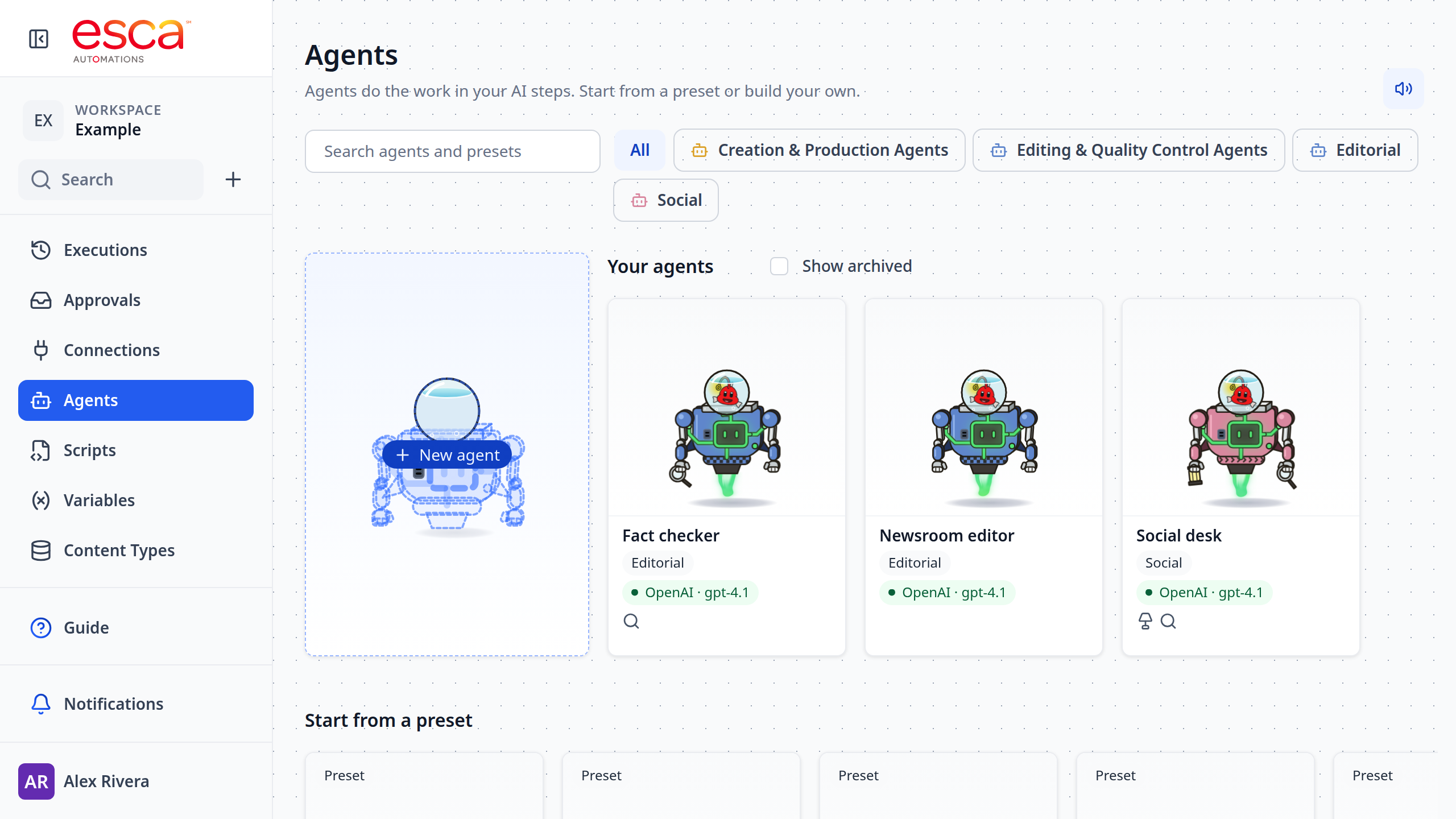
A step's reference to an agent is live, not a copy. Edit an agent's instructions and every step using it changes with it on its next run, with nothing to republish, so an agent used in ten places is edited in ten places at once. Archiving an agent stops every step that uses it; the archive confirmation lists the automations that will stop.
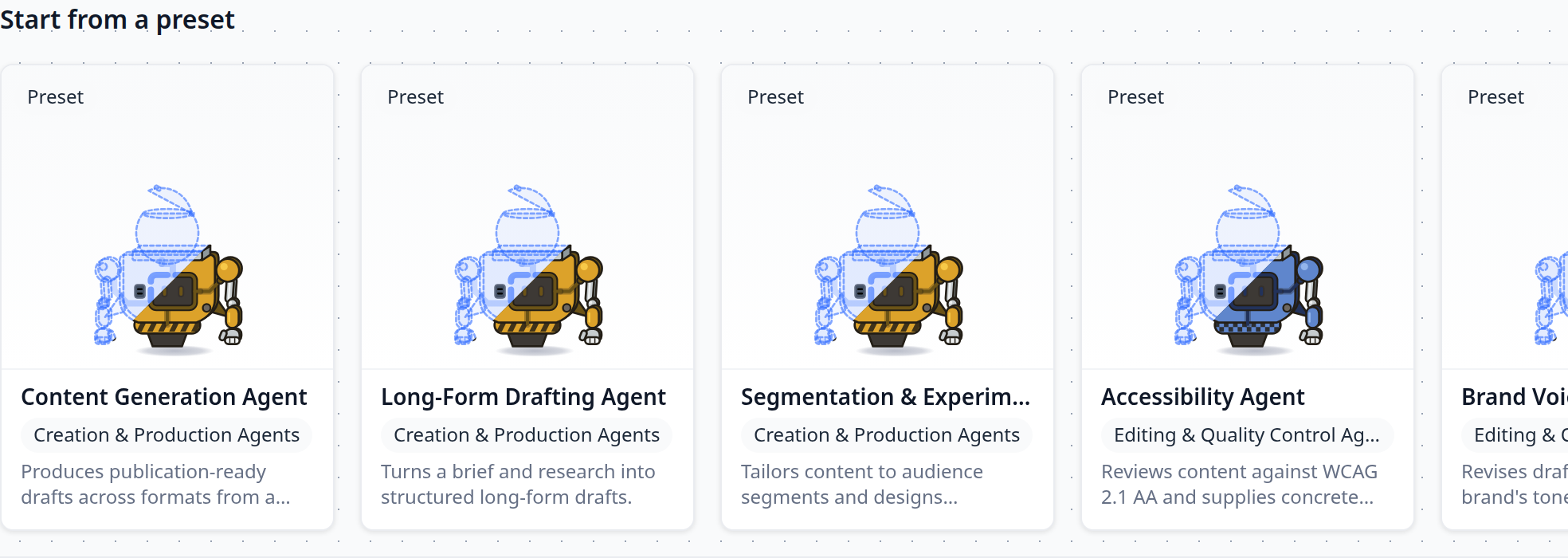
Start from a preset, below your own agents on the Agents page, offers ready-made starting points; selecting one opens the agent builder with the preset's values filled in. A preset is a seed, not a link: the agent it creates is yours from that moment on, and later changes to the preset never reach it. Presets leave the Model unset, because which account serves the work is yours to decide.
How a step departs from its agent
A step can differ from its agent in three ways, each a replacement rather than an adjustment:
- Model Override runs this one step on a different account and model.
- Ignore Agent Instructions runs this step without the agent's standing instructions. Your prompt still applies.
- Tool Sources Override runs this step with MCP servers of its own in place of the agent's, each for its read-only tools or all of them.
An override replaces the agent's whole list of servers, and stops following later changes to the agent. Whenever a step departs from its agent, a note at the top of its form says how.
What the Tool Sources Override note shows
While the override is empty, the note lists the agent's servers and their levels. Once something is listed, it lists what the override drops, narrows, widens or adds against the agent's list, and says when the two have come to match, since an override identical to the agent's still stops following the agent's later changes. An agent's instructions assume the servers it declares, so a step whose override leaves one out is told so in its run log, and the agent is told the server is unavailable and says what it cannot do instead of working around it.
How a model is chosen
Every AI step runs on some account with some AI provider. Which one is decided most specific first:
A tier that is filled in but can't be reached fails the run; it never falls through to the next. If a step names an account that has been archived or whose credentials are incomplete, the step fails and says so. Falling through would put your content on an account you never picked, and the cost on a bill you never agreed to.
Where a step's model differs from its agent's, the note at the top of the form names the model, the account serving it and which tier chose it. When nothing can be resolved, that note becomes a red warning carrying the message the run would fail with, so you find out while editing. This deployment's AI configuration can appear among the choices: it is the platform's own AI account, offered only where the platform operator allows it, and like any other choice it has to be picked at one of the tiers. The Default Model is on the Settings page.
The three fields of a model choice
Wherever you choose a model, on a step, an agent or the Settings page, you fill in the same three fields. Provider Account is the provider account whose credentials serve the model and whose bill the usage lands on. Model is the provider's own name for the model; pick one the account lists, or type one it doesn't. Reasoning Effort is how hard a reasoning model thinks before answering: Minimal, Low, Medium or High. The last two appear once an account is picked, since the list of models comes from the account.
Leave Reasoning Effort blank unless you know the model supports it. Most models are not reasoning models and reject it outright, which fails the step; the field says so, but nothing checks the model for you. The provider's documentation says which of its models are reasoning models.
MCP servers and tool sources
An MCP server gives an agent extra tools it can choose to use as it works, such as searching Jira, reading content or editing it. It is a different kind of thing from a connection: a connection signs the automation's own steps in to a system, while an MCP server offers tools to an agent, and signs in separately, even when both point at the same system. A connection to Jira does not let an agent use Jira's tools; that takes an MCP server.
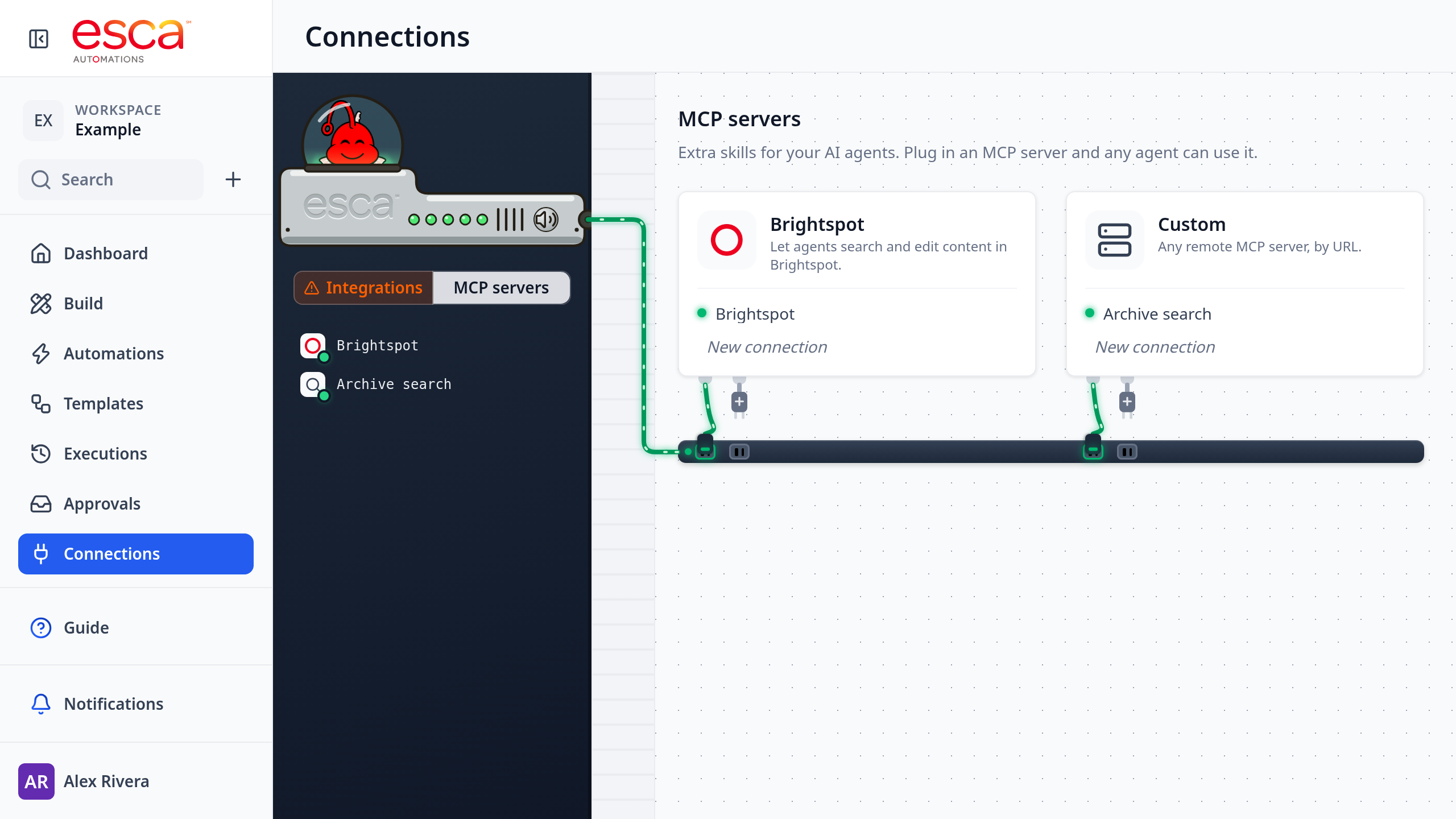
MCP servers are managed on the Connections page under MCP Servers. There are two kinds. Brightspot is the server a connected Brightspot CMS offers, signed in with OAuth or an API key. Custom is any other MCP server, signed in with OAuth, a bearer token or an API key, or nothing for a public server. A server's name is how its tools are identified to the agent, so keep it short and recognizable.
To add an MCP server:
- On the Connections page, under MCP Servers, select a server type and click +.
- Complete the fields for that type.
- If the server uses OAuth, click Connect and authorize access. The server shows Connected when it succeeds.
Each server an agent uses is attached at one of two levels. Read-only tools, the default for a newly attached server, offers only the tools the server marks as unable to change anything. All tools offers everything. Set the level with the fader on the server's row on the Agents page; the i beside the server's name lists which tools each level offers. A step inherits its agent's servers and levels unless its Tool Sources Override replaces them; where an agent and an override name the same server, the wider level applies.
Give an agent read-only tools unless changing things is its job. A step whose task comes from text written outside your organization, such as a webhook payload, a ticket or a comment, should run on read-only tools, so that nothing in that text can talk the agent into making a change.
During a dry run an agent gets only read-only tools, whatever its servers are attached for, and never pauses for approval, so a draft can run its agents for real without changing anything. Whenever tools are withheld, on any run, the run log says how many and why, and the agent is told which tools it cannot call.
What it costs
Whichever provider account serves a step, the work is charged by that provider in tokens, the units AI providers bill by. Esca Automations records every AI call's tokens and prices them at the rates set for the model: under Model Prices on the provider account, or, for this deployment's credentials, by the platform operator. There are no default rates. A model with no price records its tokens but no cost, and a run shows its cost only when every AI call in it was priced. Token usage, including how much of it the provider served from its prompt cache, is on the Dashboard; a run's cost is in its details.
The costs shown in Esca Automations are estimates. Your provider's bill is the real figure.
To limit what AI may spend, and stop it when a limit is reached, see spend caps.
Related
- Integrations, for what each AI provider's account needs and how to add one.
- The AI Agent action and the AI Judgment condition, the steps that run an agent.
- Human in the loop, for pausing an agent's step to ask a person something.