Connections
Every role sees the connections and their status; an Admin or Owner creates, connects and changes them.
The Connections page holds two kinds of record: connections, the sign-ins a trigger or action uses to reach another system, including your own AI provider accounts, and MCP servers, the tool sources an AI agent draws from. For what a connection is and which steps each type enables, see Connections; for how MCP servers differ from connections, see MCP servers and tool sources.
The layout
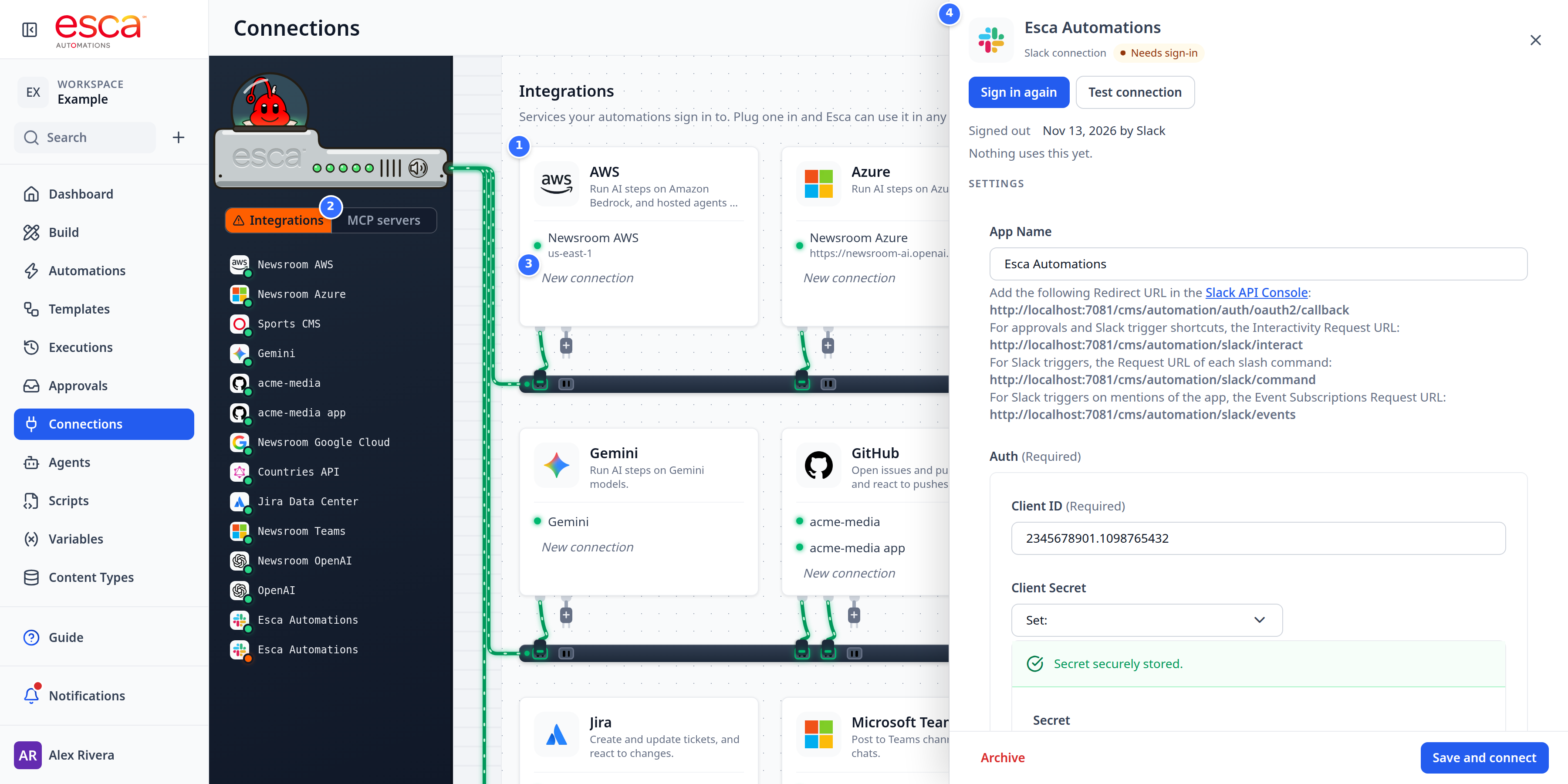
- Connections: every connection, of every type, archived ones included. A connection that is not signed in carries a warning triangle, which is where to look when steps that used to work start failing.
- MCP Servers: every live MCP server, by name.
- Create controls: above each list, pick a type and click New.
- The form: opens on the right when you select an entry.
Creating one
Choose a type from the dropdown above the list, click New, and fill in the form. What the form asks for depends on the type, and the setup each needs on the other side, an app registered with the provider or a key issued by an account holder, is on that integration's page under Integrations.
Authorizing
The form tells you which of two ways a connection authorizes:
- Sign in at the provider
- Paste a credential
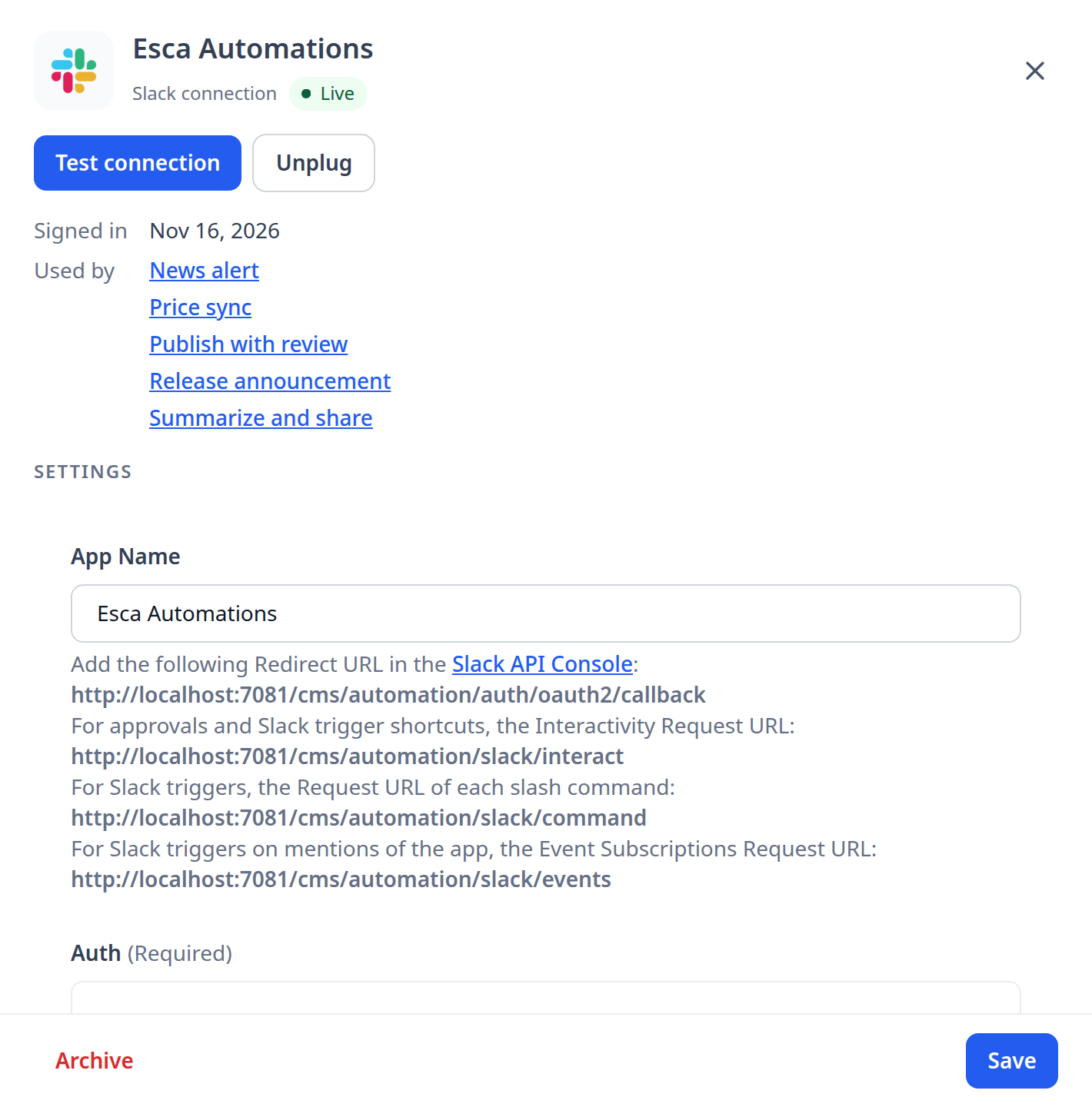
The connection's details show Plug in. Clicking it sends you to the provider to sign in and grant access, then returns you with the connection live. Unplug takes that authorization back, and a connection whose sign-in has lapsed offers Sign in again.
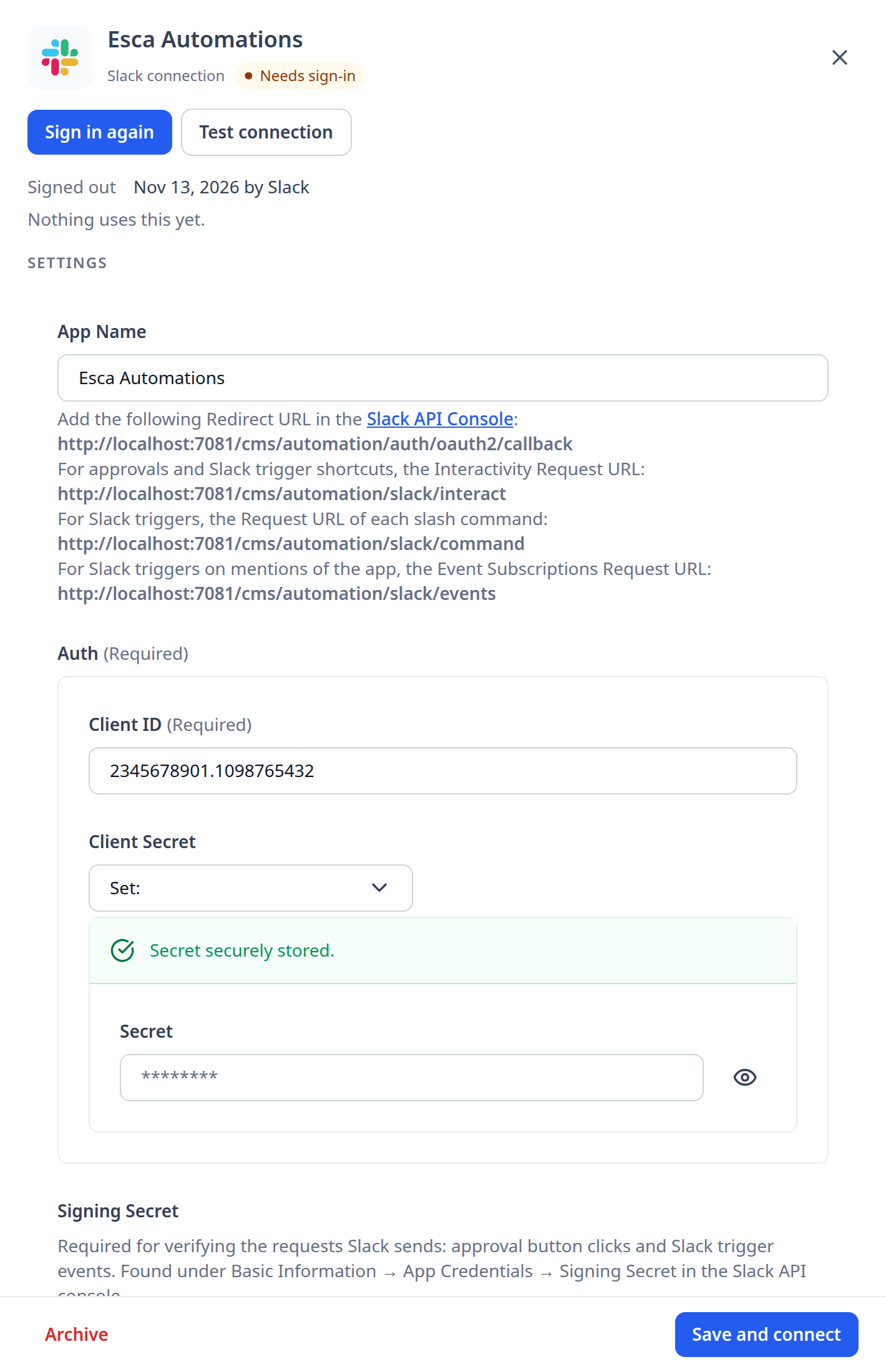
The connection's details hold a token, key or client secret you paste in. It becomes usable as soon as you save.
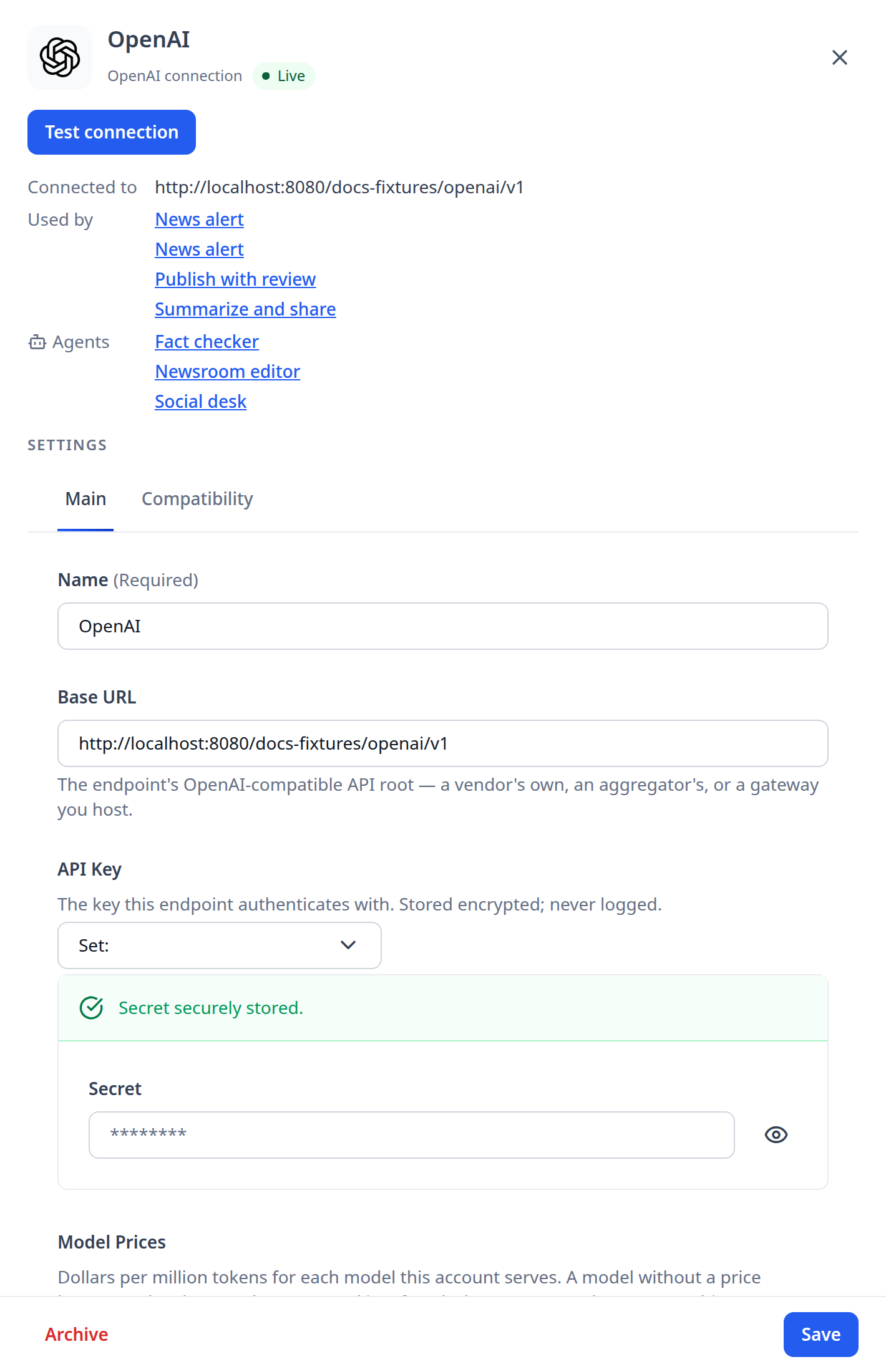
Once signed in, the form shows Connection active with the identity the connection acts as. Everything automations do through the connection runs as that account, with exactly its permissions.
MCP servers authorize the same way, against their own endpoint: a connection to a system does not sign an agent in to that system's tool endpoint. A server's name is how its tools are identified to an agent, so keep it short and recognizable.
Editing
A step's reference to a connection is live, so rotating a token here fixes every step that depends on it, with nothing to republish. The Used by list in the connection's details says which automations and agents those are. An MCP server's name has to be unique.
Archiving and restoring
Archiving a connection is how you stop using it. From the automations' point of view the connection is gone from that moment: steps that use it fail, and events from a system whose connection is archived are refused.
Restoring recovers the settings, not the live link. A restored connection serves actions again, but a trigger that listens for events from that system stays silent until its automation is saved again, which re-registers it. Check Used by on the connection and save each of those automations.
Connections are not deleted from this page; archive the ones you no longer use.
Troubleshooting
An MCP server shows Can't connect
Saving a server, or finishing its sign-in, opens a connection to it right away, the same handshake an agent's step opens. A server that answers shows Live; one that does not shows Can't connect with what went wrong: it refused the credentials, could not be reached, did not answer in time, or answered with something other than MCP. The status stays until a handshake succeeds, from Test connection, from the Agents page listing its tools, or from a step that uses it. A sign-in is issued for the server's URL exactly as entered; a server that refuses it because the URL differs from its own endpoint, such as a Brightspot server given the CMS's address without the endpoint's path, says which URL it expects. Disconnect, correct the URL, and connect again.
A connection shows Disconnected on its own
A connection that signed in at the provider renews its access in the background. If the provider refuses the renewal because the authorization is gone, reported as invalid_grant, the connection becomes disconnected rather than keeping a sign-in that can never be refreshed, and steps that depend on it fail until you Connect again.
A warning asks you to check the client secret
The provider rejected the client (invalid_client). For a client whose credentials you entered yourself under Provide client credentials, the usual cause is a wrong or expired client secret: the form shows a warning in place of its status and steps fail with that reason. Correct the secret and the next renewal succeeds, with no new sign-in.
Connect stops at the provider's sign-in page with an unknown-client error
Where a client was registered for you at Connect (an MCP server using OAuth, a Brightspot connection, or a Custom OAuth connection given a discovery URL), the Advanced tab shows its Registered Client ID, and every later Connect reuses it. If the provider has deleted that client, Connect never returns. Click Reset Client on the Advanced tab, then Connect again: the reset discards the old client and what was discovered about the provider, and the next Connect registers a new one. If the provider refuses to register it, the error under Connect carries the provider's reason, such as a redirect URL it does not allow.
Related
- Connections: what a connection carries into a run, and which steps each type enables.
- Integrations: per-system setup.
- Agents: where an agent's tools are chosen from the MCP servers set up here.