The workspace
A workspace is where a team's automations live: its automations, runs, connections, agents, scripts, variables and members, kept apart from every other team's. Most organizations have one. Where there are several, you can belong to more than one, with a different role in each, and switch between them from the top of the navigation. This page is the map of what a workspace holds, with a page of its own for each screen.
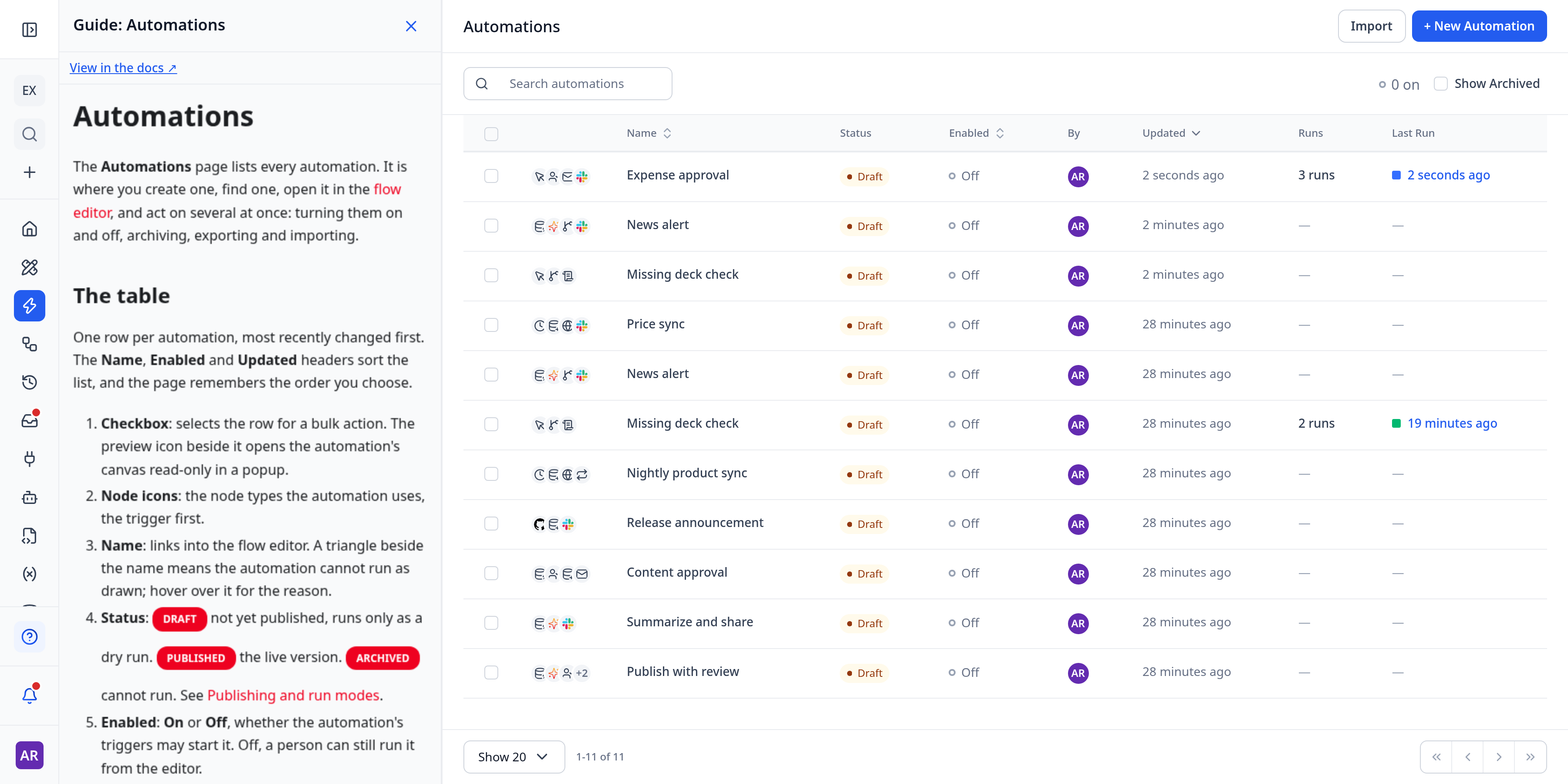
These pages are also the product's own help. The Guide panel beside each screen shows that screen's page, and a node's form, the automation's settings and a sticky note's form open the Guide on theirs. A link above the frame opens the same page in a new tab.
The pages
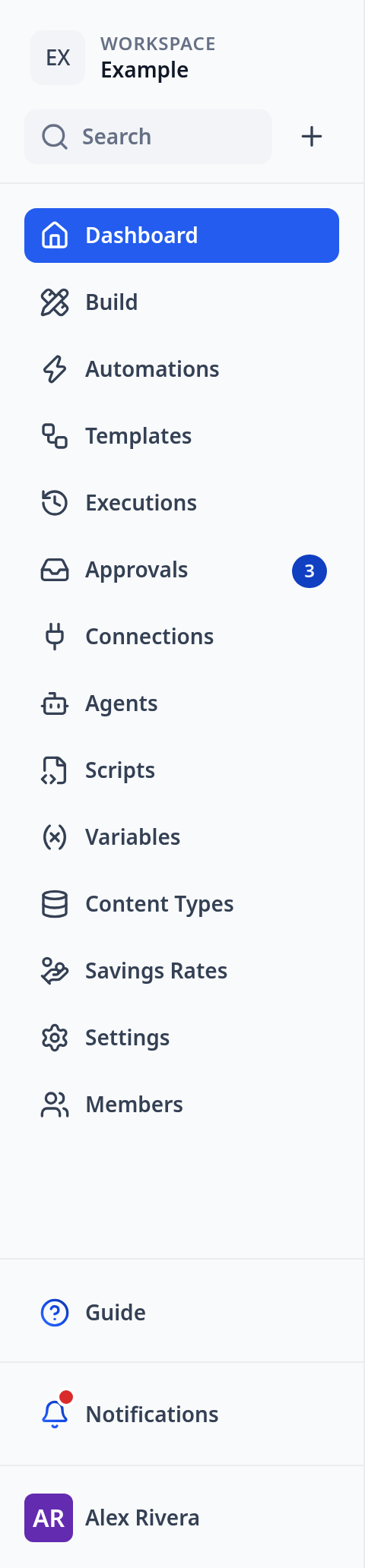
The pages appear in the navigation in this order. Pages a role cannot use are left out of its navigation: Settings and Savings Rates appear for an Admin or Owner, Members for an Owner, and Build for a Builder or above.
The workspace bar
A row at the top of the navigation names the workspace you are in. Click it to switch to another workspace you belong to; if you belong to only one, the row names it without a control. On small screens the switcher is in the CMS header instead.
The same row carries a search control, which opens the CMS's search scoped to your workspace, and, for a Builder, Admin or Owner, a + control for creating something new.
Where to start
If you have not built an automation yet, Getting started walks you through one end to end using only the Automations page and the flow editor.