Build
Only Builders, Admins and Owners see this page; see roles.
Esca is the AI assistant built into Esca Automations. The Build page is where you ask Esca to build an automation from a description, instead of starting from an empty canvas: describe what should happen in plain language, and Esca builds it for you in the flow editor.
What the page shows
The page is a single prompt card on the same dotted canvas the flow editor uses.
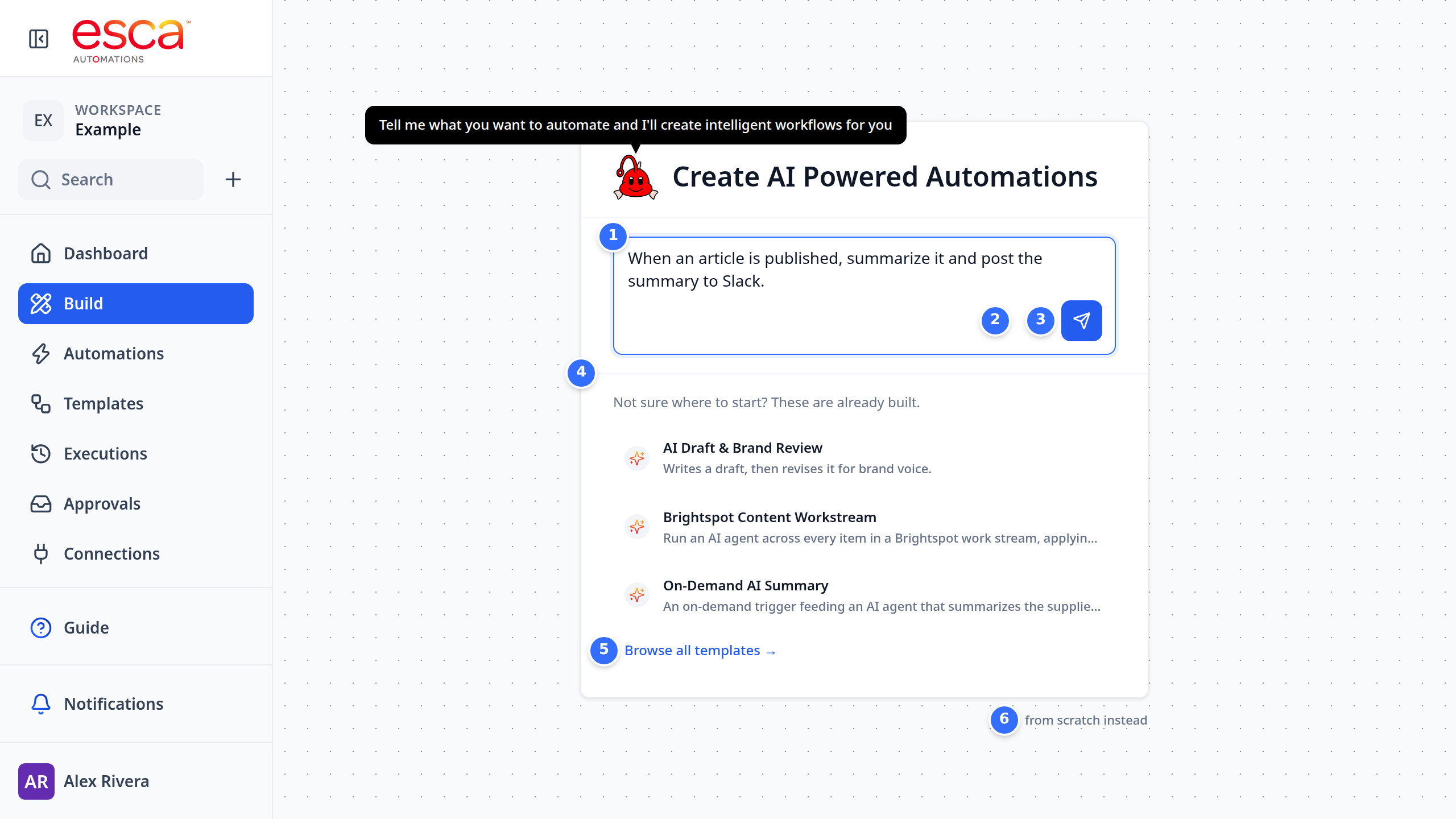
- Prompt box: describe the automation. Enter sends; Shift+Enter starts a new line.
- Microphone: dictate instead of typing, where your browser supports voice input.
- Send: opens the flow editor with your description.
- Suggested templates: up to three ready-built Workflow templates, each opening a read-only preview.
- Browse all templates: opens the Templates catalog.
- from scratch instead: opens the flow editor on a new, empty automation.
Building an automation
Describe what should happen in whatever detail you have, for example "When an article is published, summarize it and post the summary to Slack", and send it. The flow editor opens on a new automation with Esca's panel open and your description sent as the first message.
Esca works out the trigger, conditions and actions to match, adds them to the canvas as it goes, says what it is doing in the panel, and names the automation after what it does. Stop in the panel halts it; whatever is on the canvas stays. For a large automation, Esca may pause partway and ask you to say "continue".
When Esca finishes, keep going in the same conversation: ask for another step, a different channel, or a condition before the last action. Closing the panel keeps the conversation.
What you end up with
Nothing is saved until you click Save, the same as any other automation. Until then your work in progress is kept, so a reload brings the canvas back, and leaving with unsaved changes asks you to confirm.
A saved automation is a draft, turned off: review it, run it as a dry run, and publish it when it is ready.
Esca builds with the same steps you would, and changes only the automation on the canvas. It cannot change, publish or delete anything else in the CMS.
When building is unavailable
Esca runs on the workspace's Default Model. With no model configured, the page shows AI generation isn't available and offers Open Settings and Start from scratch. A role without access to Settings sees the same message pointing at an administrator. See How a model is chosen.
Related
- Building automations: the flow editor Esca builds in.
- Templates: the other way to start without an empty canvas.