Automations
The Automations page lists every automation. It is where you create one, find one, open it in the flow editor, and act on several at once: turning them on and off, archiving, exporting and importing.
The table
One row per automation, most recently changed first. The Name, Enabled and Updated headers sort the list, and the page remembers the order you choose.
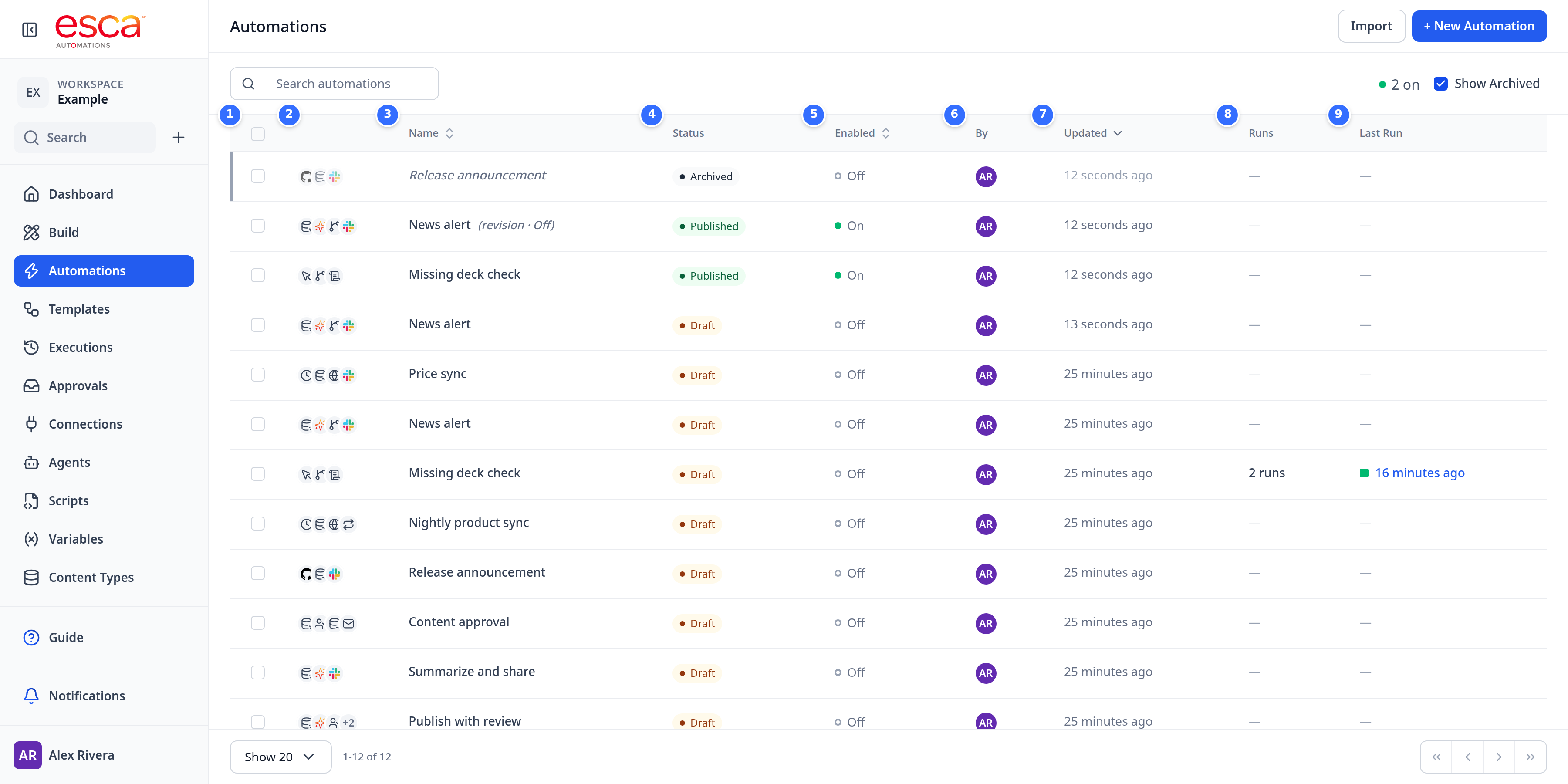
- Checkbox: selects the row for a bulk action. The preview icon beside it opens the automation's canvas read-only in a popup.
- Node icons: the node types the automation uses, the trigger first.
- Name: links into the flow editor. A triangle beside the name means the automation cannot run as drawn; hover over it for the reason.
- Status: Draft not yet published, runs only as a dry run. Published the live version. Archived cannot run. See Publishing and run modes.
- Enabled: On or Off, whether the automation's triggers may start it. Off, a person can still run it from the editor.
- By: who created it and who last changed it.
- Updated: when it was last changed.
- Runs: how many times it has run, linking to its run history.
- Last Run: the most recent run's status and when it ran, linking to the run. It pulses while a run is in progress.
The revision tag
A published automation with a revision in progress shows a small (revision · On) or (revision · Off) tag beside its name, linking to the revision, instead of a row of its own. The on or off named is the revision's, which can differ from the live automation's. Runs and Last Run are the history the two share; By and Updated are the live automation's own. Hover over the tag for when the revision was last edited and by whom. The tag carries its own triangle when the revision cannot run as drawn.
The platform operator can cap how many automations may be on at once and how many runs and steps may start in a day. A banner appears above the table once usage passes 80% of a cap, and the action that would exceed it is refused with an explanation. A Workspace Cap on AI spend, or the platform ceiling on what the workspace spends on this deployment's credentials, gets a banner once spend reaches it: a Warn cap's warning, or, for a Stop AI cap, that the AI it counts is stopped until the cap resets. See Limits.
Finding an automation
The controls above the table narrow the list, and the page's address reflects them, so a filtered view can be bookmarked or shared.
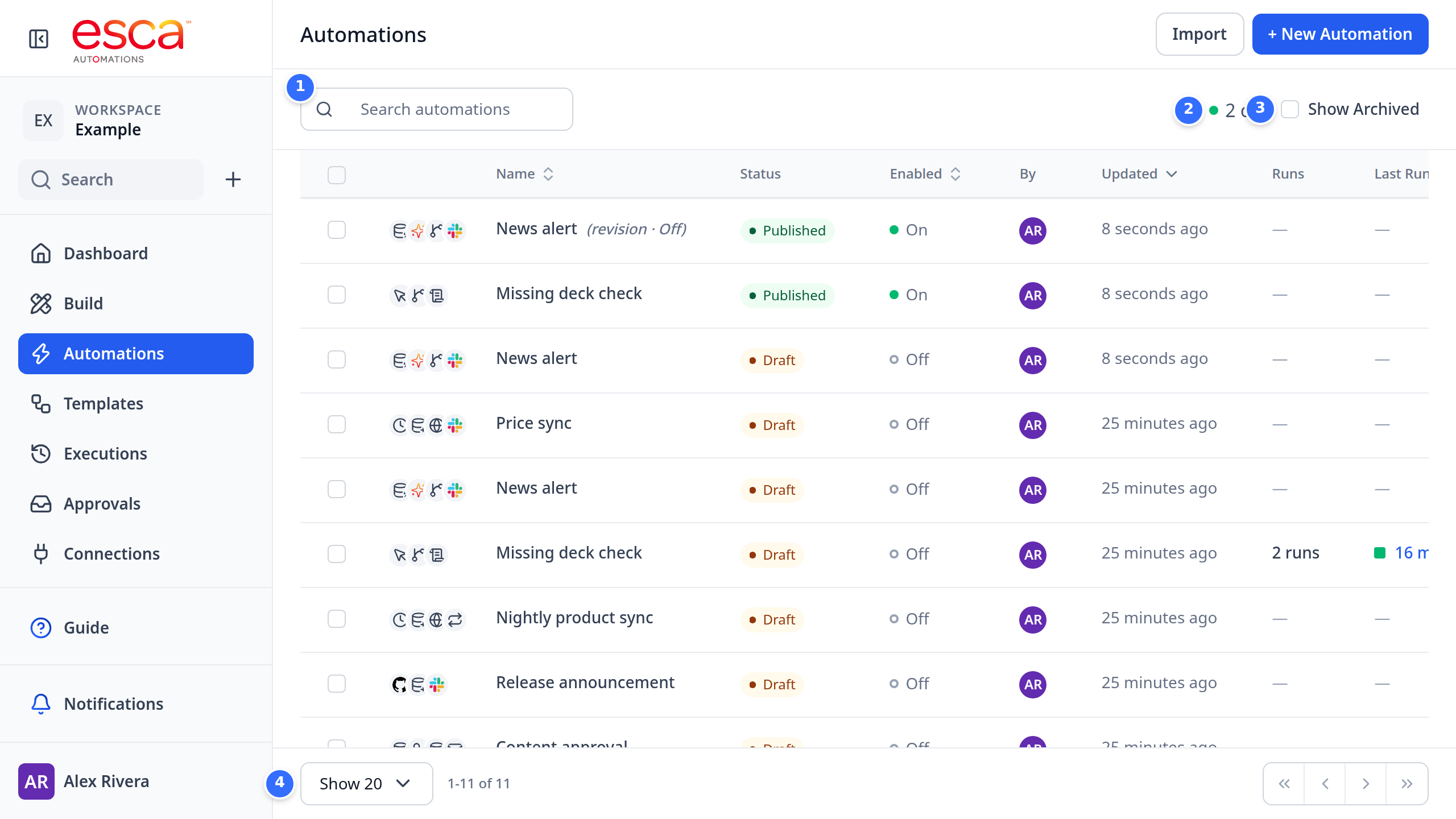
- Search automations: matches the name and description.
- On count: how many of the workspace's automations are on.
- Show Archived: includes archived automations. An archived row is muted and reads Off whatever its switch says.
- Page controls: move between pages, and show 10, 20 or 50 rows.
Creating and opening
- + New Automation opens the flow editor on a new, empty automation. Nothing is created until you save it, and what you save is a draft, turned off.
- Click a Name to open the automation in the editor. An archived one opens read-only.
- Click the preview icon beside a row's checkbox to see the automation's canvas without leaving the list; Open in editor in the popup takes you to the editor.
- Import brings in an automation exported from this or another workspace. See Importing.
For two other ways to start, see Build and Templates.
Duplicating, archiving, and exporting
The editor toolbar's more-options menu offers these for the open automation, and the bulk actions below offer most of them for several at once.
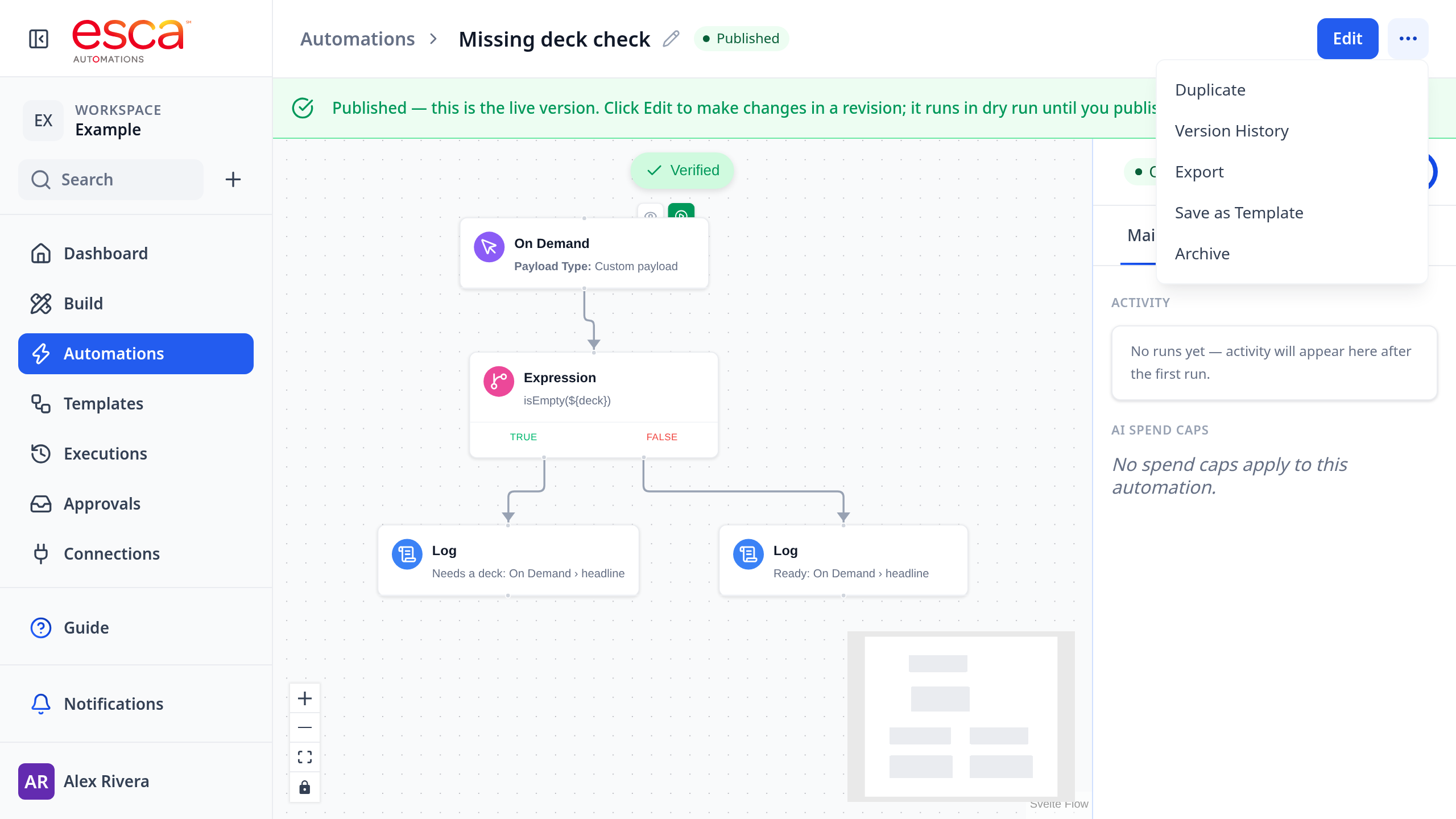
- Duplicate copies the automation: its nodes, variables, secrets with their values, test targets and settings. The copy is a new draft, turned off.
- Archive moves the automation to the archive. It stops running at once and opens read-only, with Restore in the same menu. Archiving a published automation archives its revision with it, and restoring brings both back.
- Export downloads the automation's definition as a JSON file; see Exporting.
- Save as Template adds the automation to the template catalog.
A revision's menu offers Discard revision instead; a revision is not duplicated, exported, archived or saved as a template on its own.
Acting on several at once
Select one or more rows and a bar of bulk actions appears above the table. Each action is offered only when it would change something in the selection, with a badge counting the rows it affects.
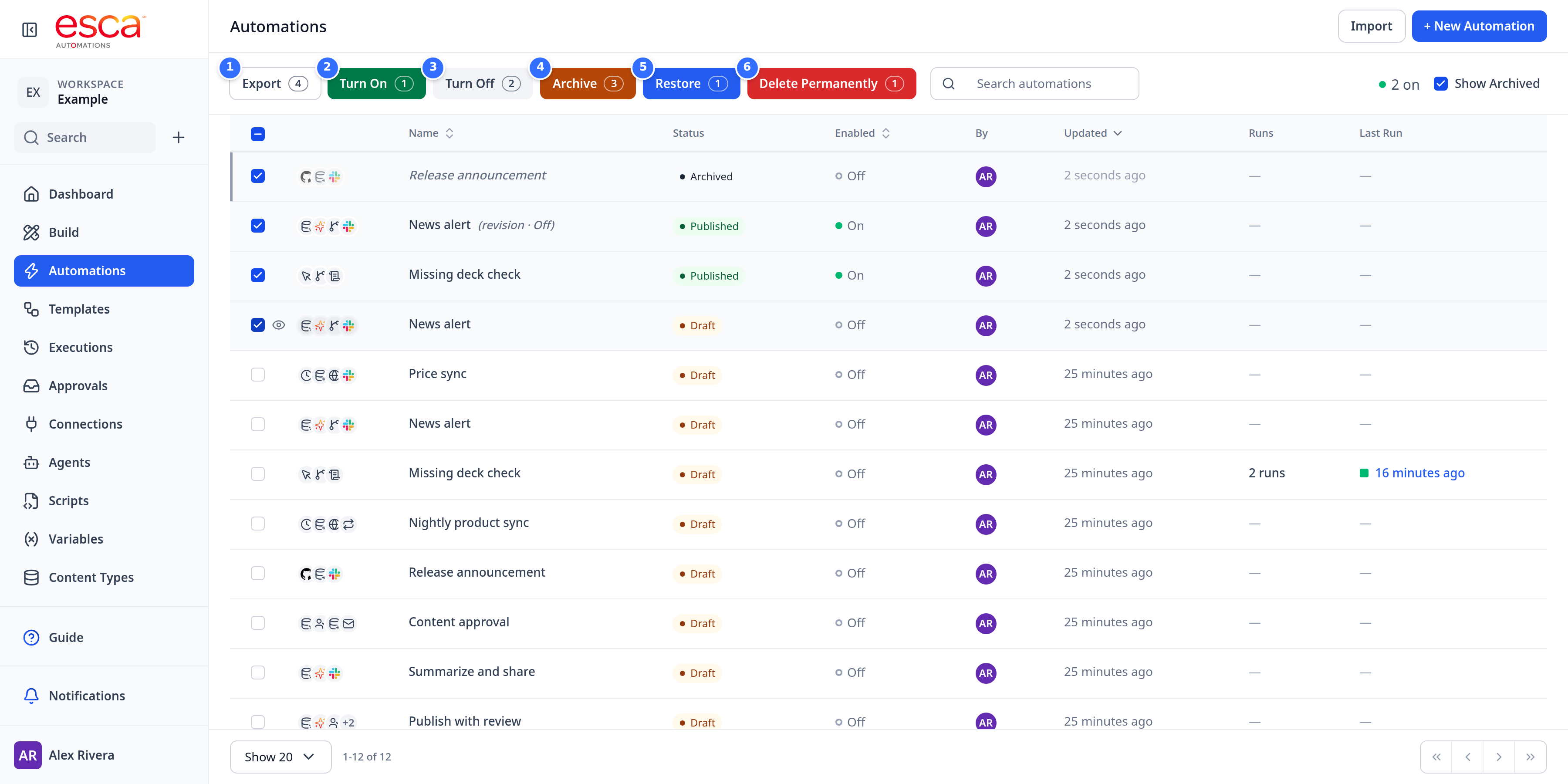
- Export: downloads the selected automations as one file.
- Turn On: lets the selected automations' triggers start them. If the cap on automations that are on is reached, the message says how many could not be turned on.
- Turn Off: stops their triggers starting them.
- Archive: moves them to the archive. An archived automation stops running immediately.
- Restore: brings archived automations back.
- Delete Permanently: deletes archived automations for good.
Deletion cannot be undone, and only an archived automation can be deleted, so it always takes two steps: archive, then delete. The automation's past runs stay on the Executions page under the last name it had, until retention archives them.
A message above the table reports what each action changed, and anything it could not change and why.
Exporting
An export is a portable definition of an automation: its nodes, edges, notes, variables, settings, and the names of its secrets. Secret values are never included. Connections are named, not copied, so an automation imported elsewhere asks to be reconnected.
- One automation: select its row and click Export, or use Export in the editor's more-options menu. The file is named after the automation.
- Several together: select the rows and click Export. They come down as one file named for the date, and automations that call one another are rewired to each other's imported copies. Exporting the same set twice produces the same file, so exports are safe to keep under version control.
Importing
Import accepts one automation or several, as a file or pasted JSON. Each is brought in as a new draft, turned off.
To import an automation:
- Click Import.
- Upload the exported file, or paste its contents, and submit.
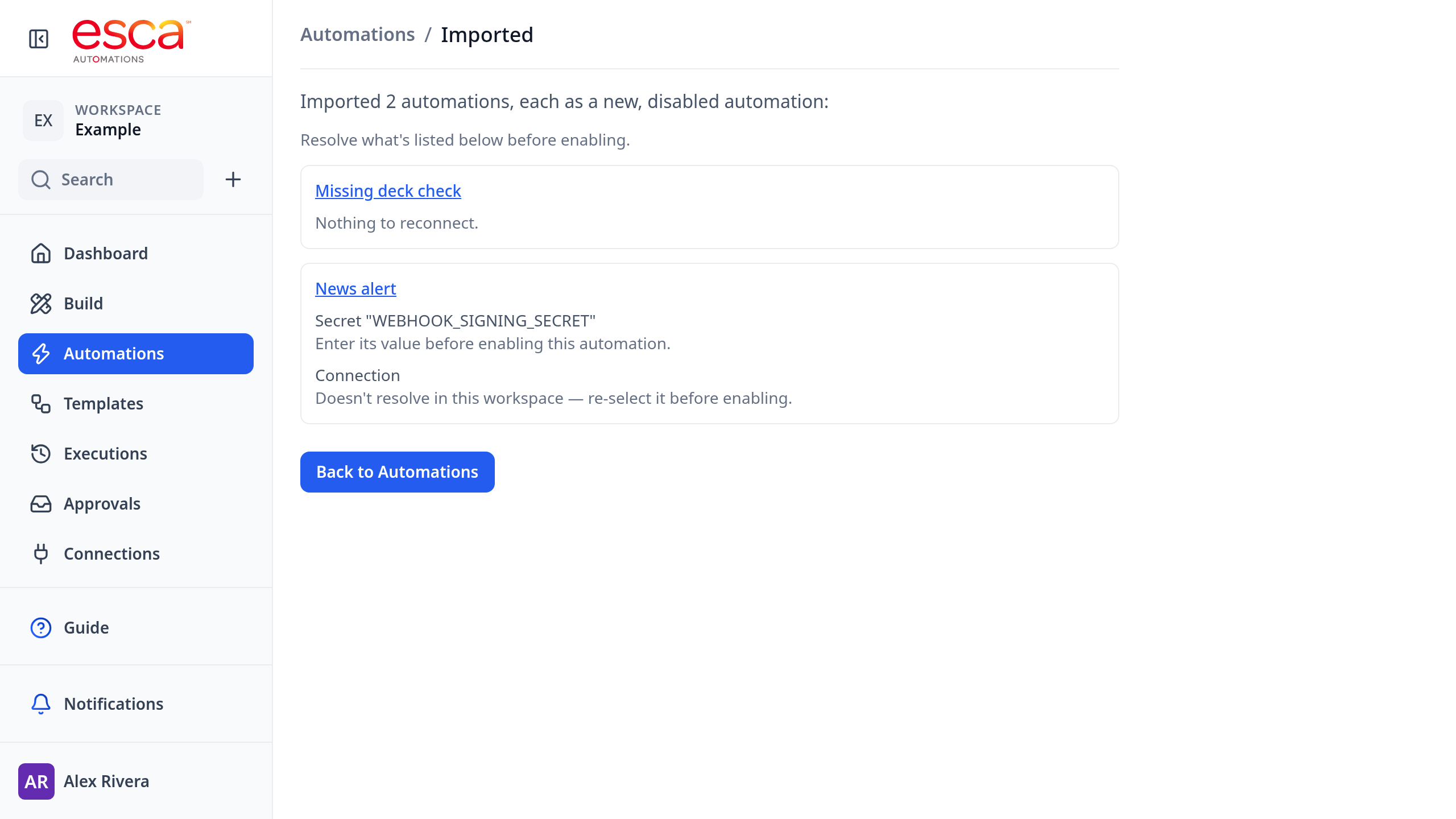
- On the summary page, open each automation's card to see what needs attention before it can run: secrets to re-enter, and connections or references that do not resolve in this workspace.
- Click Open Automation to finish it in the editor. A set of automations goes back to the list instead, where each is a draft to open.
Automations imported together that call one another still resolve to each other's copies.
Related
- Building automations: the flow editor you land in from here.
- Publishing and run modes: what Draft, Published and Revision mean.
- Version history: the record of every save, on the automation itself.