Templates
The Templates page is the catalog of starter automations: the ones that ship with Esca Automations, and the ones your team saves from its own automations. Pick one and the flow editor opens with its steps already on the canvas, so you begin from something that works.
Choosing a kind
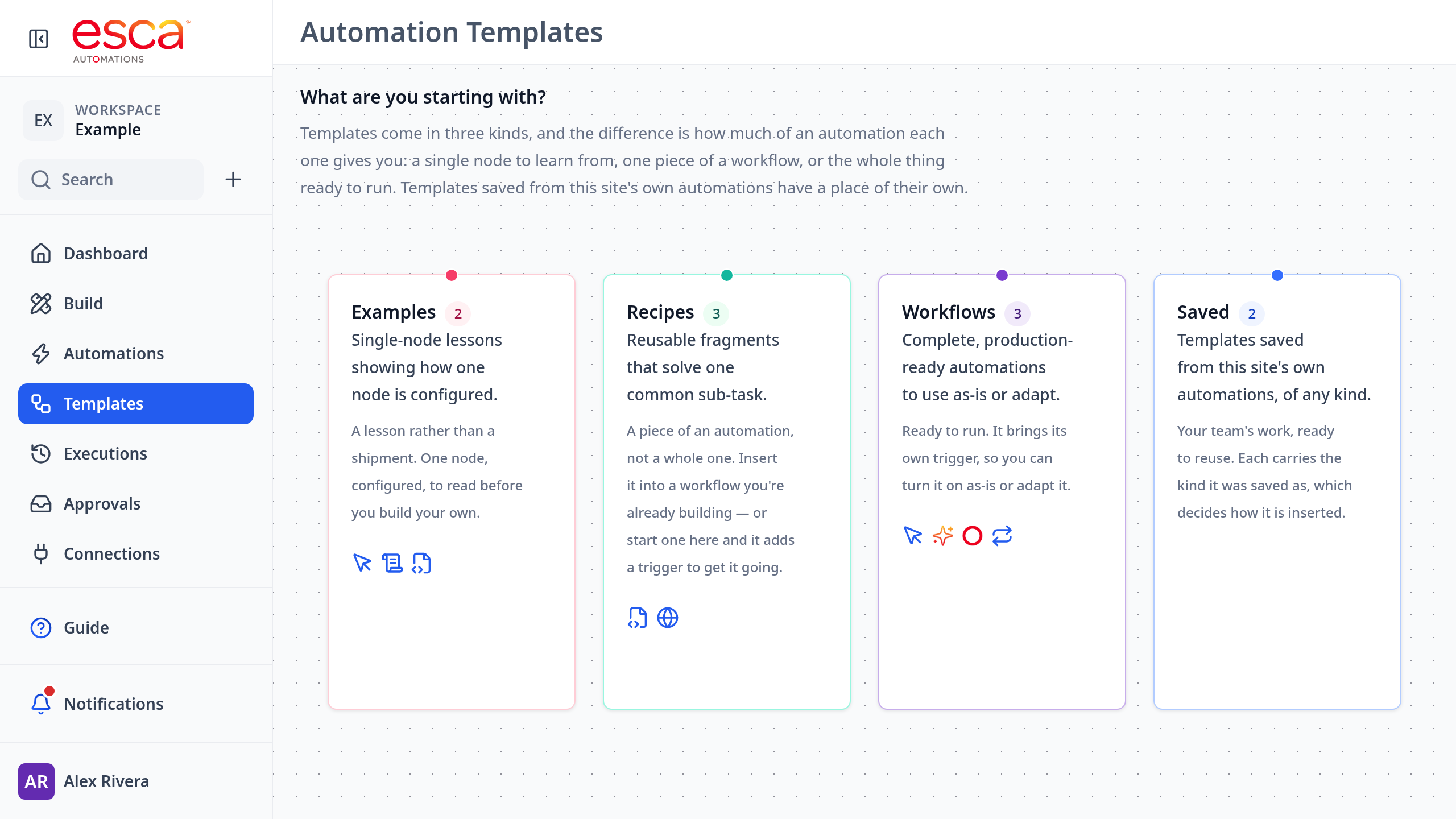
The catalog is split into four kinds; pick one to browse it. The difference between them is how much of an automation each gives you.
| Kind | What you get | Use it when |
|---|---|---|
| Examples | One node, configured. | You want to see how a node is set up before building your own. |
| Recipes | A few steps that solve one common task. | You want to insert them into an automation you are building, or start one from them (a trigger is added for you). |
| Workflows | A complete automation with its own trigger. | You want something ready to run as it is, or to adapt. |
| Saved | Templates saved from this workspace's automations, of any kind. | You want your team's own work to start from. |
Inside a kind, the kinds become a tab strip so you can move between them, and ← All kinds returns to the chooser. Each kind has its own address, so a link into one can be shared.
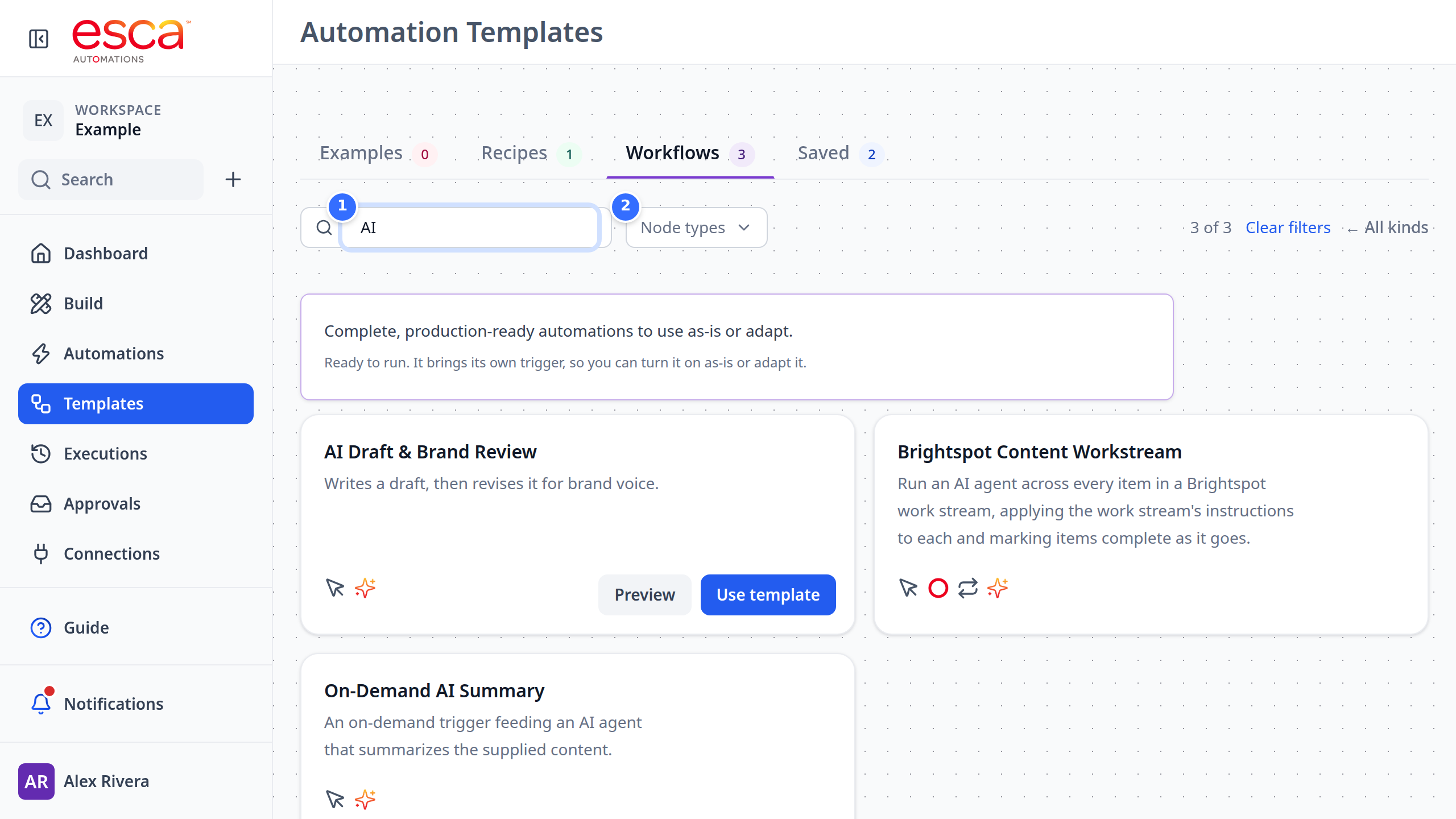
- Search: matches a template's name, description, tags and the names of the node types it uses.
- Node types: narrows to templates using any of the types you check.
The count beside them says how many templates match, and Clear filters resets both. Preview on a card opens the template's flow read-only; Use template opens the flow editor with its steps, as an unsaved automation. A saved template's card also has Edit, where its name, description, kind and tags are corrected and where it is deleted.
Templates that ship with the product
| Template | Kind | What it does |
|---|---|---|
| On-Demand AI Summary | Workflow | An On Demand trigger feeding an AI agent that summarizes the content you give it. |
| AI Draft & Brand Review | Workflow | Writes a draft, then revises it for brand voice. |
| Brightspot Content Workstream | Workflow | Runs an AI agent over every item in a Brightspot work stream, following the work stream's instructions and marking each item complete. |
| Extract a Field from Each Item | Recipe | Pulls one field out of every item in a list, such as every article's title. |
| Collect Array Values into One | Recipe | Combines a list into one value, such as adding up its numbers. |
| Twilio: Send a Text Message | Recipe | Sends a text message through Twilio, reading your account details from shared variables and secrets. |
| Log: Write a Message | Example | Writes a message to the run log. Ready to run with no setup, so it is the quickest way to see a run happen. |
| Script: input & payload | Example | Shows how a Script step reads its payload and input mappings, and how its last expression becomes its output. |
Templates you save
Any saved automation can become a template of your own.
To save an automation as a template:
- Save the automation. Save as Template is grayed out while the canvas has unsaved changes.
- In the editor toolbar, click the more-options menu, then Save as Template.
- Give it a name, unique in this workspace, and a description. Both start as the automation's own.
- Choose the kind, Workflow, Recipe or Example, and add tags. The tag field offers the tags already in use, so a topic keeps its spelling.
- Click Save.
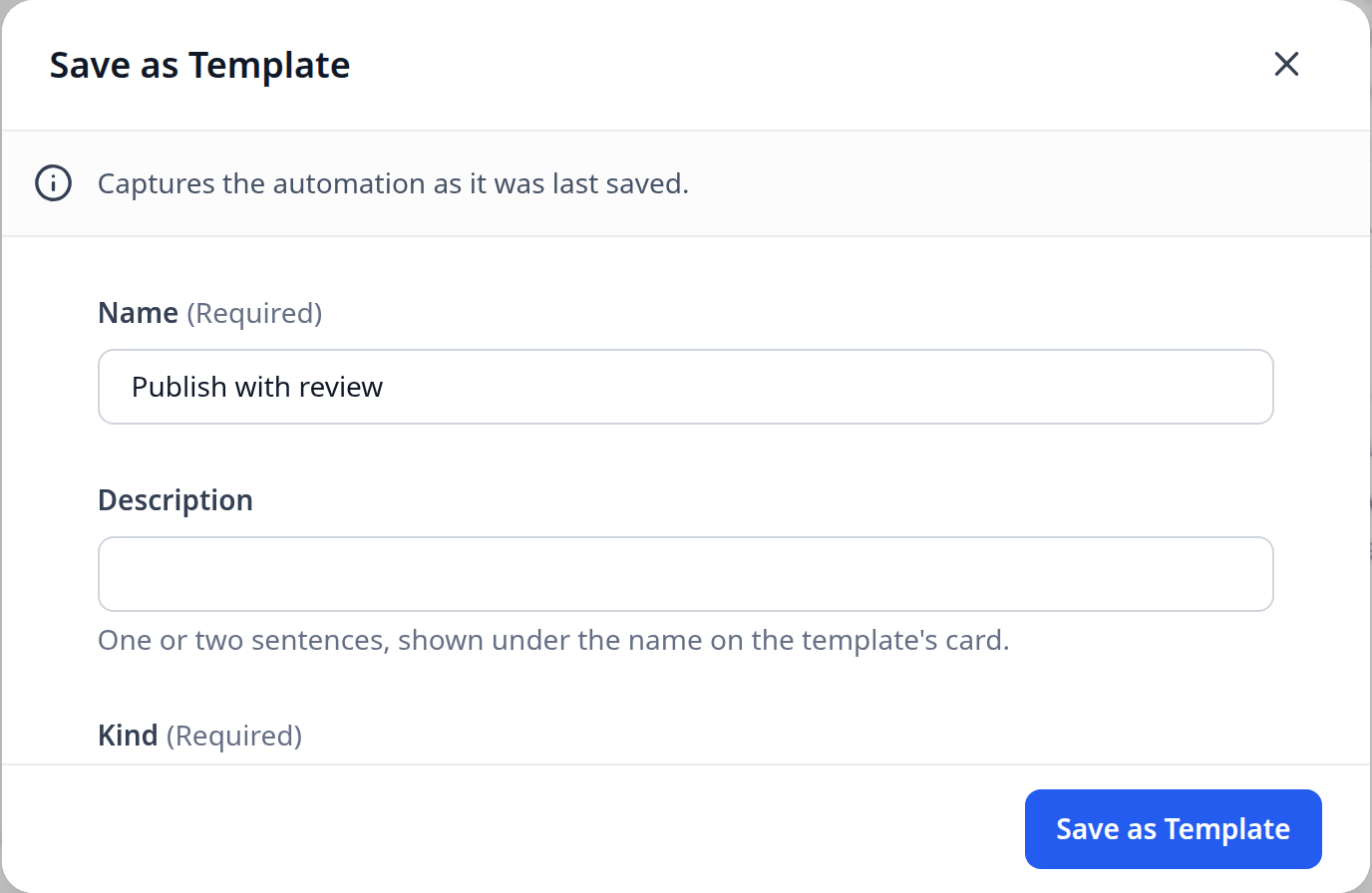
The template appears under Saved, newest first, with a badge naming its kind. It captures the automation as it was last saved: nodes, edges, notes, variables, secrets by name, and settings. Connections are kept, so a template used in the workspace that saved it arrives connected. Deleting a template leaves every automation made from it untouched. The Template reference describes the form's fields.
Templates never include secret values. An automation started from a template names the secrets it needs with no values behind them, and a Needs attention notice on the canvas lists each one until it is filled in from Edit settings.
A recipe is inserted into an automation at one point, so save one from an automation with a single path in and a single path out. When a saved recipe is inserted from an edge's + menu, the trigger it was saved with is left behind; Use template on it starts a new automation and brings the trigger along.
Using a recipe without leaving the editor
Click + on an edge and choose Recipe…. The picker shows the recipes, with tag pills to filter them, and inserts the one you choose at that point in the flow. A recipe that declares variables or secrets adds them to the automation's settings with no values, unless the automation already has one by that name; the Needs attention notice lists each until you fill it in, and Save commits them with the inserted steps.
Related
- Adding nodes: the edge's + menu the recipe picker opens from.
- Build: the other way to start without an empty canvas.
- Automations: where an automation made from a template shows up.