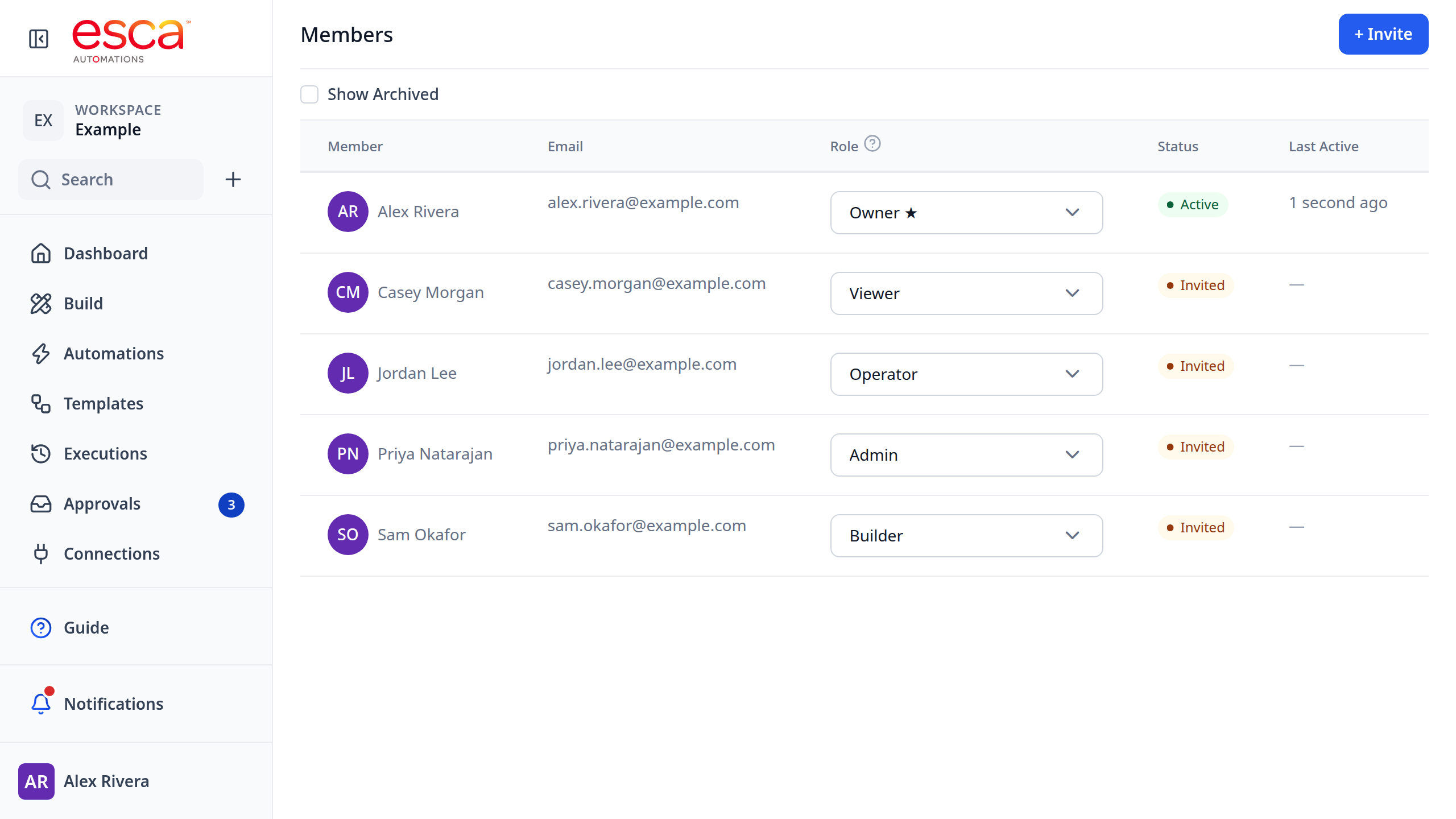
Members
Only Owners see this page; see roles.
Who is in your workspace and what each person may do there.
Roles
Every member holds one of five roles. Each role holds everything the one before it holds plus one more thing, so choosing a role is one question: how much should this person be able to change? Owner carries a ★ wherever it appears.
| Viewer | Operator | Builder | Admin | Owner ★ | |
|---|---|---|---|---|---|
| See automations, runs, logs, approvals, templates, agents, scripts, connections, variables and content types | ✓ | ✓ | ✓ | ✓ | ✓ |
| Run automations, stop runs, turn automations on and off, answer approvals (Run, Turn On / Off, Approve) | ✓ | ✓ | ✓ | ✓ | |
| Create and change automations, agents, scripts, content types, variables, secrets and templates; use Build (Build) | ✓ | ✓ | ✓ | ||
| Manage connections, MCP servers, settings and savings rates (Configure) | ✓ | ✓ | |||
| Invite people, change roles, archive and reinstate members (Manage Members) | ✓ |
The names in bold are the capabilities other pages refer to. A role applies to one workspace: someone can be an Owner in one and a Viewer in another. Settings and Savings Rates appear in the navigation only for an Admin or Owner, Members only for an Owner.
Secret values are never shown to anyone, whatever their role. Connections show their status to every role, but only an Admin or Owner can connect, disconnect or change one. In the CMS's own pages, a Viewer reads the workspace's records and every other role can also create, change, archive and delete them.
Inviting someone
To invite someone:
- Click + Invite.
- Enter the person's email address and, optionally, their name.
- Choose a role.
- Click Invite.
What the person receives depends on how the deployment signs people in:
- Identity provider
- Password
The invitation email tells them to sign in with that email at the provider. No password is set here.
The email carries a single-use link to set a password. If no mail sender is configured, the page shows you the link to pass on instead.
Someone who already belongs to another workspace on the same deployment is added to yours without a second account.
Access requests (for system administrators)
Where people sign in through an identity provider, someone who signs in without having been invited gets no account. Their sign-in is recorded as an access request and they see a message saying so. Requests are handled by the deployment's system administrators, who are emailed when one arrives and see the request at the top of the Members page of every workspace, oldest first. Owners do not see requests: they invite the people they want, and someone who needs a workspace asks its Owner.
For each request an administrator can Add to this workspace with a role, create a workspace of the person's own with them as its Owner, or Decline. A declined email stays declined. Where people sign in with a password there are no access requests.
The table
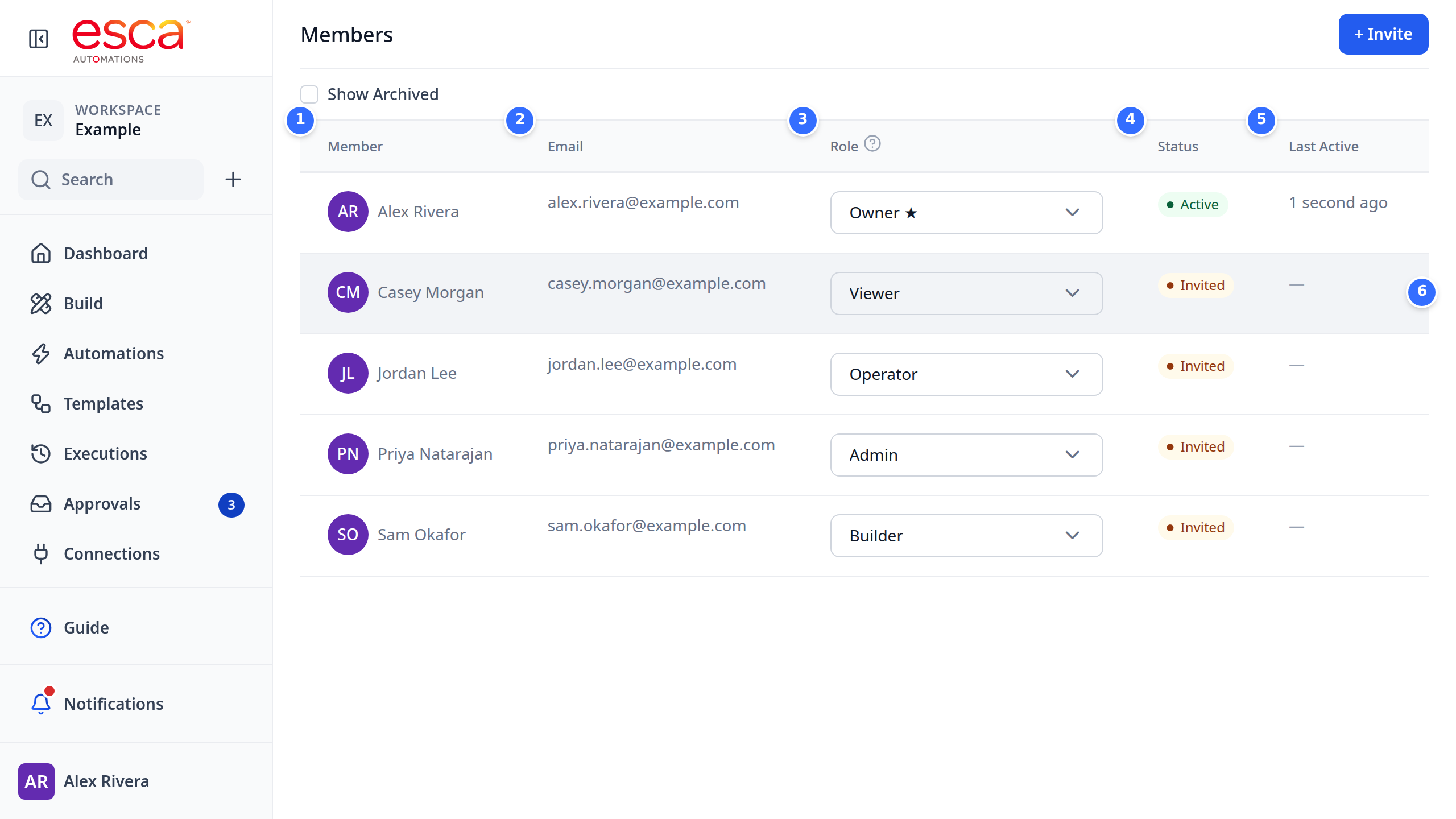
- Member: avatar and name, taken from the email until the person first signs in.
- Email: the address they sign in with.
- Role: a select; changing it takes effect at once.
- Status: Invited until the first sign-in, then Active, or Archived once access is removed.
- Last Active: when they last signed in.
- Resend Invite while someone is Invited; Archive removes their access to this workspace; Reinstate gives it back with the role they had.
Show Archived lists former members alongside current ones.
What you cannot do
The last Owner cannot be demoted or archived. Make someone else an Owner first.
- Delete a person. Archiving removes access to this workspace and nothing else. The person keeps their other workspaces, and their name stays on the history of what they did here.
- Manage a system administrator. The people who run the deployment have access to every workspace and never appear in this list.
Related
- Settings: the workspace-wide settings an Admin manages.
- Connections: what an Admin connects for the workspace.