Results and MCP tools
Some automations exist to look something up or produce something for whoever started them: a summary, a list of matching articles, a yes or a no. A Result is how an automation hands that answer back. Whoever waited on the run reads it when the run completes: an Automation step with Wait For Completion on, an Automation Completed trigger, or an AI assistant that ran the automation as a tool.
That last caller is what the second half of this page is about. Each workspace has an MCP server, and an automation can be offered on it as a tool, so AI assistants such as Claude or ChatGPT can run your automations as part of what they do for someone.
The Result
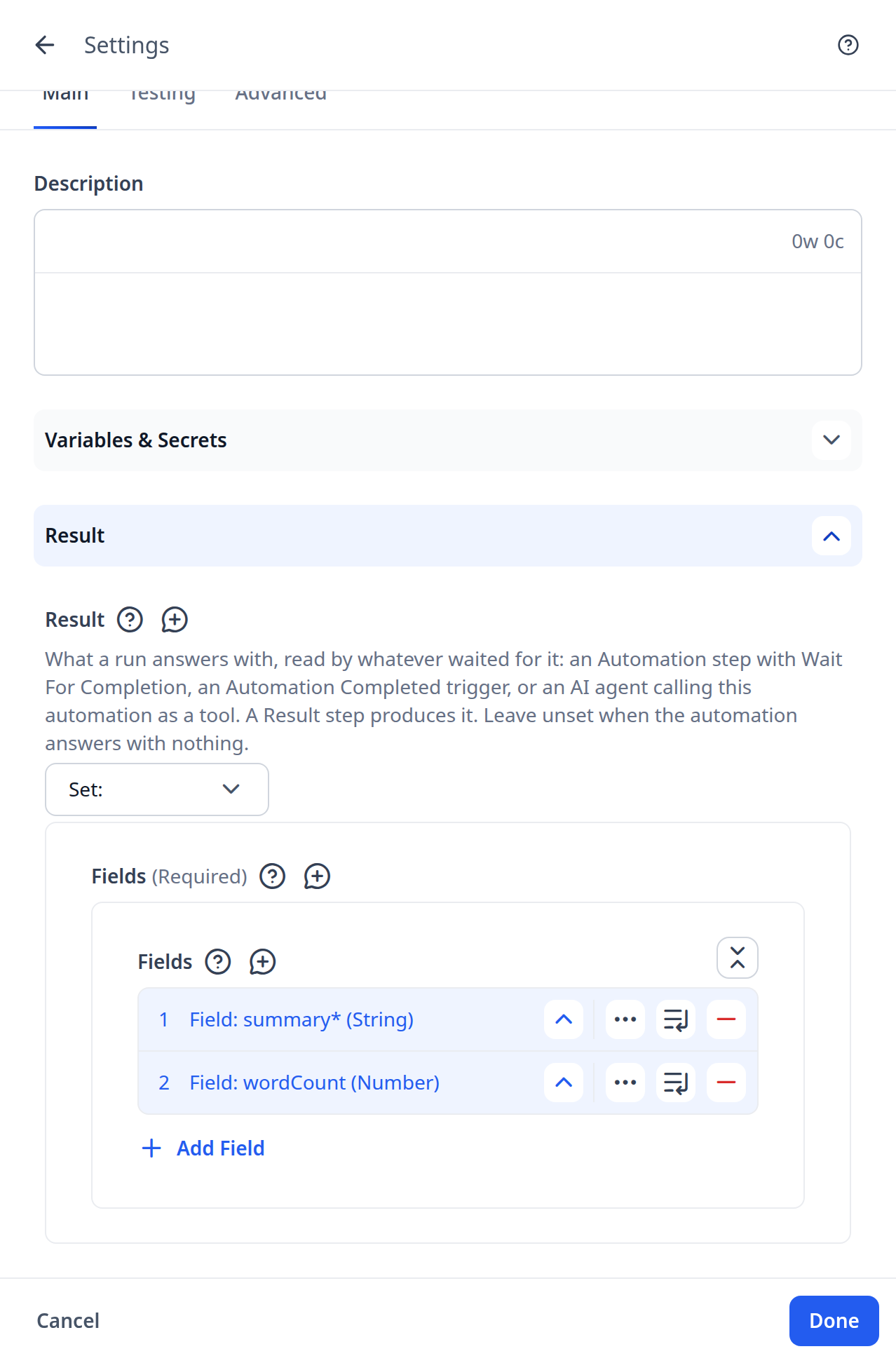
The Result is declared once, in the automation's settings pane, as a Custom Shape: named, typed fields, each with an optional description. Every Result step in the automation fills in the same fields, however many steps there are, so callers always get the same kind of answer. An automation with no Result declared answers with nothing; its runs still complete, and callers still learn that they did.
Result steps
A Result step captures the answer where it is known. Its Value is a variable holding an object an earlier step built, or an object built in the step field by field, and it has to match the declared Result: the step's form lists the Result's fields and warns while a required one is missing, and the step fails at run time if the value doesn't fit.
A run keeps one answer. The first Result step to complete gives it, and any other that runs afterwards fails, naming the one that answered. That decides where a Result step can go:
- A condition's branches may each hold a Result, because only one side runs.
- Branches that both run must join before a single Result, or whichever finishes second fails.
- A loop must not hold a Result; it would answer on the first pass and fail on the next. Collect what each pass produced with the Loop End and put the Result after it.
Where the step sits decides when the value is captured, not when it is delivered. The steps after it still have to succeed before anyone reads the answer, and a step that pauses for a person holds it until they act. The editor's validation indicator reads Warnings for a Result placed where it would fail, and for an automation that holds a Result step but declares no Result; the automation still saves and runs.
Offering an automation to AI assistants
Before any of this works, an Admin or Owner turns on Allow AI Agents to Connect on the Settings page's MCP Server tab. Until then every assistant is refused.
An automation whose trigger is an On Demand trigger at the top of the flow can be offered as a tool.
To offer an automation as a tool:
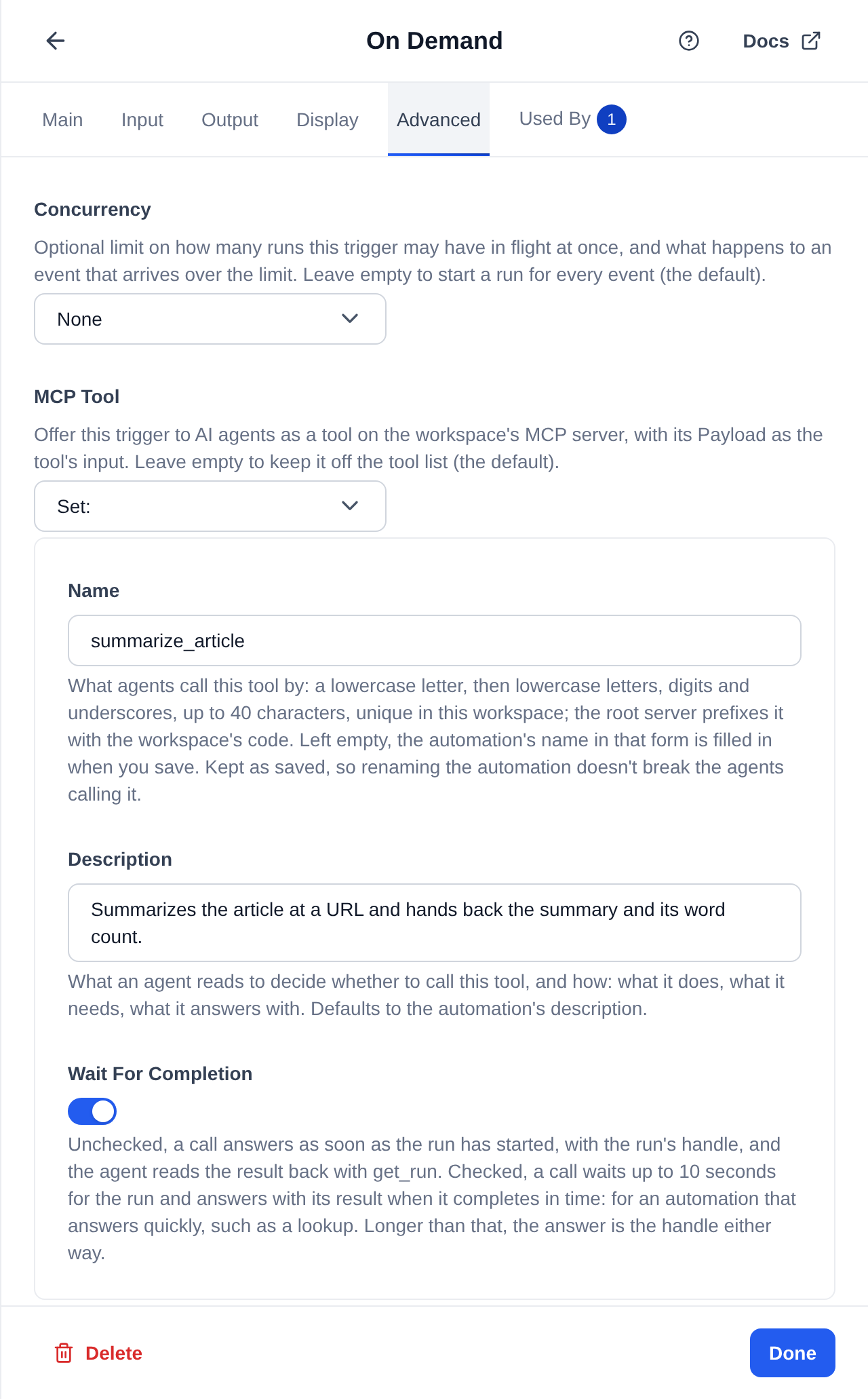
- Open the On Demand trigger's form and switch to the Advanced tab.
- Add an MCP Tool.
- Give it a Name: a lowercase letter, then lowercase letters, digits and underscores, up to 40 characters, unique in the workspace. Left empty, it is filled in from the automation's name when you save. The name is kept, so renaming the automation later doesn't break the assistants already calling the tool.
- Give it a Description, which is what an assistant reads to decide whether to call the tool and how. It defaults to the automation's description.
- Turn on Wait For Completion for an automation that answers quickly, such as a lookup: a call then waits up to 10 seconds for the run and answers with its result. Off, a call answers as soon as the run has started, and the assistant checks back for the result.
- Click Done, save, and publish the automation.
Only a published automation that is turned on is offered. A draft isn't, even turned on; neither is an automation that is off or archived, and a revision is never offered, since the live automation is the tool. The tool's inputs are the trigger's Custom Shape payload fields; a trigger whose payload is a Content Type, or whose shape holds a File field, can't be offered, because an assistant has nothing to send for it. A trigger in the middle of a flow is never a tool either.
Deleting an offered trigger, or switching it to another type, asks for confirmation, and the trigger's Used By tab names the tool.
What an assistant can do
An assistant connects to the workspace's MCP server with one of two purposes, chosen on the Settings page's MCP Server tab along with how to add it to Claude, ChatGPT, Claude Code or Gemini. In Run mode it sees your offered automations as tools: it can start a run, check on it, read its result, and relay a person's answer to an approval or an agent's question. In Build mode it can build, check, test and publish automations, within the same permissions the person has in the editor; every test is a dry run, and a building assistant can never run an automation for real.
An assistant signs in as a person and can never do more than that person could in the tool. Secrets are set by a person in the tool, never through an assistant, so a secret's value never sits in a chat transcript.
The server's addresses, every tool it offers and what each answers with are in the MCP server reference.