On Demand
Starts the automation when a person runs it, when another automation calls it as a step, or when an AI assistant calls it as a tool. Reach for it for anything you kick off yourself, and for a reusable sub-automation that other automations invoke through the Automation action.
Fields
| Field | Description |
|---|---|
| Payload | Optional input the run starts with. Content Type takes the fields of an existing content type; Custom Shape lets you define the fields here, each with a name, a type and whether it is required. Leave it unset, shown as None, to start with no input. |
| MCP Tool | On the Advanced tab. Offers this trigger to AI assistants as a tool on the workspace's MCP server, with the payload as the tool's input. Leave it empty to keep the automation off the tool list. See Offering it to AI assistants. |
What later steps see
With a payload set, the trigger's output is that payload's fields, filled in for each run. With none, the trigger produces no output.
A file uploaded on the run form reaches later steps as a file, with its storage, path, content type and public URL, shown in the variable picker with its file name. The file belongs to the run that uploaded it and is deleted when that run is archived; a new run started from a past run's values gets its own copy. A file given by URL instead is read from that URL when the steps run and belongs to no run.
Running one by hand
The run button is on the trigger's card, and in the card's actions menu. A published automation offers Run Automation and Run as Dry Run; a draft or revision offers Run as Dry Run alone, since those only ever run as dry runs. The button works whether the automation is turned on or off, and acts on the saved automation: with unsaved changes on the canvas it offers to save first.
A trigger with no payload fires at once. One with a payload opens a short form first, above a row of Recent runs pills: New plus up to five past runs with distinct inputs, each labelled with its run number and how long ago it ran. Click one to prefill the form with that run's values.
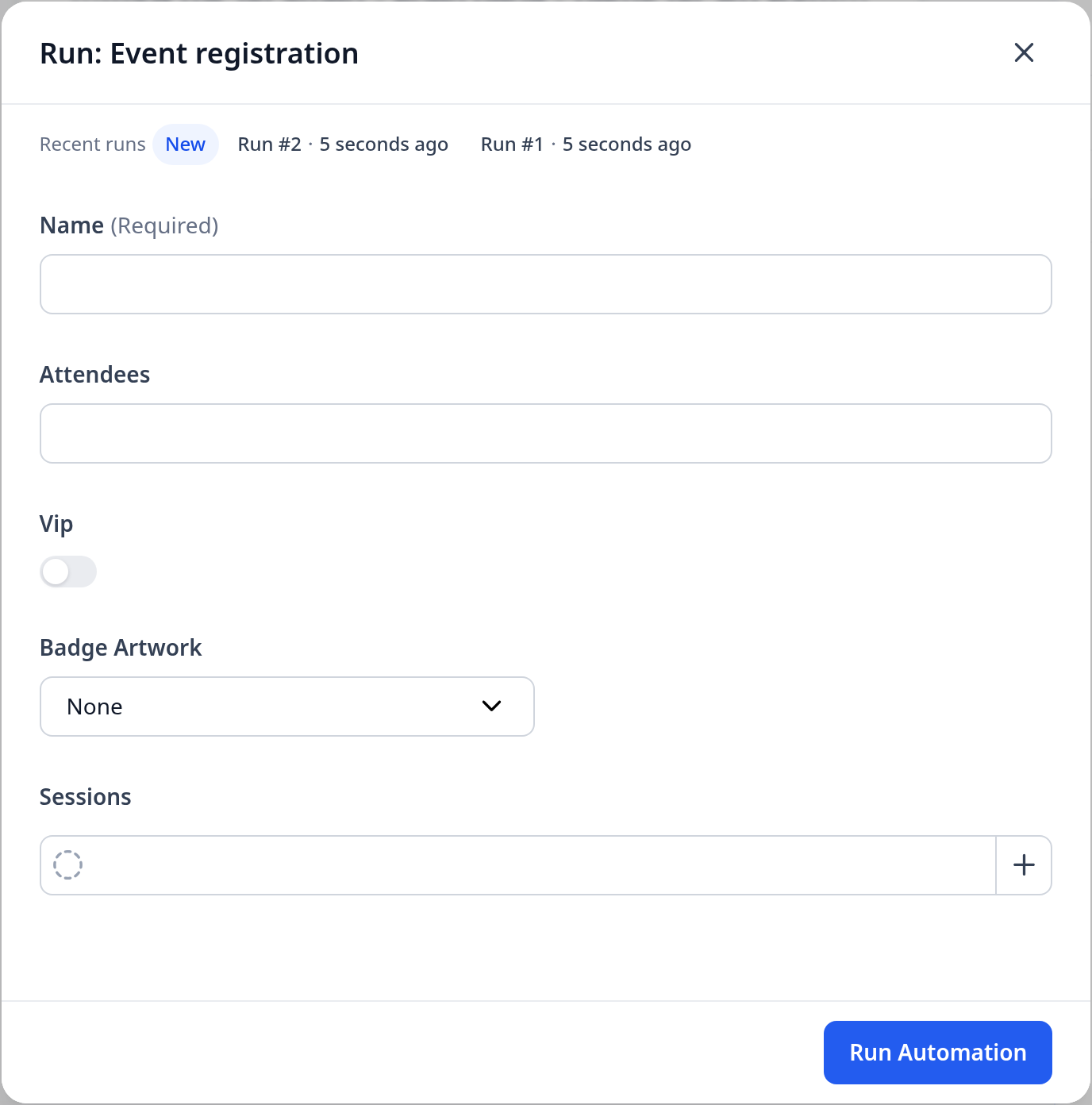
A published automation that is turned on can also be run from the Dashboard without opening it. Its card opens the same form, or asks you to confirm when the trigger has no payload.
In the middle of a flow
An On Demand trigger can also be placed partway through a flow, after other steps. There it starts nothing. When the run reaches it, the run pauses and waits for a person.
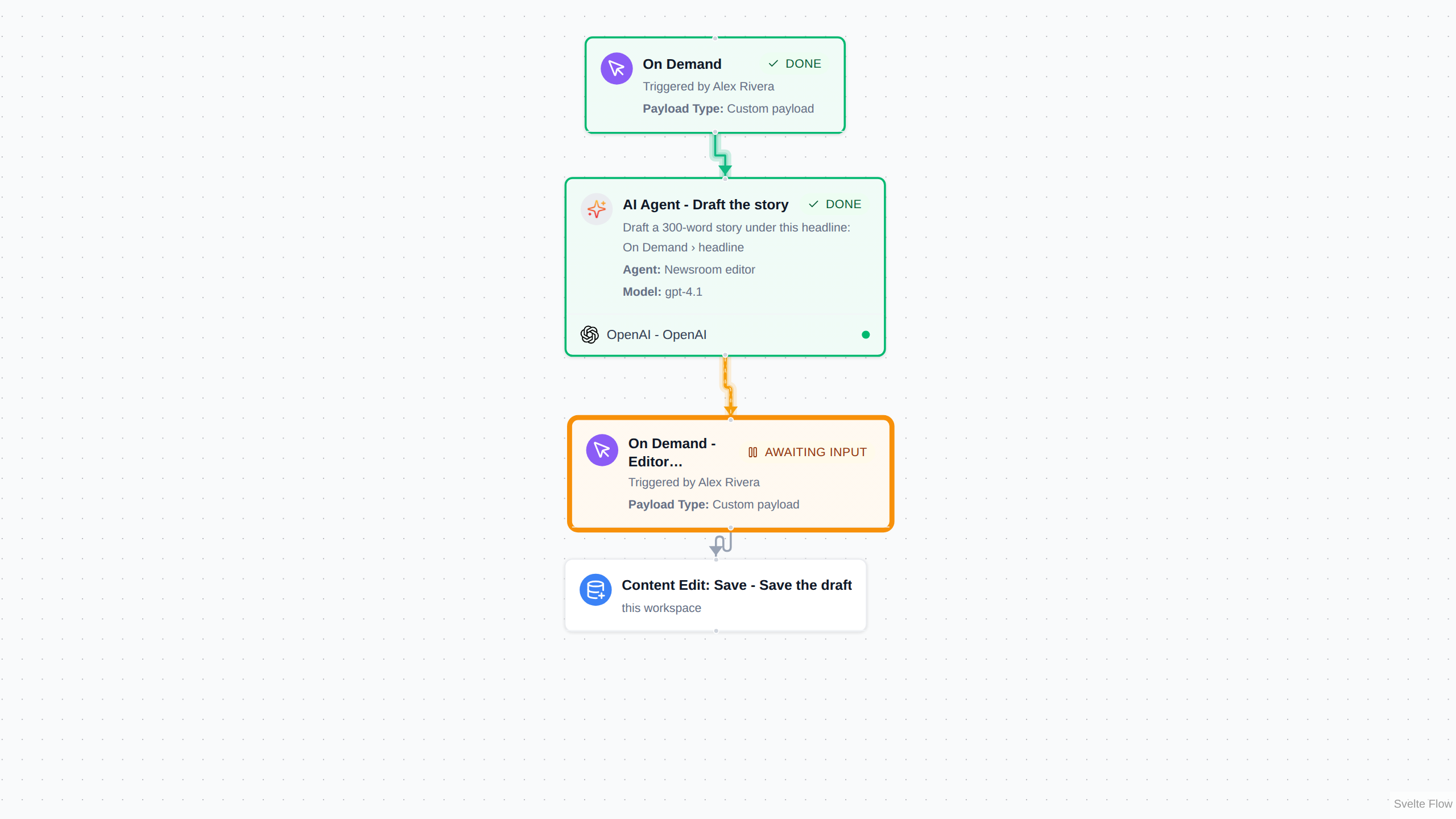
While it waits, the trigger's card offers Resume, which opens the payload form, or simply confirms when there is none, and lets the run continue. The waiting step is also listed on the Approvals page, where Respond opens the same form, and it notifies the same people an approval does. Anyone with the Approve capability, Operator and above, can resume it; see Roles. It is never sent to Slack or Teams, an AI assistant can't answer it, and the wait ends at the Awaiting Input Timeout like any other pause; see How a step pauses.
On resume, the trigger's output is the form's answers, or, when it has no payload, the output of the step before it. A mid-flow trigger has no run button and is never offered as a tool.
Running from a content edit page
A Content trigger set to its On Demand event puts a button on the edit page of matching content, so editors can run an automation without opening the editor. See Running from a content edit page.
Offering it to AI assistants
An On Demand trigger at the start of a flow can be offered to AI assistants as a tool on the workspace's MCP server, through the MCP Tool field on its Advanced tab. For the whole setup, what the assistant sends and gets back, and the rule that only a published, turned-on automation is offered, see Offering an automation to AI assistants.
Seeing what calls it
Another automation can start this one through an Automation action targeting it. When something does, the trigger's Used By tab lists each calling automation, its state, which of its steps fire this trigger and whether that step waits for the run to finish, and when it last called the trigger, linked to that run, with its call count over the last 30 days. A trigger offered as a tool names the tool there too. A trigger nothing calls says so.
Removing a trigger something still calls, or that is offered as a tool, or switching it to a different trigger type, asks for confirmation first.