Schedule
Starts the automation on a recurring schedule: nightly, hourly, on the first of the month. Reach for it when the work is driven by the clock rather than by an event, such as a nightly check for articles whose embargo has lifted, a Monday morning digest, or a weekly sweep for drafts nobody has touched.
Fields
| Field | Description |
|---|---|
| Payload | Optional input delivered with every run. A schedule has no person present when it fires, so the data is filled in here. Content Type delivers an existing record of a content type; Custom JSON is an object you write yourself. Leave it unset for no input. |
| Schedule | When the automation runs, written with the Schedule Builder or as a Cron Expression; see Writing the schedule. Either way the form shows the schedule back to you in plain English. |
| Time Zone | The zone the schedule's times are read in. Set it to the zone the automation serves: 5:00 PM means 5:00 PM there, whatever clock the server keeps. Left unset, the schedule is read in the server's own zone, UTC on most deployments. The note under the field names the zone in use and the next run. |
A Custom JSON payload with a _trigger field
_trigger is the name the trigger uses for its own data, so a top-level _trigger field in a Custom JSON payload shows a warning: the trigger's entries are written over any of the same name inside it. Give the field another name.
Writing the schedule
- Schedule Builder
- Cron Expression
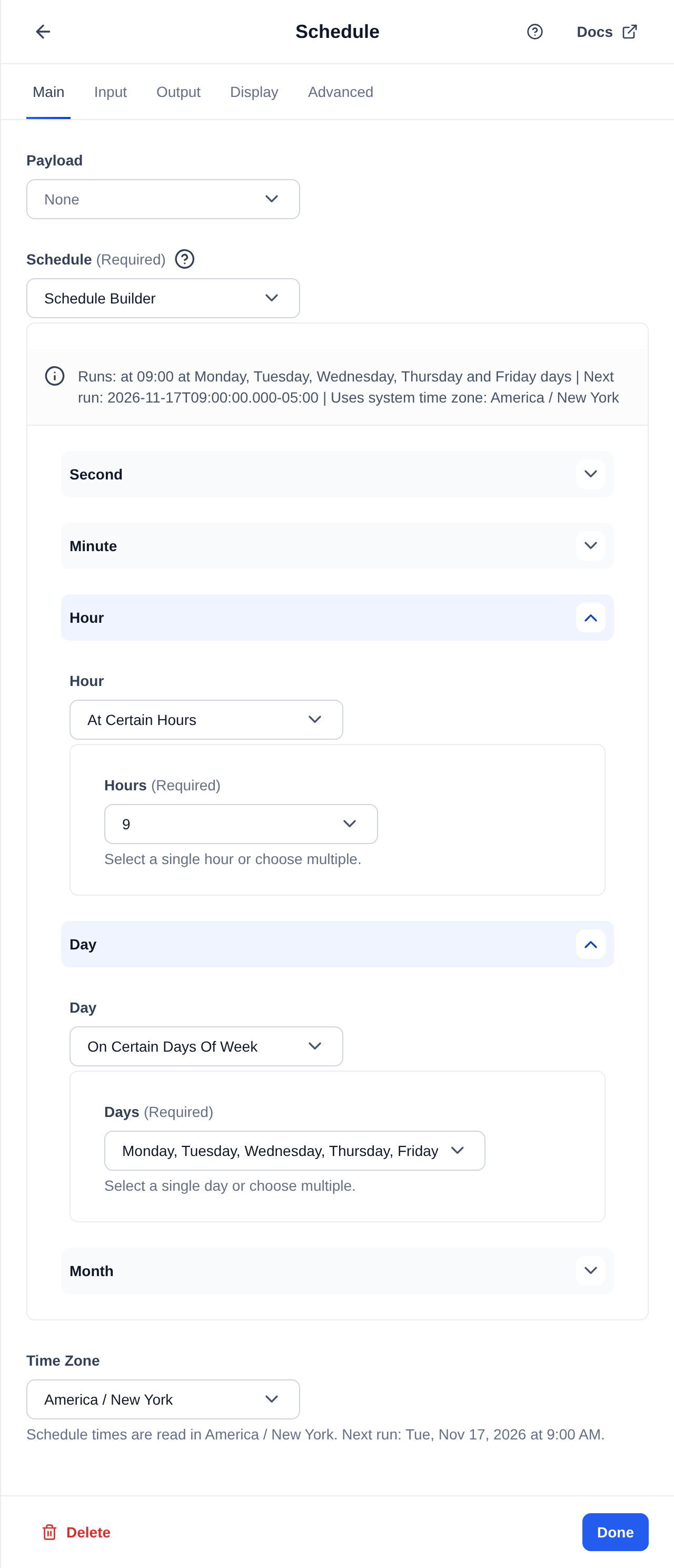
Pick the recurrence from the Second, Minute, Hour, Day and Month pickers. The form reads the result back in words under the pickers, so you can check it before saving.
A cron expression is a compact way of writing a recurring schedule, familiar to developers. Type one directly when the builder can't express the recurrence you need. The form reads it back in plain English, the same as the builder.
The expression has six fields, in this order: second, minute, hour, day of the month, month, day of the week. A * means every, and ? means "no particular one" in whichever of day of the month and day of the week you aren't using.
| Expression | Runs |
|---|---|
0 0 9 ? * MON-FRI | At 9:00 AM every weekday. |
0 0 6 1 * ? | At 6:00 AM on the first of every month. |
0 30 * * * ? | At half past every hour. |
Running one by hand
A Schedule trigger can be run at any time without waiting for its next occurrence, so a schedule can be tested without rewriting it to fire sooner. The run button is on the trigger's card: Run Automation and Run as Dry Run on a published automation, Run as Dry Run alone on a draft or revision, which only ever run as dry runs. It works whether the automation is turned on or off.
The run carries the payload configured on the trigger, exactly as a scheduled run does. Its Schedule object reads as an on-time firing at the moment you started it, with the real previous and next occurrences around it, so every field a later step references still holds a value.
Starting a run this way leaves the schedule alone: the next scheduled run still happens at its usual time. Run history tells the two apart. A run started by hand is labelled with the name of the person who started it, and a scheduled run with its schedule.
What later steps see
With a payload set, the trigger's output is that payload's fields. Beside them, inside the trigger's own Trigger object, every run carries a Schedule object describing the occurrence that started it. The picker offers its fields as Trigger › Schedule › Scheduled For and so on. With no payload, the Trigger object is the whole output.
| Field | Description |
|---|---|
| Scheduled For | The moment this run was meant for. |
| Fired At | When the trigger actually fired. |
| Previous Scheduled For | The occurrence before this one. Empty when the schedule has none. |
| Next Scheduled For | The occurrence after this one. Empty when the schedule never comes round again. |
| Late By | How long after Scheduled For the trigger fired, in milliseconds. Zero when it fired on time. |
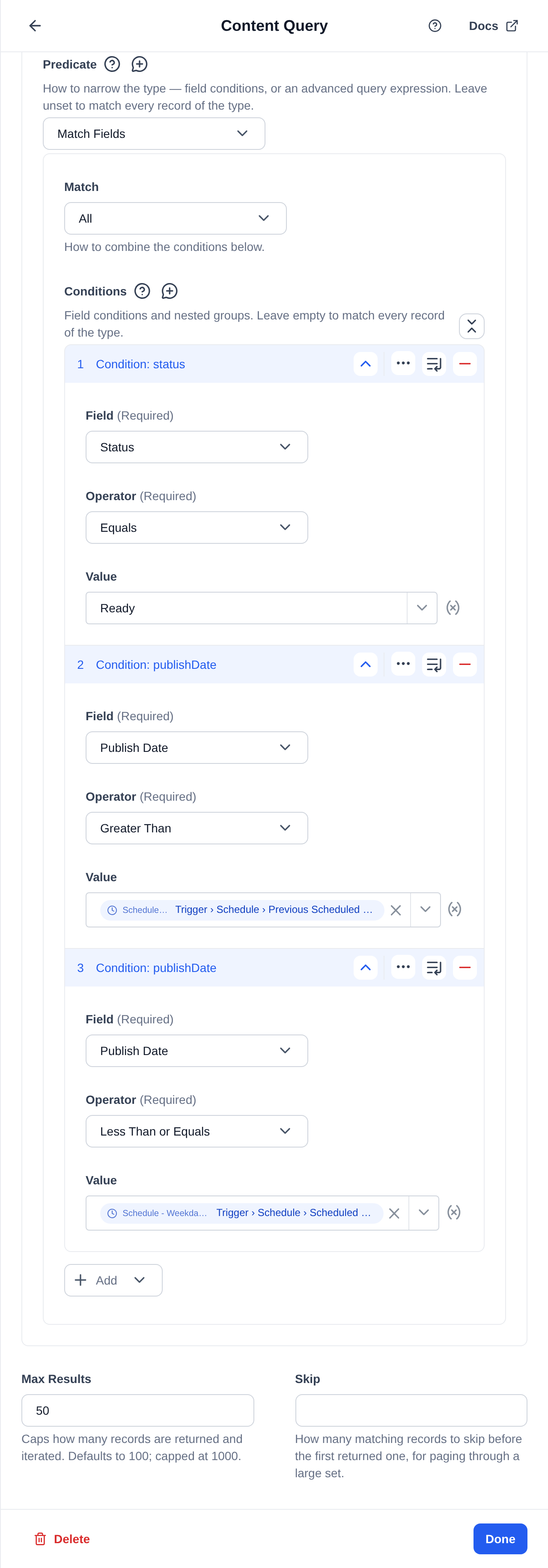
To process everything that happened since the last run, query for items between Previous Scheduled For and Scheduled For rather than around Fired At. A run that fires a little late still covers exactly the period it was scheduled to, so nothing is dropped or counted twice.
The moments are dates and times in the schedule's own Time Zone, so a log line reads in the clock you wrote the schedule against, and a condition or a Sleep step can still compare or wait on them.
Daylight saving
A schedule with a time zone follows the wall clock in that zone, so a 5:00 PM run stays at 5:00 PM on both sides of a daylight saving change. The two transition days need care, because one has an hour that happens twice and the other has an hour that never happens:
- On the day the clocks go back, the repeated hour runs the schedule once, not twice.
- On the day the clocks go forward, an occurrence inside the skipped hour does not run that day, and resumes the next day.
Avoid scheduling anything between 1:00 AM and 3:00 AM in a zone that observes daylight saving, and it can never be caught by either transition.
Missed occurrences
Missed runs are not caught up. An occurrence runs only if it comes due while the automation is turned on and the server is up, and is noticed within five minutes. One that passed before then, because the automation was still off, the schedule had just been changed, or the server was down, is skipped, and the automation next runs at the following occurrence.
Due schedules are checked about once a minute. A schedule set to fire more often than that may skip occurrences, and the form warns you when the expression you have written does so.