Content trigger
Starts the automation when a record changes, or when an editor presses the automation's button on a piece of content's edit page. In the trigger picker it is Content, under General Triggers. With no connection it watches this workspace's records; with a Brightspot connection it watches content in that CMS instead, and its list of events grows to everything that CMS raises. One trigger watches one event.
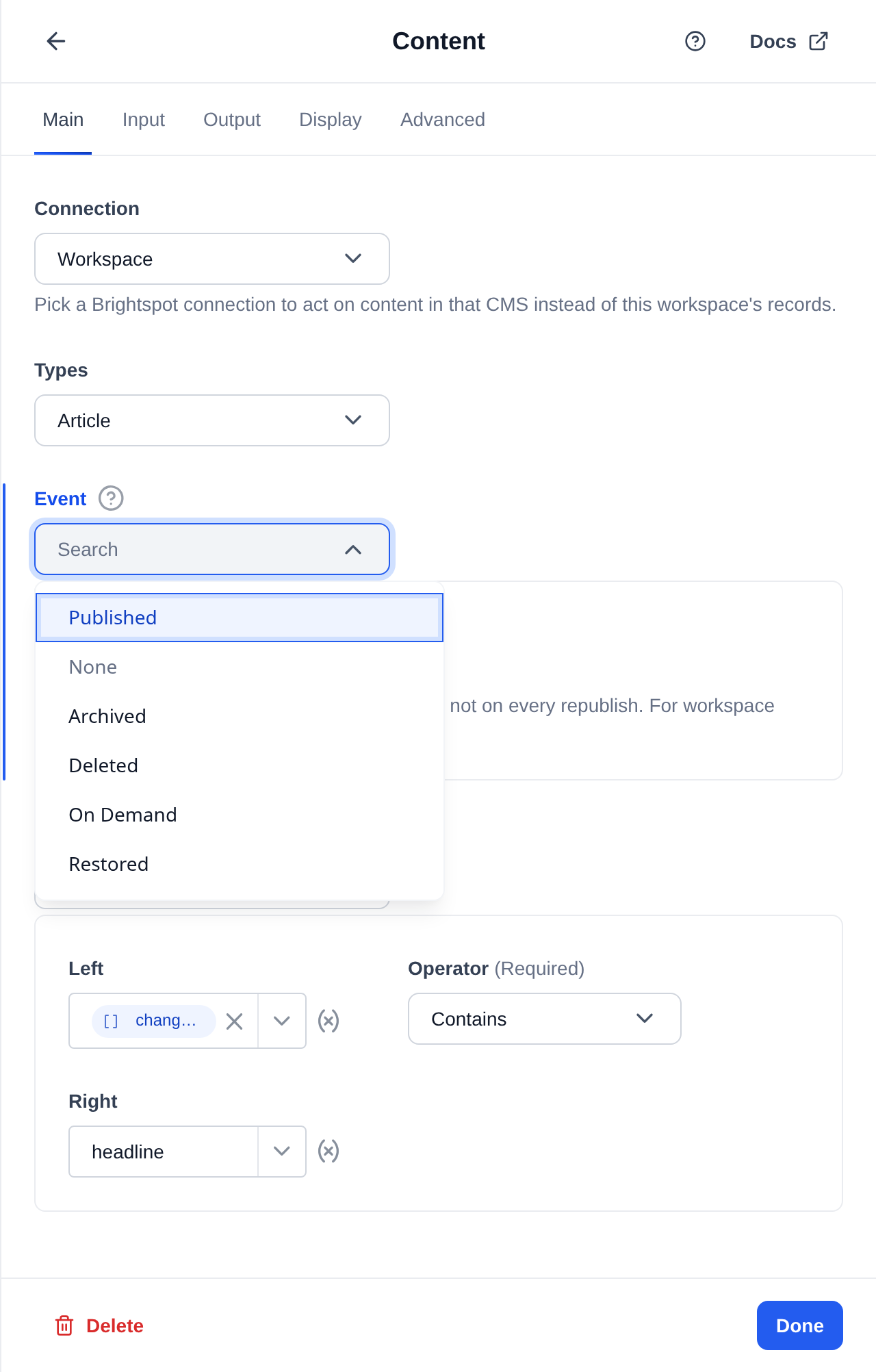
Fields
| Field | Required | Description |
|---|---|---|
| Connection | No | Leave empty to watch this workspace's records. Pick a Brightspot connection to watch content in that CMS. See Workspace records or a connected CMS. |
| Site | No | Shown only for a Brightspot connection: the site to watch. Blank means the connection's own site when it has exactly one, otherwise every site the connection reaches. |
| Types | No | The content types to watch. Leave it unset, shown as Any Type, to watch every type. In a workspace, a type added later is watched without resaving the trigger. |
| Event | Yes | What to fire on; see Events. Choosing one reveals whatever that event configures. |
| Fire Condition | No | A rule checked against the trigger's output the moment an event arrives. When it is false, no run starts and nothing is counted. See Triggers. |
A new Content trigger starts on a connection when the workspace has one: the connection the automation's other steps use most, otherwise the first by name. If you meant to watch the workspace's own records, clear the Connection field.
To fire only when a particular field changed, test changedFields in the Fire Condition: for example, changedFields Contains headline, as the trigger at the top of this page does. See Revisions for what each event compares against.
Workspace records or a connected CMS
Every Content node, this trigger and the Content Edit, Content Query, Content Fetch, Content Compare and Content Exists nodes, carries the same Connection and Site fields and reads them the same way.
- Connection empty. The node works on this workspace's own records: content of the types defined on the Content Types page, stored in the workspace itself. These records have no publish step and no workflow; a save is a save. They suit an automation's own working data, such as a list of feeds to check or a log of what it has already processed.
- Connection set. The node works on content in that Brightspot CMS, with the CMS's own content types, revisions and workflow. Site narrows that to one of the sites the connection reaches.
Events
- Workspace records
- Brightspot CMS
| Event | Fires when | Its own fields |
|---|---|---|
| Published | A record is saved. | Only First: fire on a record's first save only. |
| Archived | A record is archived. | |
| Restored | An archived record is restored. | |
| Deleted | A record is deleted. | |
| On Demand | An editor presses the automation's button on the record's edit page. | Display Name, Description, Cooldown, Offer On and Input; see Running from a content edit page. |
A workspace record has no publish step, so Published fires on every save, whether a person saved the record or an automation did. An automation that saves the same type of record it watches starts itself on its own save. Guard against that with a condition around the save, a fire condition that ignores the automation's own changes, or a concurrency limit on the trigger.
| Event | Fires when | Its own fields |
|---|---|---|
| Published | Content is published. | Only First: fire on a piece of content's first publish only, not on every republish. |
| Drafted | A draft is created. | Fire On: the kinds of content it fires on. Include Revision to fire when a revision of live content is created as well. |
| Revised | A revision of existing content is saved. | |
| Merged | A draft is merged. | |
| Scheduled | Content is scheduled for publication. | |
| Unscheduled | A scheduled publication is cancelled. | |
| Transitioned (Workflow) | Content moves through a workflow. | Workflow: the workflow to watch, picked from the connected CMS. Transitions: which of its transitions to fire on. Fire On: the kinds of content it fires on; live content enters a workflow only as a revision, so include Revision to fire when a revision moves through it. |
| Archived | Content is archived. | |
| Restored | Archived content is restored. | |
| Deleted | Content is deleted, or a revision is discarded. | Fire On: the kinds of content it fires on. |
| Commented | A comment is posted on content. | |
| On Demand | An editor presses the automation's button on the content's edit page. | Display Name, Description, Cooldown, Offer On and Input; see Running from a content edit page. |
Every event exists once. The connection says which it can deliver, so a trigger moved from the workspace to a connection keeps its event when the connection has it.
Running from a content edit page
The On Demand event is the one nothing raises on its own: an editor decides when to press a button. It puts the automation on the edit page of every matching piece of content, in a right-rail panel headed Esca Automations, so editors run it where they already work. This is the one place that setup is described; the On Demand trigger, Triggers and Brightspot CMS pages all point here.
To offer an automation on a content edit page:
- Add a Content trigger at the start of the automation. Leave Connection empty for this workspace's records, or pick the Brightspot connection for the CMS whose editors should see the button.
- Set Event to On Demand.
- In Types, pick the content types the button should appear on, or leave it empty for every type.
- Fill in the event's own fields:
- Display Name: the button's label. Defaults to the automation's name.
- Description: the line shown beside the button. Defaults to the automation's description.
- Cooldown: how long the button is unavailable for the same content after a run. Blank or zero means no cooldown.
- Offer On: where the button appears: live content, drafts, revisions or past versions. Empty means live content, drafts and revisions.
- Input: an optional form the button shows before it runs; see Asking for input.
- Save the automation, then publish it and turn it on. The button appears only while the automation is published and turned on; see Published versus turned on.
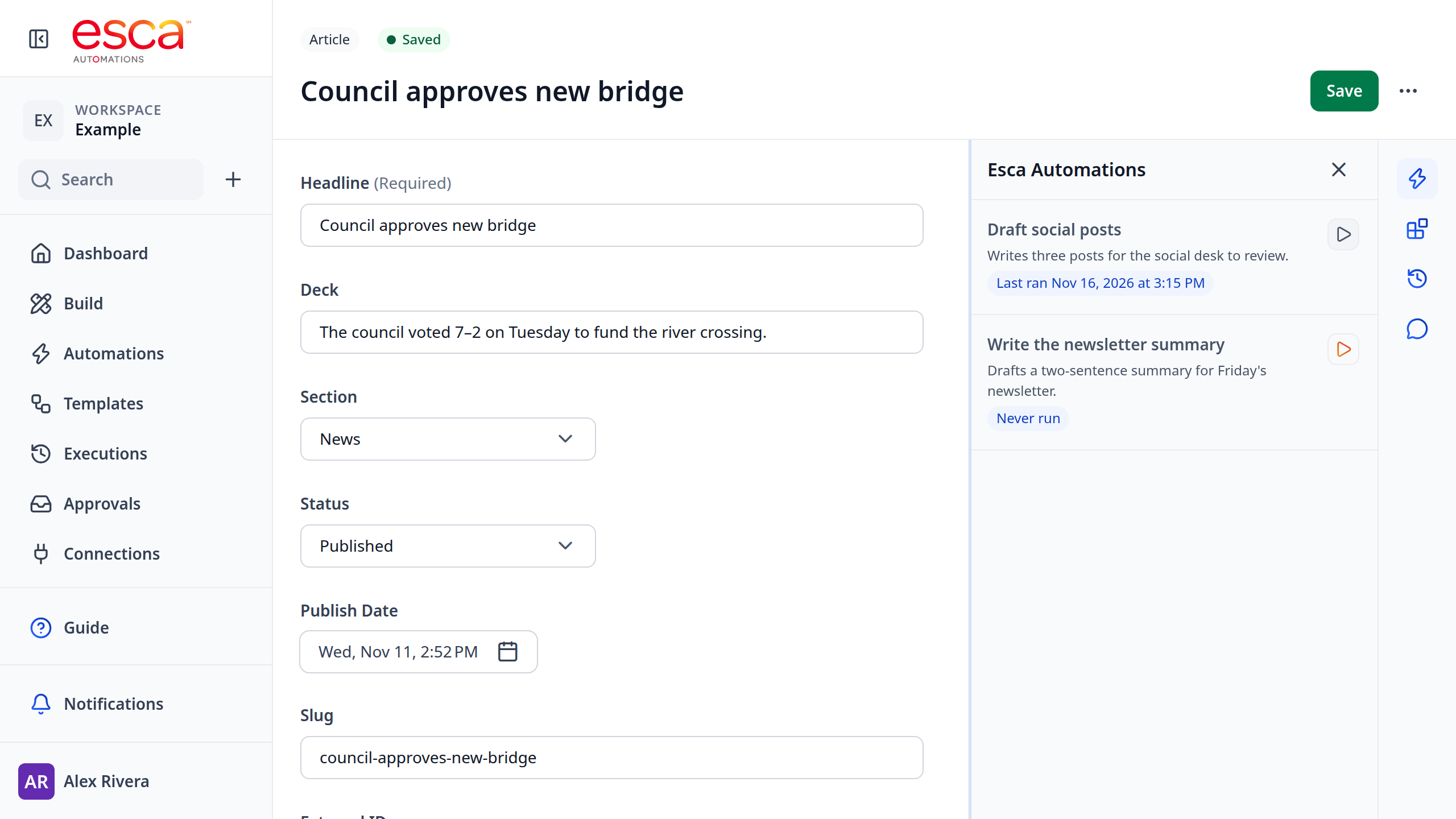
The panel shows each automation with its Run button and when it last ran on this content; while the cooldown lasts, the button is unavailable. On a connected CMS the panel also offers Dry run, which runs the automation as a dry run so nothing reaches real systems, and counts the cooldown down as Ready in. A button runs on whatever the editor has open: pressed on a revision, the run receives the revision's values rather than live's, and the panel says so above the buttons; pressed on a past version, it runs on that version. While a published automation has a revision in progress, the revision's button is listed too, badged Dry run, so you can try a change against real content without disturbing the live button. On a connected CMS, an info button beside each automation says where it came from, who made and last changed it, and who last ran it on this content, and links to the automation.
Who sees the panel: in this workspace, members with the Run capability, Operator and above; see Roles. On a connected CMS, editors whose role's Workflow Automation access is Operator or Builder; see Configuring the module. An editor without it sees no panel, whatever content they can read.
Asking for input
A button can ask a question before it runs. The event's Input takes one of two shapes:
- Custom Shape: fields you declare here, each with a name, a type and whether it is required. Text shows as a text box, numbers as a number box, and yes/no as a checkbox.
- Content Type: a type from wherever the trigger watches, the same list the Content Edit action's Content Type field offers. The popup shows that type's own edit form, and the answers are the record's values.
With an Input declared, pressing the button opens a popup with the form in it. A required field left blank, or a number that isn't one, is refused with a message against the field, and nothing runs until every field passes. The answers reach the trigger's output under input, one entry per field, so a later step binds to them through the variable picker like any other output.
Connected CMSs running an older server module
A Custom Shape travels to the connected CMS as its schema, and a Content Type as the type's id, which that CMS already has. A CMS whose server module predates either keeps the plain button, and the trigger's Event field says the form is being dropped.
Revisions
Content in a connected Brightspot CMS exists in four kinds of state, and every event says which one it is about in its revision output:
Beside its kind, revision carries revisionId (empty for the content itself), name, status as Brightspot labels it, workflowState, scheduledFor for a scheduled revision, who saved it and when (savedById, savedByName, savedAt), previousVersionId, the version to compare a version or the content against, and publishedRevisionId. The event's contentValues are that revision's values, not live's.
To act on the same revision in a later step, bind that step's Revision field to the trigger's Revision › ID: a Content Fetch then reads it, a Content Compare compares it to live, and a Content Edit saves into, publishes, moves or discards it. On live content the binding resolves to nothing, and those steps act on the content itself.
changedFields lists the top-level fields that changed, measured against:
| Event | Compared against |
|---|---|
| Published, Merged | The previous version. A first publish lists every field the content sets. |
| Revised, Scheduled, Unscheduled | Live. |
| Transitioned (Workflow) | Live, for a revision; the previous version, for the content itself. |
| Drafted | Live, for a new revision. |
Fire On, in detail
Fire On, on Transitioned (Workflow), Drafted and Deleted, picks the kinds of content the event fires on. Left empty, each fires on what it always did: the content itself for Transitioned (Workflow) and Drafted, and revisions too for Deleted, since a discarded revision has always been announced as a deletion. It is judged the moment the event arrives, before the fire condition, and a delivery it blocks says why on the Deliveries screen. On a connected CMS, a revision moving through a workflow and a revision created with Save Draft & Return reach automations only, never editors' own notifications.
Output
The trigger's output is the event's content and the details of what happened. Later steps see its exact shape as soon as you pick an event.
- contentValues: every field of the content type, empty where the content leaves one unset, as a Content Fetch's
valuesdoes. On a connected CMS these are the values of the revision the event is about. - initiator: the person who made the change or pressed the button: their user id, name, email, time zone and locale as set on their profile, so a step can write back to them or read a time they mention, such as "tomorrow at 9am", in their own zone. For an edited revision it is the person who last saved the revision.
- site: the site they were working in: its id, name and URL. For content shared across sites this needn't be the site that owns it.
- firedAt: when the event happened.
- permalink: the content's front-end URL on its owner site. Content with no front-end URL has none.
- urls: every URL the content has, each with its full address, path, type (PERMALINK, ALIAS, REDIRECT or REDIRECT_TEMPORARY) and site. Like contentValues, it describes the revision the event is about, so a revision that changes its URL reports the one it would publish at.
- revision: which kind of state the event is about and its details; see Revisions.
- changedFields: the top-level fields that changed; see Revisions.
- contentEditUrl: a link that opens the content where it lives, on the revision or version the event is about.
- input: the answers to the button's form, on an On Demand event with an Input.
For anything about the event itself, use firedAt rather than the run's own start time. A delivery replayed from the Deliveries screen runs later but keeps its original firedAt.
Deliveries
Every event the trigger receives is recorded on its Deliveries screen, opened from the node's actions menu: the ones that started a run, the ones the fire condition held back, and the ones that arrived while the automation was off. A workspace event is recorded with the origin Event; a connected CMS's arrives as an inbound webhook. If that CMS gives up waiting for a response and retries the same event, the retry is recorded as DUPLICATE_DELIVERY rather than starting a second run. A delivery can be replayed from the screen, which starts a real run; see Deliveries on the Webhook trigger for what Replay does and the safe alternative.