Brightspot connection
The saved link to a Brightspot CMS. In the connection picker it is Brightspot.
Powers these nodes
- Content trigger
- Content Edit action
- Content Query action
- Content Fetch action
- Content Compare action
- Content Exists condition
- Script action, for its
dariobject's content model
On each of them the connection decides which CMS the node acts on and whose permissions it acts with. With no connection, the Content nodes and the Script work on this workspace's own records. The legacy nodes use the connection the same way.
Before you connect
Check these with whoever runs the CMS first; each one shows up later as a connection that seems to work but doesn't.
- The server module is installed on that CMS. Without it, Connect fails at once, because there is nothing to talk to.
- Its release is recent enough. A CMS running an older module connects but cannot run every node. After connecting, the Automation Plugin row on the connection shows the release the CMS runs and the release to upgrade to; a node that needs a newer release says so on the canvas, and a run that reaches one names the release it needs. See Upgrading the module.
- Any gate in front of the CMS lets the connection through. The connection sends no credentials for an HTTP Basic authentication gate, such as one protecting a lower environment, so the gate must exempt the paths the connection calls. See Letting the connection through a gate.
- The account you will authorize with has permission. Everything an automation does on that CMS runs as the user who clicks Connect, with exactly that user's permissions: it can read and publish what that account can, and nothing more, and Content triggers deliver only content that account can read.
The role of the account you authorize with must have its Workflow Automation access set to Builder on the CMS. Without it the connection still completes and looks healthy, but every node that touches the CMS fails, Content triggers never register, and agents cannot use the CMS's tools. See The Workflow Automation permission.
Connecting
Authentication is OAuth 2.0 and is configured for you: the connection discovers the CMS's endpoints from the base URL and registers itself, so there are no client credentials to enter.
To connect a Brightspot CMS:
- On the Connections page, create a Brightspot connection.
- In the Base URL field, type the address of the CMS, and click Save.
- Click Connect.
- Sign in to the CMS and authorize access.
The form then shows Connected As, the account on that CMS the connection acts as. If the name there isn't the account you meant, click Connect again and sign in as the right one.
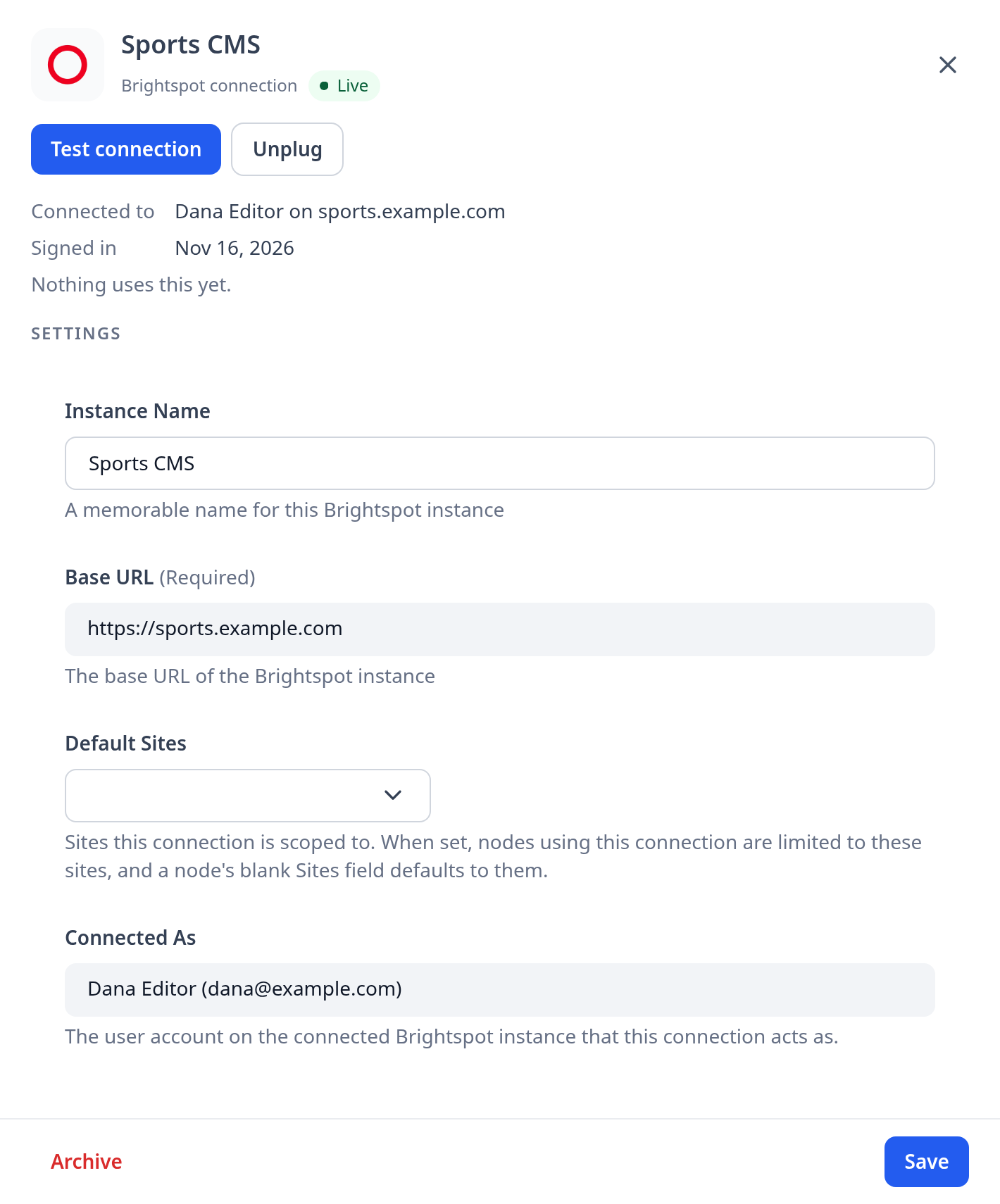
The Brightspot connection reference describes each field, in the same words its Guide icon shows in the tool. The client registered at Connect is shown on the Advanced tab as the Registered Client ID; every later Connect reuses it until the Base URL changes. If the CMS stops recognizing the client, see Troubleshooting on the Connections page.
A CMS whose administrator has turned on Require Scope refuses a connection authorized before the platform began asking for the automation API's scope. Click Connect again and approve the scope the consent screen now lists.
Brightspot MCP server
A connection authenticates the nodes above to a CMS. A Brightspot MCP server, added on the same Connections page under MCP Servers, instead gives an AI agent that CMS's tools, and authenticates separately: with OAuth, click Connect and sign in to the CMS; with API Key, paste the key and save. Its fields are in the Brightspot MCP server reference, and how agents use MCP servers is explained under MCP servers and tool sources.