Configuring the module
Three things decide whether the platform can work with a CMS once the server module is installed: the role permission the module adds, the settings on its Automation Server plugin, and any gate in front of the CMS. Each setting narrows what already works, so each is off until an administrator turns it on.
In production, always set Allowed Client Hosts. Client registration is open on every CMS, so until it is set, any OAuth client that one CMS user approves can call every automation tool on that CMS. Set it to the platform's public hostname and only the platform's connections get through. See Allowed Client Hosts.
The Workflow Automation permission
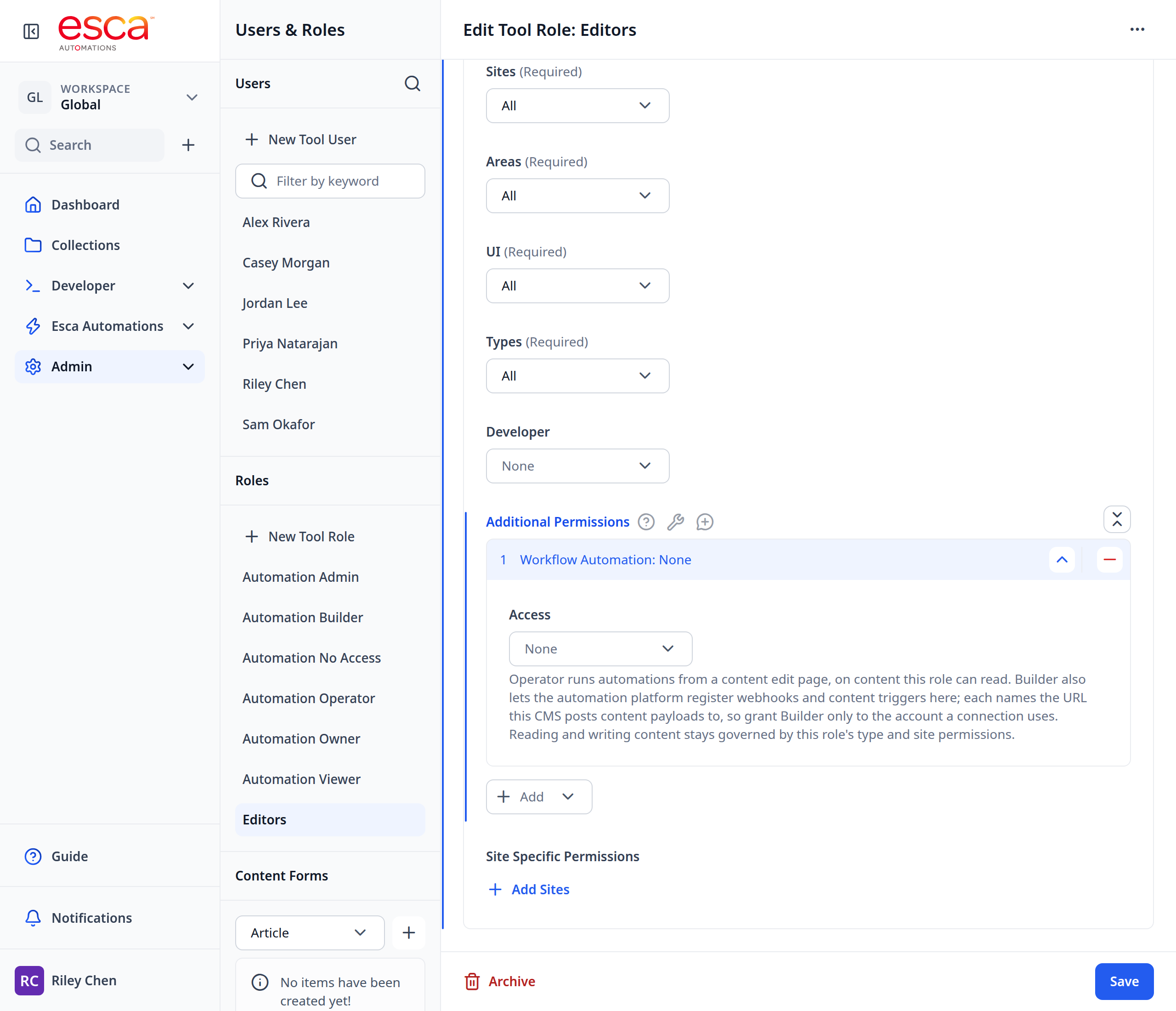
The module adds a Workflow Automation block to every role's form, with one Access dropdown. Each level holds the one below it.
| Level | Editors with this role | The platform |
|---|---|---|
| None (default) | See no on-demand buttons on content edit pages. | Cannot work as this role. |
| Operator | See the on-demand buttons on content they can read, and can press them. | Cannot work as this role. |
| Builder | As Operator. | Can work as this role: call the automation API, register webhooks and register on-demand buttons, each of which names a URL this CMS will post content to. |
Give Builder only to the role of the account a Brightspot connection is authorized with, and Operator to the roles whose editors should see the buttons. Reading a content type is not enough on its own: the edit page lists the buttons only to a role at Operator or above, and the page that fires one refuses anyone else.
A user with no role at all, who has full access, is unaffected either way. Within the automation API, what the connection's account may read and write is still governed by that role's type and site permissions, and a webhook delivers only content the user who registered it may read, decided on that user's permissions at delivery time, so narrowing the account's site or type access narrows what reaches the platform.
Opening the admin area is a separate permission, granted through the Areas section of a role. See The admin area.
The Automation Server settings
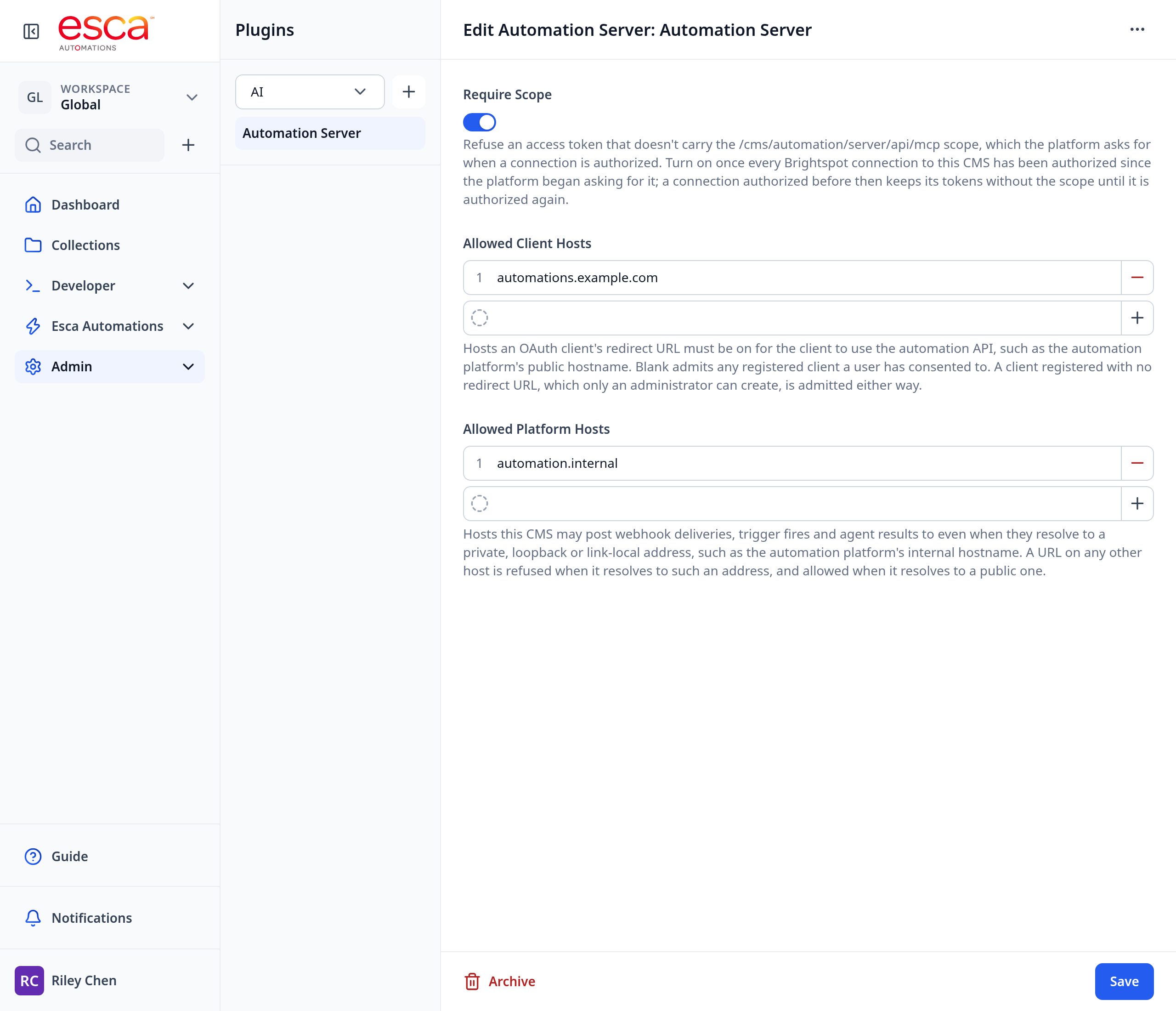
The module adds an Automation Server plugin under Admin → Plugins. Its three settings are the module's only configuration. Set them on that record, or preset them in the CMS's context properties, keyed by the plugin's class name with a numbered path for each host:
1com.brightspot.automation.server.AutomationServerPlugin/allowedPlatformHosts/0=automation.internal2com.brightspot.automation.server.AutomationServerPlugin/allowedClientHosts/0=automation.example.com3com.brightspot.automation.server.AutomationServerPlugin/requireScope=true
The properties apply only while no Automation Server record has been saved; once someone saves one, it replaces them entirely. A change to the properties takes effect after a restart.
Allowed Client Hosts
The hosts an OAuth client's redirect URL must be on for the client to use the automation API. Set it on every CMS in production, to the platform's public hostname, the one people open the platform at.
The platform registers its client with a single redirect URL on its public hostname, so listing that hostname admits the platform's existing connections and refuses every other client, without anyone reconnecting. A client registered with no redirect URL, which only an administrator can create, is admitted either way. Blank admits any registered client a user has consented to.
Wrong or missing, every call the platform makes fails with 403 Forbidden: the client isn't registered on an allowed host. Correcting the list fixes it at once, with no reconnect.
Allowed Platform Hosts
The hosts this CMS may post webhook deliveries, On Demand fires and agent results to even when they resolve to a private, loopback or link-local address. A URL on any other host is refused, at registration and again before every post, when it resolves to such an address; one that resolves to a public address is always allowed, and redirects are never followed.
Set it when the platform reaches this CMS over a private network, to the host exactly as it appears in the URLs the platform registers here, such as automation.internal. The platform's administrators know it: it is the internal hostname they configured on their side, and the URLs under Admin → Esca Automations → Webhooks show it.
Wrong or missing, every webhook delivery, On Demand press and agent result sent to that host fails, and each failed attempt records that the host resolves to a private, loopback or link-local address.
Require Scope
Refuses an access token that doesn't carry the /cms/automation/server/api/mcp scope, which the platform asks for when a connection is authorized and which the consent screen names. Turn it on only after every Brightspot connection to this CMS has been connected again since the platform began asking for the scope: a connection authorized before then keeps minting tokens without it until someone clicks Connect on it again, and would be cut off.
It adds less than Allowed Client Hosts. It makes the approval screen name the automation API and refuses tokens issued without the scope, but a client that asks for the scope receives it. Leave it for after the platform's connections have all been renewed.
On too early, a connection made before the platform asked for the scope fails every call with 403 Forbidden: the token doesn't carry the /cms/automation/server/api/mcp scope until someone clicks Connect on it again.
Letting the connection through a gate
A connection sends no credentials for an HTTP Basic authentication gate, such as one protecting a lower environment, so the gate must exempt the paths the connection calls:
1/.well-known/oauth-authorization-server2/.well-known/oauth-protected-resource (and everything under it)3/_oauth/register4/_oauth/token5/_oauth/revoke6/cms/automation/server/api/mcp78/_oauth/authorize (leave this one gated)
/_oauth/authorize opens in the connecting person's browser, which prompts for the gate's credentials, so it stays behind the gate. A rule exempting every path that ends in /mcp covers the connection's path, and the CMS's own MCP endpoint when it is served at /mcp.
Related
- Server module: what the module adds to a CMS, and installing it.
- Upgrading the module: the order to set these in when upgrading a CMS from 1.14.2 or earlier.
- Brightspot connection: what the person connecting sees when one of these is missing.