Triggers
A trigger is the node that decides a run should start. Every automation has exactly one, at the top of the canvas; to change how an automation starts, replace the trigger rather than adding a second.
When you add the first node and select Trigger, the panel lists General Triggers, which work without connecting anything, and Integration Triggers, which fire on events in a connected system and need a connection to it.
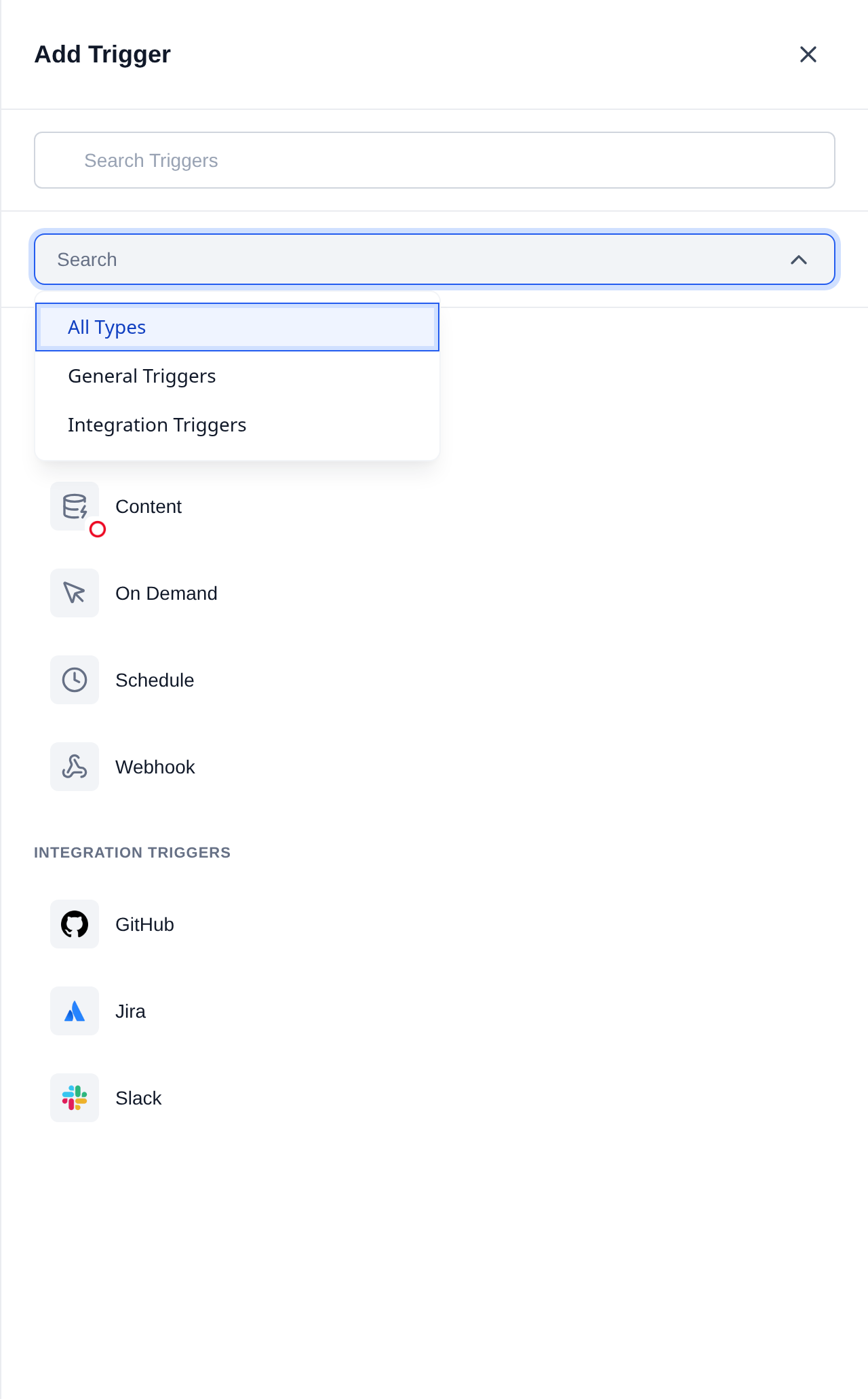
What can start a run
| Kind | A run starts when… | Trigger |
|---|---|---|
| A content event | Something happens to content, in this workspace or in a connected CMS: it is published, revised, moved through a workflow, archived, and so on. | Content |
| A schedule | A recurring schedule comes due. Schedules are checked about once a minute. | Schedule |
| A person | Someone clicks Run on the trigger card in the editor, or a run button on a content edit page where the automation is offered. | On Demand |
| An inbound request | Another system sends a request to a web address that belongs to the trigger. Integration triggers work this way too: the connected system delivers its events to the trigger. | Webhook, GitHub, Jira, Slack |
| Another automation | A different automation finishes, or calls this one as a step. | Automation Completed, Automation |
A trigger that fires on its own, on a content event, a schedule or an inbound request, does so only once the automation is turned on. Running an automation yourself from the editor works whether it is on or off, which is what makes it safe to build and test before turning it on.
Starting a run by hand never disturbs the trigger's own schedule: a scheduled run still happens at its usual time afterwards, and run history tells the two apart, since a run you started carries your name.
An automation can start itself. If its trigger listens for the kind of event one of its own actions causes, the run starts the automation again, and nothing stops that loop for you.
Guard against it with a Fire Condition that ignores the automation's own changes, such as the event's initiator not being the account the automation's connection signs in as, or a condition before the action that only lets it run when something still needs changing.
What the trigger hands the run
A trigger also supplies the run's first data: the content that changed, the body of the request that arrived, or the values typed into a run form. That becomes the trigger's output, and every later step can use it through the variable picker. Most automations get the thing they are about from the trigger.
Different triggers hand over different things. A content event carries the content and what happened to it. A request carries whatever the sender posted. An On Demand trigger hands over only what you asked for: define a payload and the run starts with those fields filled in; define none and the run works entirely from what its own steps fetch.
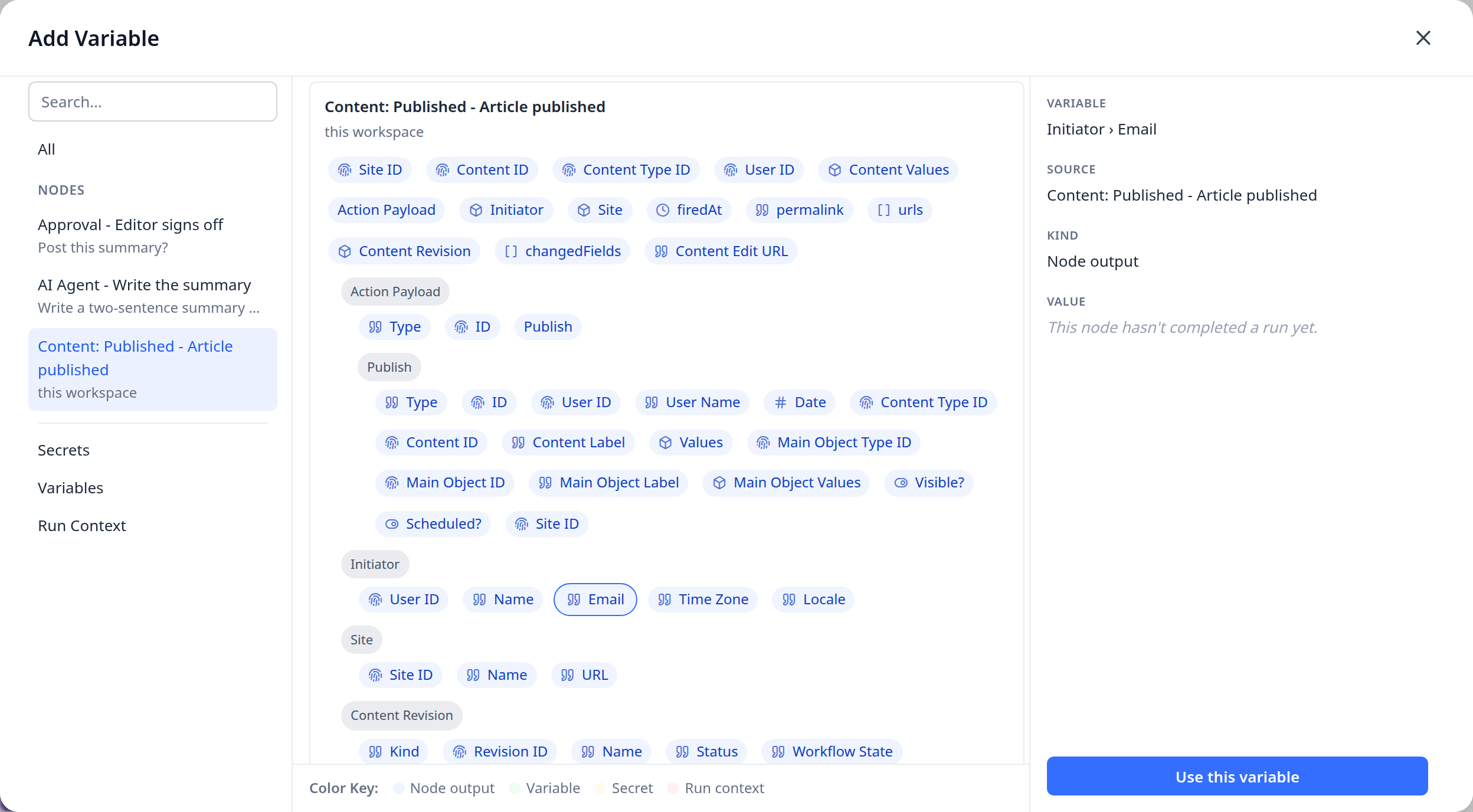
Where the trigger's own values sit
Anything a trigger adds of its own, such as a schedule's time or a request's query string, sits under a _trigger entry beside the event's fields, never among them, so a name the trigger invents can never replace one the event carried.
Narrowing what a trigger responds to
A trigger often fires on more events than you need. A Content trigger can watch every piece of content on a CMS; a GitHub trigger hears about every event in the repository. There are three places to narrow that down, and they differ in what they cost.
- Filters are part of the trigger's own form and vary by kind: the content types a Content trigger watches, the project a Jira trigger follows, the actions a GitHub trigger cares about. They tell the connected system, or the trigger itself, which events are interesting in the first place.
- Fire Condition, on the Content, Webhook, GitHub and Jira triggers, is a test built the same way as an Expression condition and applied to the event the moment it arrives, before any run exists. When it is false, no run is created and nothing counts toward your run limits. Leave it unset and the trigger runs on every event it receives.
- A condition step after the trigger can end the run instead, but that starts and records a run just to find out the event didn't apply. Use it when the decision needs data the trigger doesn't carry.
Troubleshooting an event that didn't start a run
An event the Fire Condition blocked has no run to look at. Open the trigger's Deliveries screen instead: it lists every event the trigger received, says why each one did or didn't run, and shows how each of the trigger's input mappings with transforms arrived at its value, as a step's Input tab would. See Deliveries.
Limiting runs that happen at once
A trigger can cap how many of its runs are going at the same time, so two runs don't edit the same article at once, or a burst of events doesn't start hundreds of runs. The settings are on the trigger's Advanced tab under Concurrency, and nothing takes effect until you choose an On Collision policy.
The concurrency fields
| Field | What it does |
|---|---|
| Max Concurrent Runs | How many runs may be going at once before the collision policy applies. Defaults to 1 once a policy is chosen. |
| Concurrency Key | What counts as a collision. Leave it empty and the whole automation runs one run at a time. Add a row with a variable, such as the content's id, to limit per item instead: runs for different items proceed together, runs for the same item do not. Several rows are joined in order. |
| On Collision | What happens to an event that arrives while the cap is met: Reject New drops it, Cancel Running stops the oldest run and starts this one, or Queue holds it until a slot frees. Choosing one turns concurrency limiting on. |
| Max Queued Runs | With Queue, how many runs may wait on the same key before further events are refused. Defaults to 50. |
| Max Queue Wait (hours) | With Queue, how long a queued run waits for a slot before it fails. Fractions are allowed. Defaults to 24. |
Triggers from integrations
Each connected system adds a trigger for its own events; see Integrations for what each one can start on. The webhook behind such a trigger is registered for you where the connection allows it: GitHub always registers it, and Jira does with an OAuth connection. With a Jira API token an administrator creates the webhook in Jira from the values the trigger shows after you save it; the node says which state it is in.