Connections
A connection is a saved sign-in to another system: a Slack workspace, a Jira site, a Brightspot CMS, an AI provider. It holds the credentials and nothing else; it does no work of its own and never appears on the canvas.
You usually don't set up connections in advance. Add the step you want, a Jira action, a Slack message, a Content trigger, and it asks for a connection of the right type. Sign in once and every step of that type can use the connection, in every automation; renew a credential in one place and every step that depends on it keeps working.
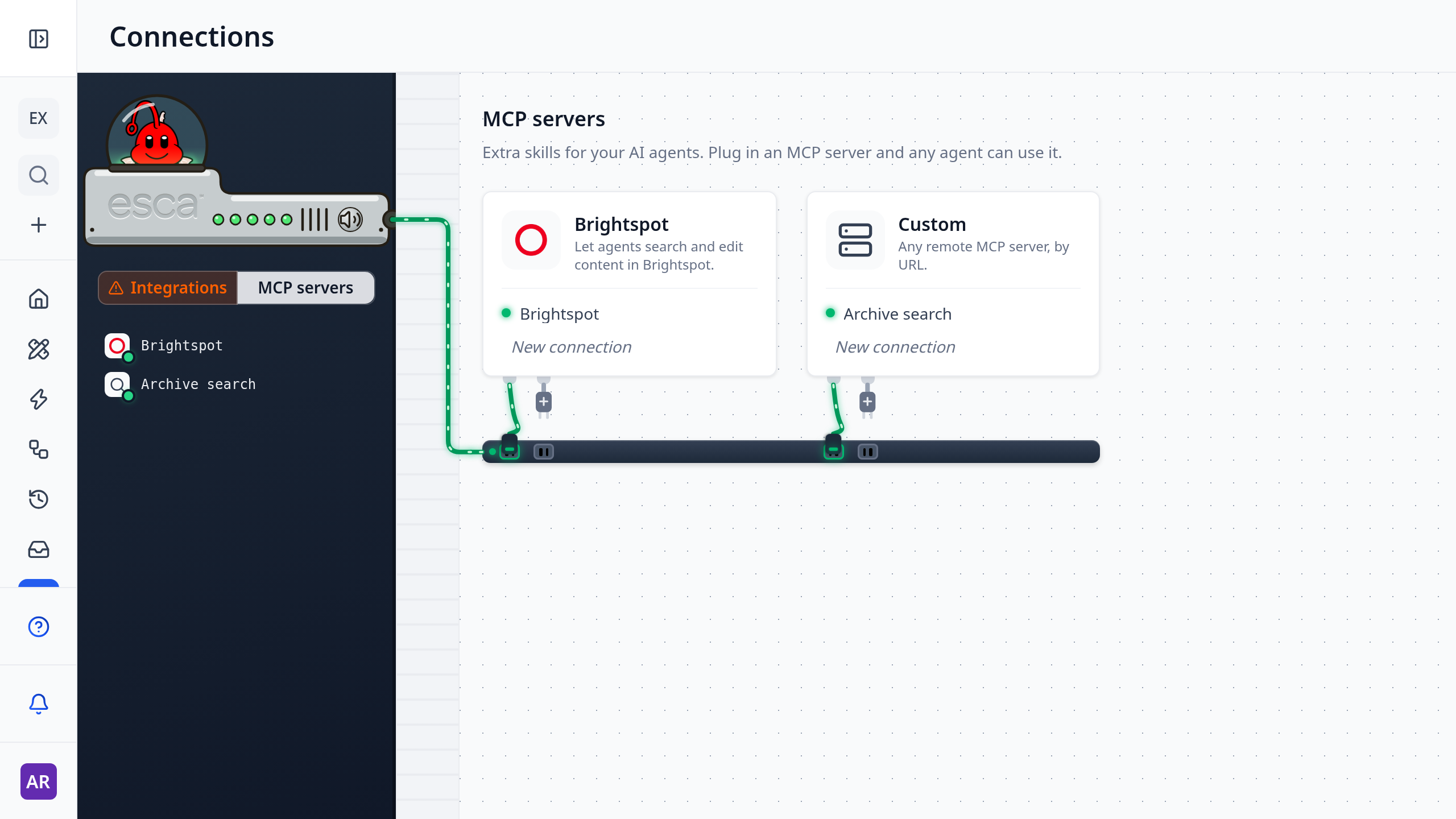
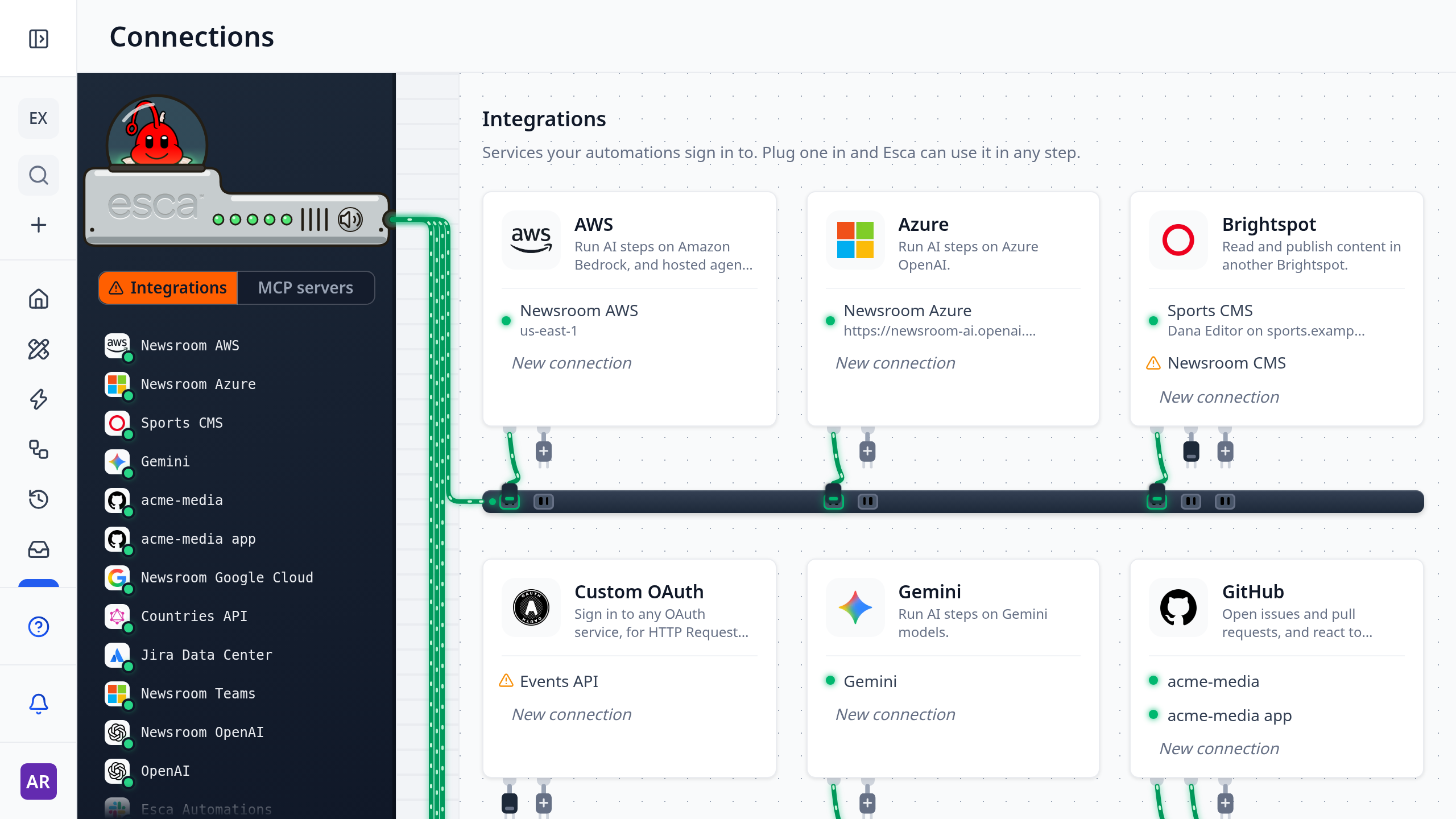
Manage them on the Connections page, which lists each connection with its status and lets you create one by choosing a type. A connection that has lost its sign-in is flagged there, which is where to look when steps that used to work start failing.
Creating and authorizing one
How you sign in depends on the system.
- Authorize in the provider
- Paste a credential
The connection's details show Plug in. Clicking it sends you to the provider to sign in and grant access, then returns you with the connection live. Unplug takes that authorization back, and a connection whose sign-in has lapsed offers Sign in again. Slack, Jira with OAuth, Brightspot and Custom OAuth connections work this way.
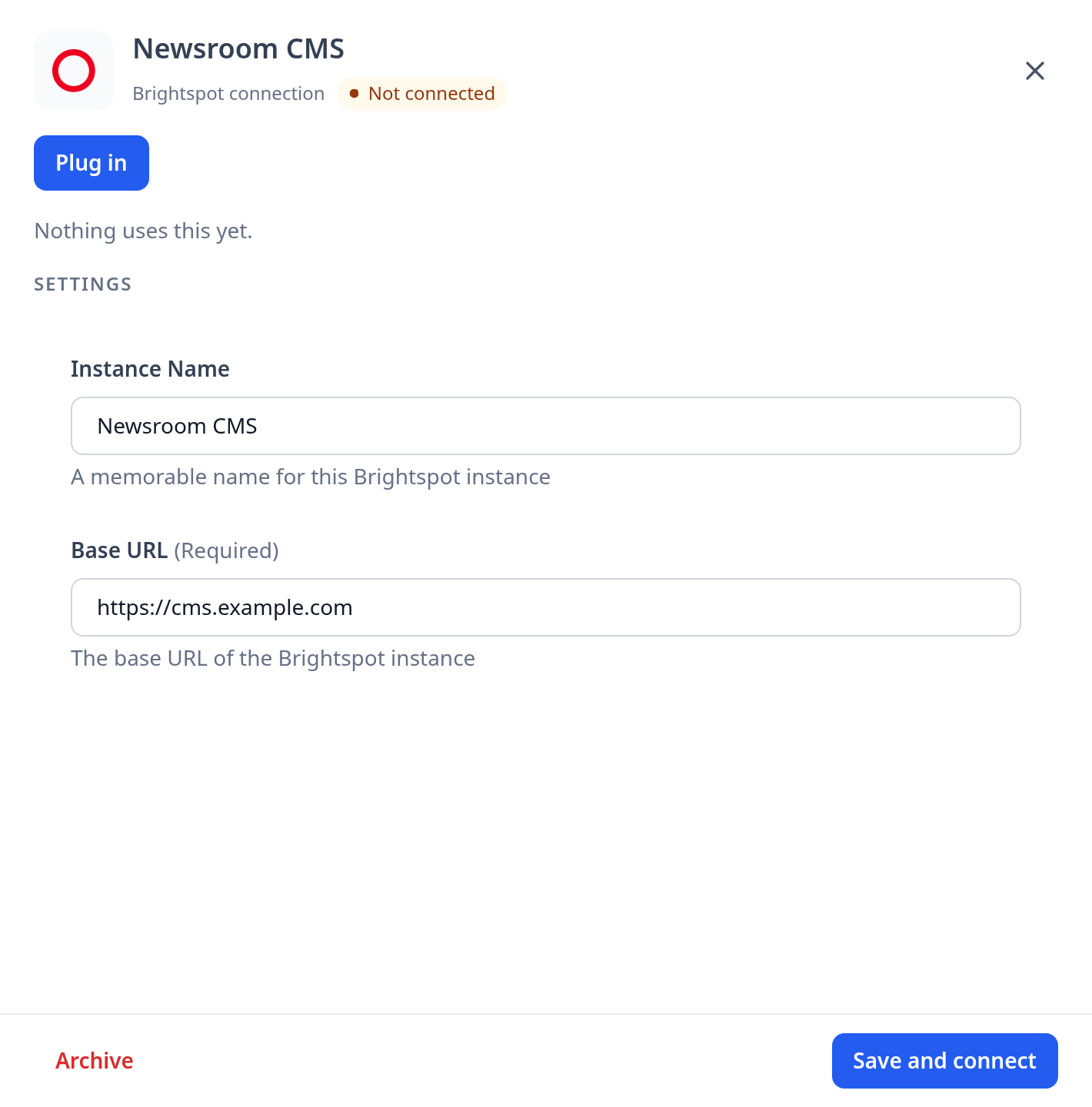
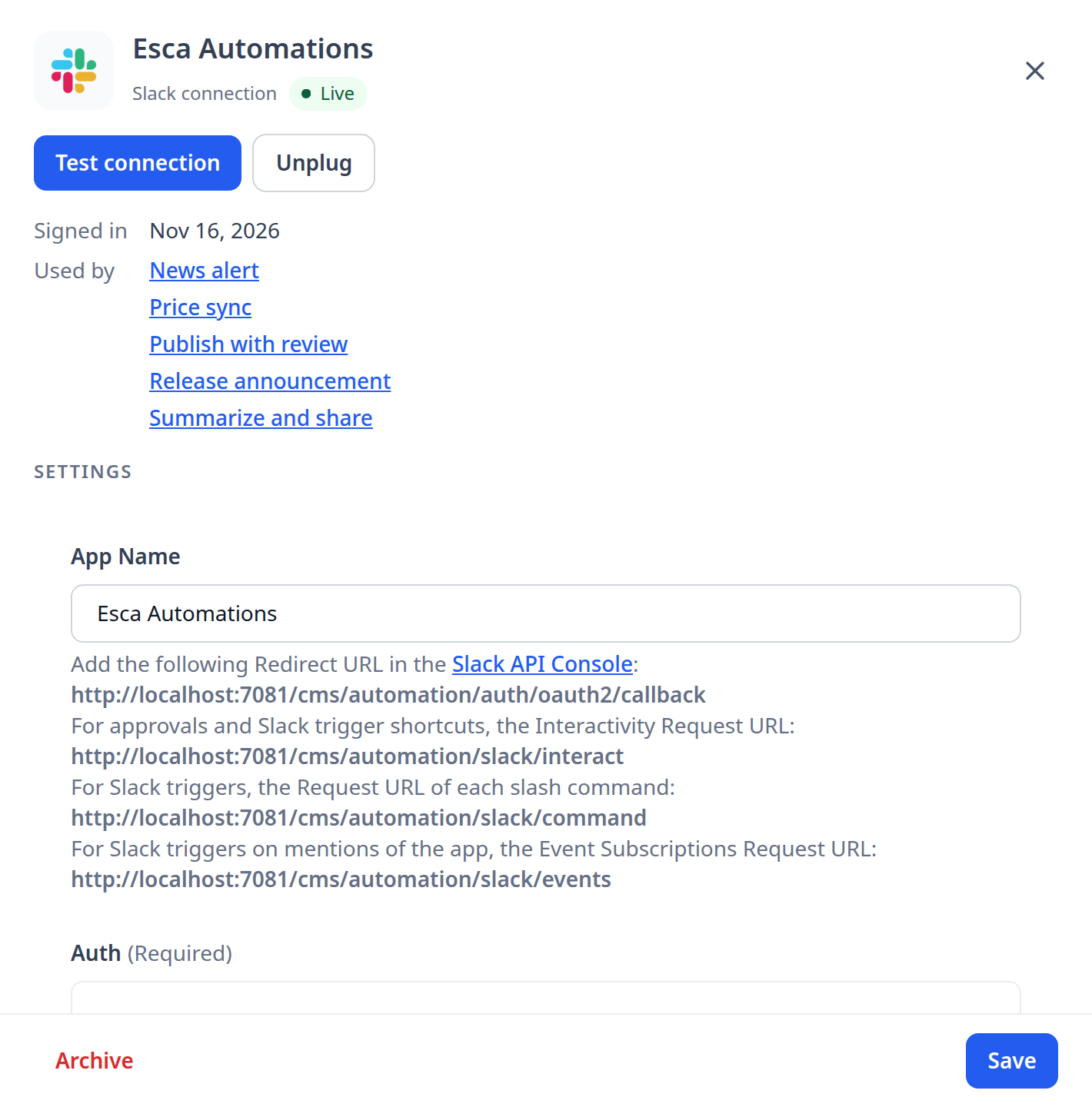
The connection stores a token, a key or an account's secret that you enter directly, and it is usable as soon as those fields are saved. GitHub, Jira with an API token, Teams, the AI providers and GraphQL connections work this way.
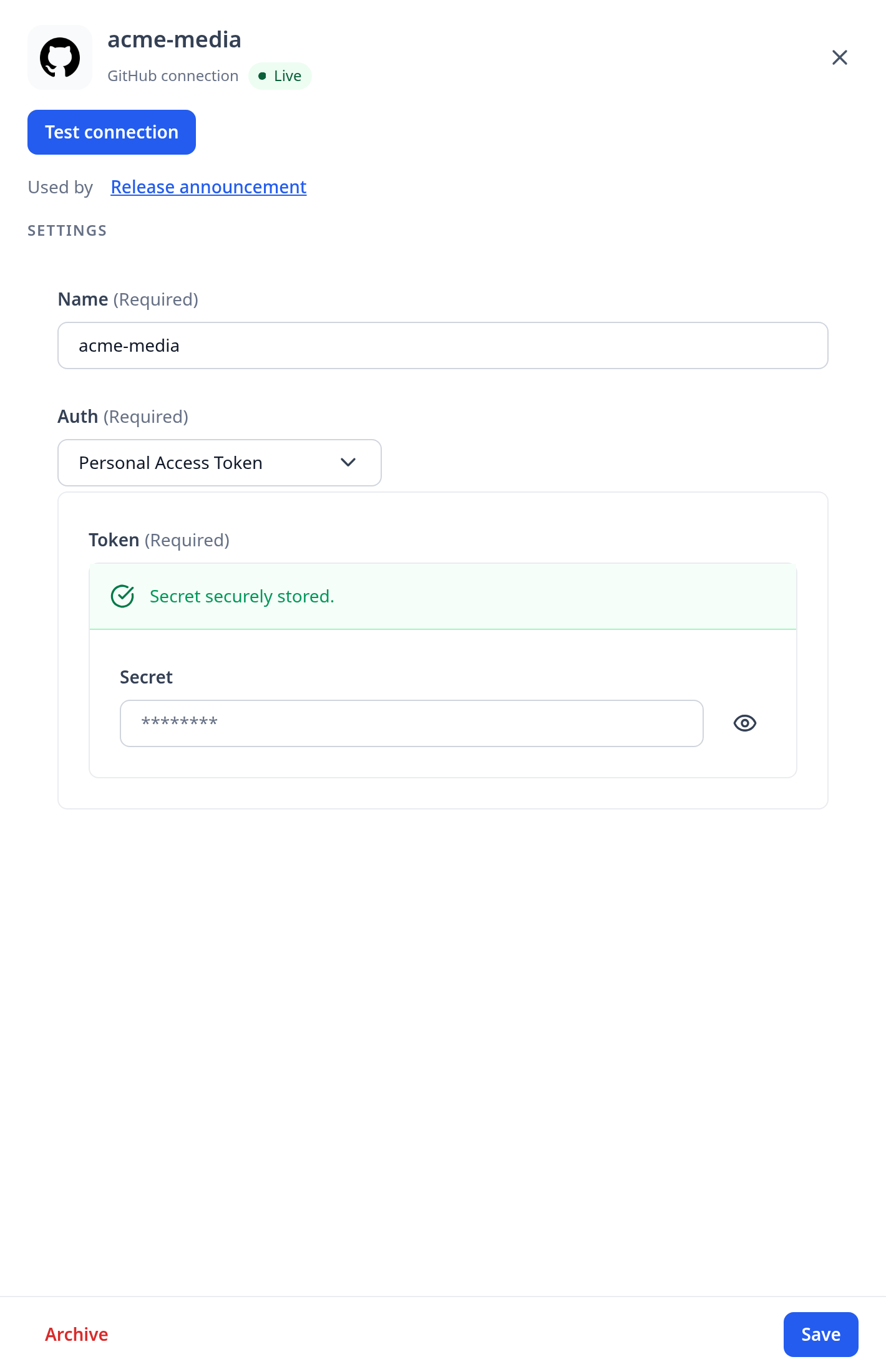
Some connections need groundwork first: an administrator registering an app with the provider and handing you its credentials, an account holder issuing a key, or a permission granted on the far side. Each integration's page says what its connection needs.
A connection acts as somebody. Everything an automation does through it runs as the account that signed in, with exactly that account's permissions, and the connection shows that account once it is active. If a step fails with a permission error, the account behind the connection is usually the thing to look at, not the step.
One connection, several steps
One Brightspot connection serves the Content trigger and every Content action; one Jira connection serves both the Jira trigger and the Jira action. Having several connections of one type is just as normal, and each step picks which it uses: two Brightspot connections point at two CMSs, two Slack connections at two workspaces. One automation can use several at once, reading from one CMS and writing to another.
Which steps each connection enables
| Connection | Steps it enables | Documented at |
|---|---|---|
| Brightspot | The Content trigger and the Content Edit, Content Query, Content Fetch, Content Compare and Content Exists nodes, to work on a separate Brightspot CMS instead of this workspace's own records. Also the Script action, so its scripts know that CMS's content types. | Brightspot CMS |
| GitHub | The GitHub trigger and action, and saved scripts kept in a repository or gist. | GitHub |
| Jira | The Jira trigger and action. | Jira |
| Slack | The Slack trigger and action, and the channel an approval or question can be asked and answered in. | Slack |
| Microsoft Teams | The Teams Message action, and the channel an approval or question can be asked and answered in. | Microsoft Teams |
| GraphQL | The GraphQL action. | GraphQL |
| Custom OAuth | The HTTP Request action, to sign in to any service that uses OAuth 2.0 and has no connection type of its own. | Custom OAuth |
| OpenAI, Azure, Gemini, Google Cloud | An AI provider account, serving the model behind the AI Agent action and the AI Judgment condition. | OpenAI, Azure, Google |
| AWS | An AI provider account serving Bedrock models, and the account the AWS AgentCore action calls hosted agents through. | AWS |
The Email and OpenAPI actions need no connection: email sends through delivery the platform operator sets up once, and an OpenAPI step names the service it calls on the step itself. Every connection type's fields are in the Reference.
Provider accounts for AI
Five of the connection types above hold an account with an AI provider. They are created and signed in like any other connection, but what depends on them is a model rather than a trigger or action: they serve the model an AI step's work runs on. Which account a step uses is decided as described in How a model is chosen.
With a provider account, AI work runs on your own credentials and is billed by your provider.
Your content travels only to the provider you chose, on your own account. Nothing about an AI step goes to any other provider.
Each provider account also has Model Prices: what the provider charges for each model the account serves, in dollars per million tokens, at four rates for uncached input, input read from the provider's prompt cache, input written to it, and output. Every AI call is priced from these rates when it happens, so changing a rate later never changes what past work cost. A model with no price still runs and records its tokens, but shows no cost, and a spend cap that counts the account refuses it. Only Admins and Owners can change an account; see roles. The Model Price reference describes each rate.
Models on this deployment's credentials
AI that runs on this deployment's own credentials is billed to the platform, not to a provider account of yours: steps on This deployment's AI configuration, and any AWS or Google Cloud connection whose credentials are Server Identity. The platform operator prices those models, so a Server Identity connection has no Model Prices of its own.
A model on this deployment's credentials runs only once the platform operator has priced it, whether or not any spend cap is set. A model with no price fails its step before the first AI call with a message such as "claude-opus-4-6 has no price on this deployment. Ask your platform operator to add it." Esca and field assist refuse it the same way.
The Model field offers only the models the platform operator has priced. A model that arrives another way, from an import, a template or one of Esca's drafts, still saves, but its Model field shows a warning, and so does the editor's side panel and the agent's card on the Agents page. To use another model, ask the platform operator to price it.
MCP servers
The Connections page also manages MCP servers, which give AI agents extra tools they can choose to use, such as searching Jira or editing content. They sit beside connections but are a different kind of thing: a connection signs the automation's own steps in to a system, while an MCP server offers tools to an agent and signs in separately, even when both point at the same system. How agents use them is explained in MCP servers and tool sources.
Switch the page to MCP servers to see them.