AI Agent
Gives an AI agent a task as a step in the flow. The agent reads a prompt, uses whatever tools it has been given, and returns a message and, if you ask for one, a structured result. Reach for it when the work needs judgment or language, such as summarizing, drafting, classifying or checking copy against a style guide, rather than a fixed transformation.
One AI Agent step can use tools from several connected systems in one run, such as reading an article from the CMS and filing a ticket in Jira. For what an agent is, which model a step runs on, and how MCP servers supply tools, see AI agents and models.
Fields
| Field | Description |
|---|---|
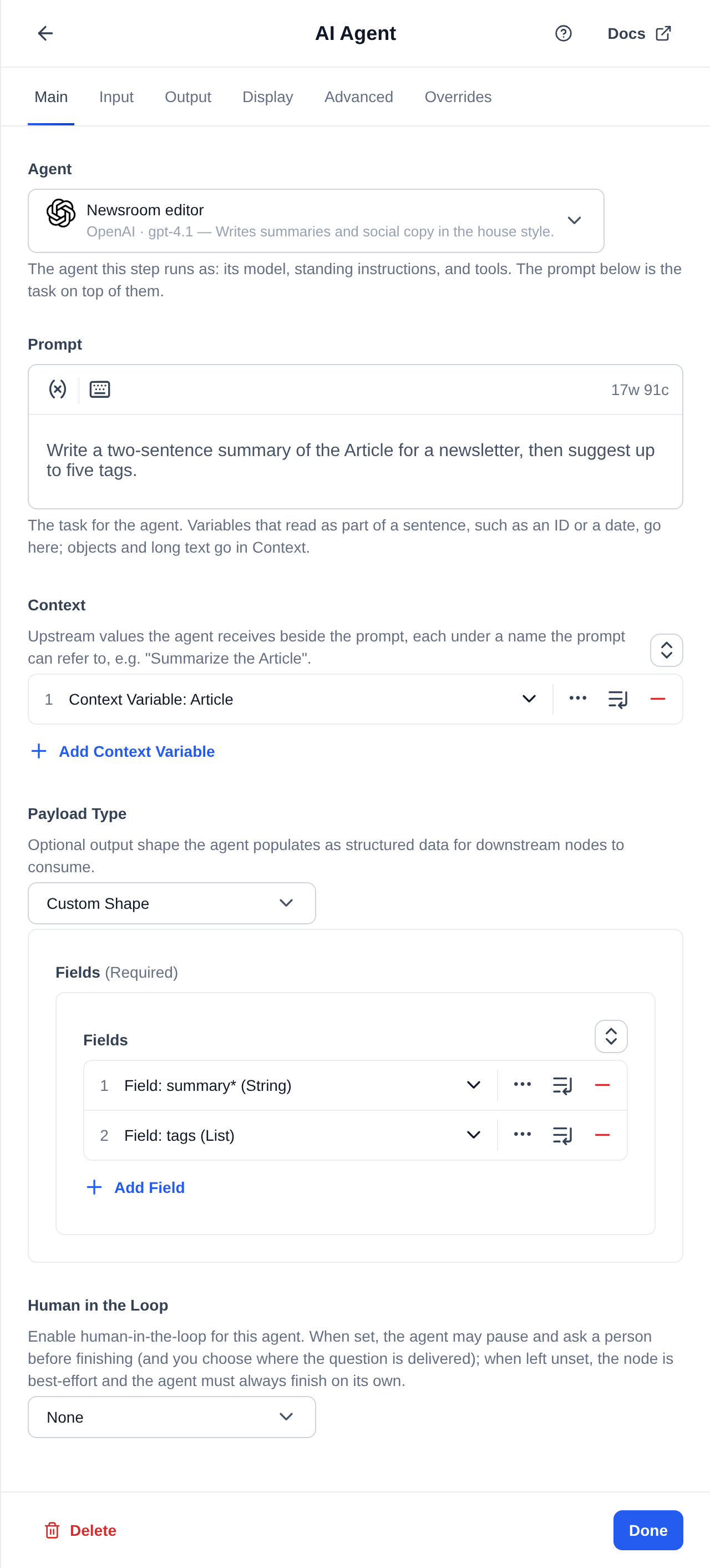
| Agent | The agent this step runs as: its model, its standing instructions and its tools. The prompt is the task on top of them. |
| Prompt | The task, in plain language. Accepts variables for values that read as part of a sentence, such as an id or a date. For anything larger, use Context. |
| Context | Values from earlier steps the agent receives beside the prompt, each under a Name the prompt can refer to. See Context. |
| Payload Type | A shape the agent fills in as structured data alongside its message. Choose Content Type to use the fields of an existing content type, or Custom Shape to define the fields here. |
| Human in the Loop | Lets the agent pause and ask a person before finishing. Choose the Providers its questions go to (Slack, Microsoft Teams, or none for the Approvals page only). Require Approval for Changes also pauses before any tool call that would change something; see Approving changes. Send Progress Updates pushes the agent's progress to the same providers. |
Overrides
| Field | Description |
|---|---|
| Model Override | Run this step on a different Provider Account and Model than its agent's, with an optional Reasoning Effort. Leave unset to use the agent's. |
| Ignore Agent Instructions | Run this step without the agent's standing instructions. The prompt still applies. |
| Tool Sources Override | Run this step with these MCP servers instead of its agent's, each attached for its Read-only tools or All tools. It replaces the agent's whole list, so name every server the step needs. The note under the field shows the agent's list while the field is empty, and what the override changes once it is set. |
Where a step departs from its agent, a note at the top of the form says how: the model and which setting chose it, whether the agent's instructions are suppressed, and what the tool override changes. When the step can't run as configured, the note is a red warning carrying the message the run would fail with.
Context
The prompt is for prose. A variable placed in it is written into the sentence as text, which suits an id or a date but not a whole article or a list: an object dropped into a sentence reads to the agent as a block of data in the middle of your instructions.
Add those values under Context instead. Each is a Variable from an earlier step and a Name the prompt uses for it, so a Content Fetch's record named Article is the subject of "Summarize the Article in two sentences." Left blank, the Name takes the last part of the variable's label, such as Body for Content › Body, and keeps that name once saved, so renaming an earlier step doesn't change what the prompt refers to.
| In the prompt | In Context |
|---|---|
"Summarize this article: Article › Body" with the body inserted as a variable pastes the whole body into your instructions, where anything written in it reads as part of them. | "Summarize the Article in two sentences" with Article bound to Content Fetch › Values. The agent fetches the article as material to work with, not as instructions. |
By default the agent fetches each context value through a tool when it needs it. Text read through a tool reaches the agent as data rather than as part of your message, and models give instructions found in data less weight, so text inside an article body or an issue description has a harder time redirecting the task. Fetching costs the agent an extra step.
Send with Prompt sends a context value along with the prompt instead, saving that step. Text inside the value then reaches the agent as part of your message. Turn it on only for values you trust, such as an id from your own system, never for text anyone can write, such as an article's body, a comment, an issue or a webhook payload.
Either way, text arrives as written, including any markup, and objects and lists arrive as JSON. A variable with no value when the step runs still reaches the agent, empty. The agent is told to treat context as material to work with rather than as instructions.
Tools on this step
The step's tools come from its agent's MCP servers, unless Tool Sources Override names a list of its own. Each server is attached for its Read-only tools or All tools; a newly attached server starts on read-only tools. Setting servers up, how they authenticate, and what to do when one can't connect are on AI agents and models.
A step whose task comes from text written outside your organization, such as an issue, a ticket, a comment or a webhook payload, should hold only read-only tools. Give it an agent attached to its servers for their read-only tools, or set Tool Sources Override to the agent's servers on read-only tools, which leaves the agent as it is for every other automation. Otherwise text in the task can talk the agent into changing or deleting content.
A server that offers no tools to the connected account doesn't stop the step: the agent runs without it and the run log names it with a warning. A server the step can't connect to fails the step, and the error says which server and why.
Whenever tools are withheld, by a server's level or by a dry run, the run log says how many and why, and the agent is told which tools it can't call, so it says what it couldn't do rather than inventing a result. In a dry run the agent gets only read-only tools and never pauses for approval; see Dry runs.
Example: summarize and tag an article
A flow that reacts to a published article, summarizes it and suggests tags:
- A Content trigger on Published.
- A Content Fetch bound to the trigger's content id, so the step has the article's values.
- An AI Agent with the Prompt "Write a two-sentence summary of the Article for a newsletter, then suggest up to five tags", Context holding Article bound to the fetch's Values, and a Payload Type of Custom Shape with a
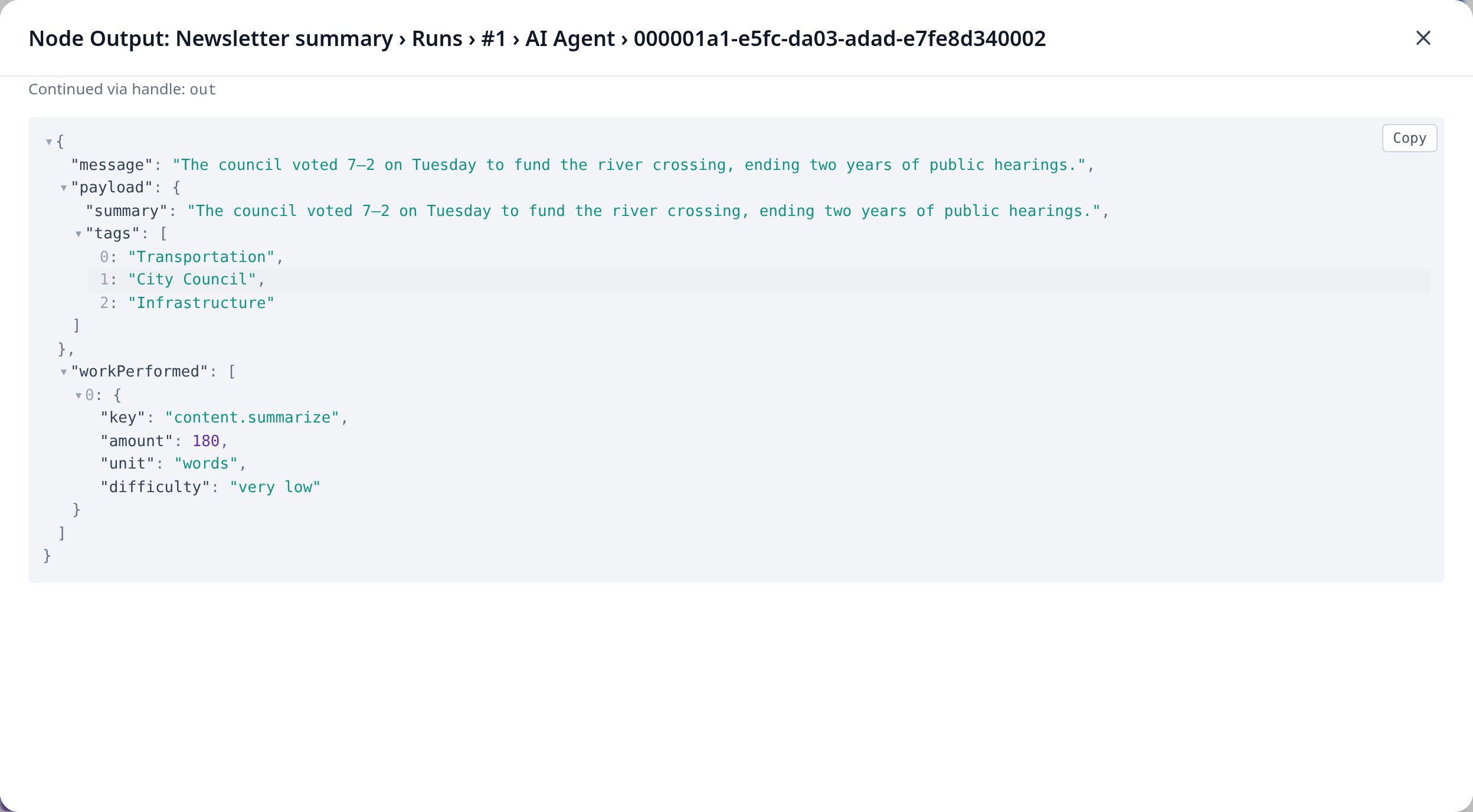
summarytext field and atagslist. - Later steps read AI Agent › payload › summary and payload › tags, such as a Content Edit that saves the tags back, or a Slack step that posts the summary.
What later steps see
| Value | Description |
|---|---|
message | The agent's text response. |
payload | The structured result, when a Payload Type is set, with its fields offered one by one. |
Required payload fields
When Payload Type marks a field required, the step fails if the agent's finished reply leaves it out or sets it to null. The failure names every required field the reply is missing, in the payload's order. A step with no payload type, or no required fields, is unaffected.
Pausing for a person
With Human in the Loop set, the agent can stop mid-task and ask a person a question, to confirm a decision, choose among options or supply a missing detail. The step waits, the question reaches the providers you chose, and the agent resumes with the answer. Every question is also answerable on the Approvals page, whichever providers are set, including none. For how a paused run works and what ends the wait, see How a step pauses.
Approving changes
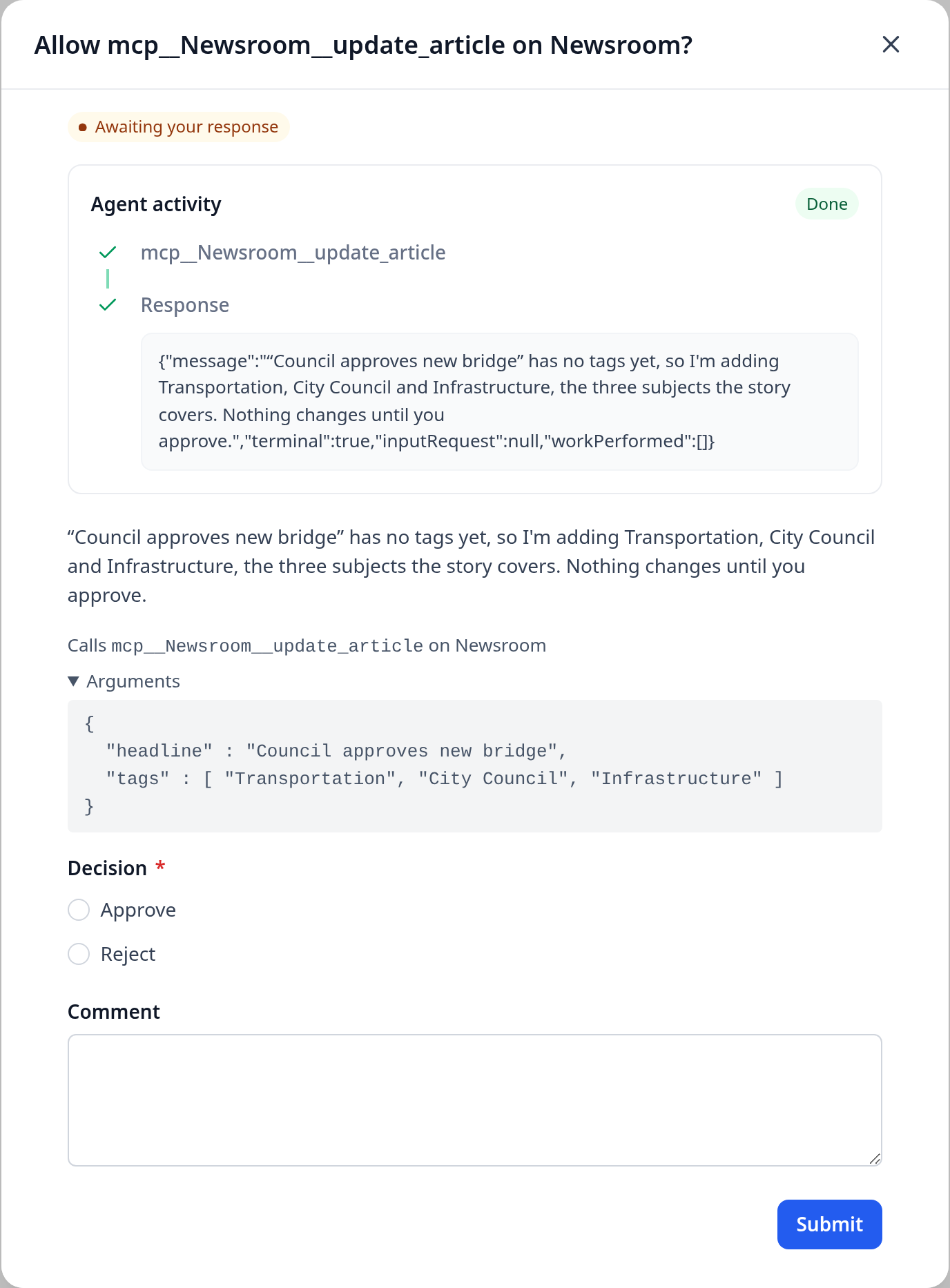
With Require Approval for Changes on, the agent also stops before any tool call that would change something, meaning a tool its MCP server doesn't mark read-only. The call is held, not made. The request leads with the agent's own account of what it is about to do and why, then names the tool and its server, and shows the arguments exactly as the model sent them: the Approvals page shows all of them under Arguments, Teams in a collapsed section, Slack as the first few with a link to the run.
Approve runs that exact call and the agent continues from its result. Reject sends the agent on without it, with your comment, and it usually finishes with what it has and says what was not done. Each approval is one call, so an agent that makes three changes asks three times. A dry run never reaches a changing tool, so it never pauses for one.
Tips
- The node's Display tab Description, left blank, falls back to the opening of the prompt, so a card with a long prompt still reads as something on the canvas. Set a description of your own when the prompt's first line isn't what you want to see there.
- Putting an agent's answer into a rich-text field? See Rich text for turning plain prose into paragraphs.