Viewing a run
A run opens in one of two views, switched with the Workflow and Steps tabs. Both show the run as it stands and update in place while it is live.
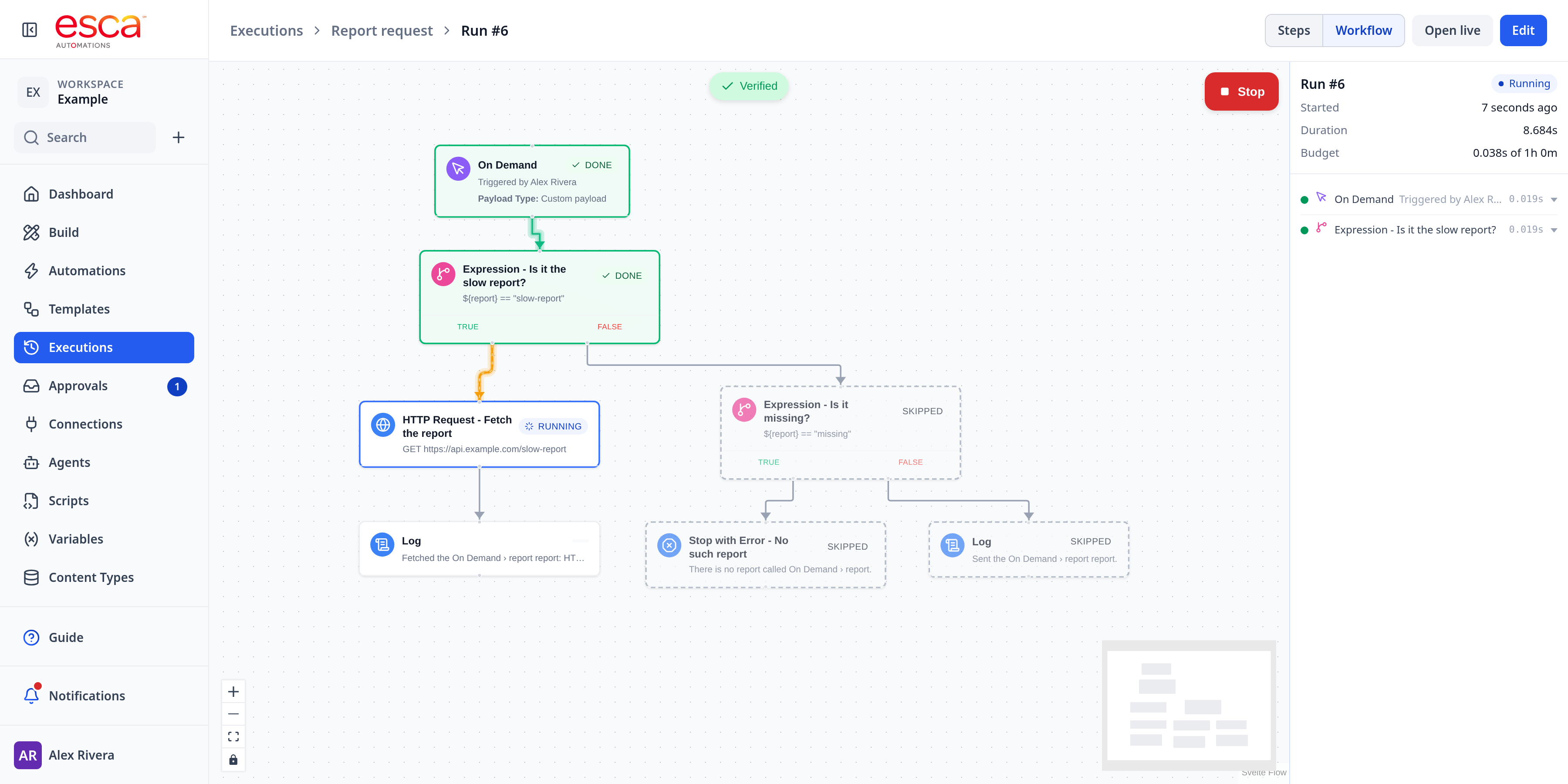
- Workflow view
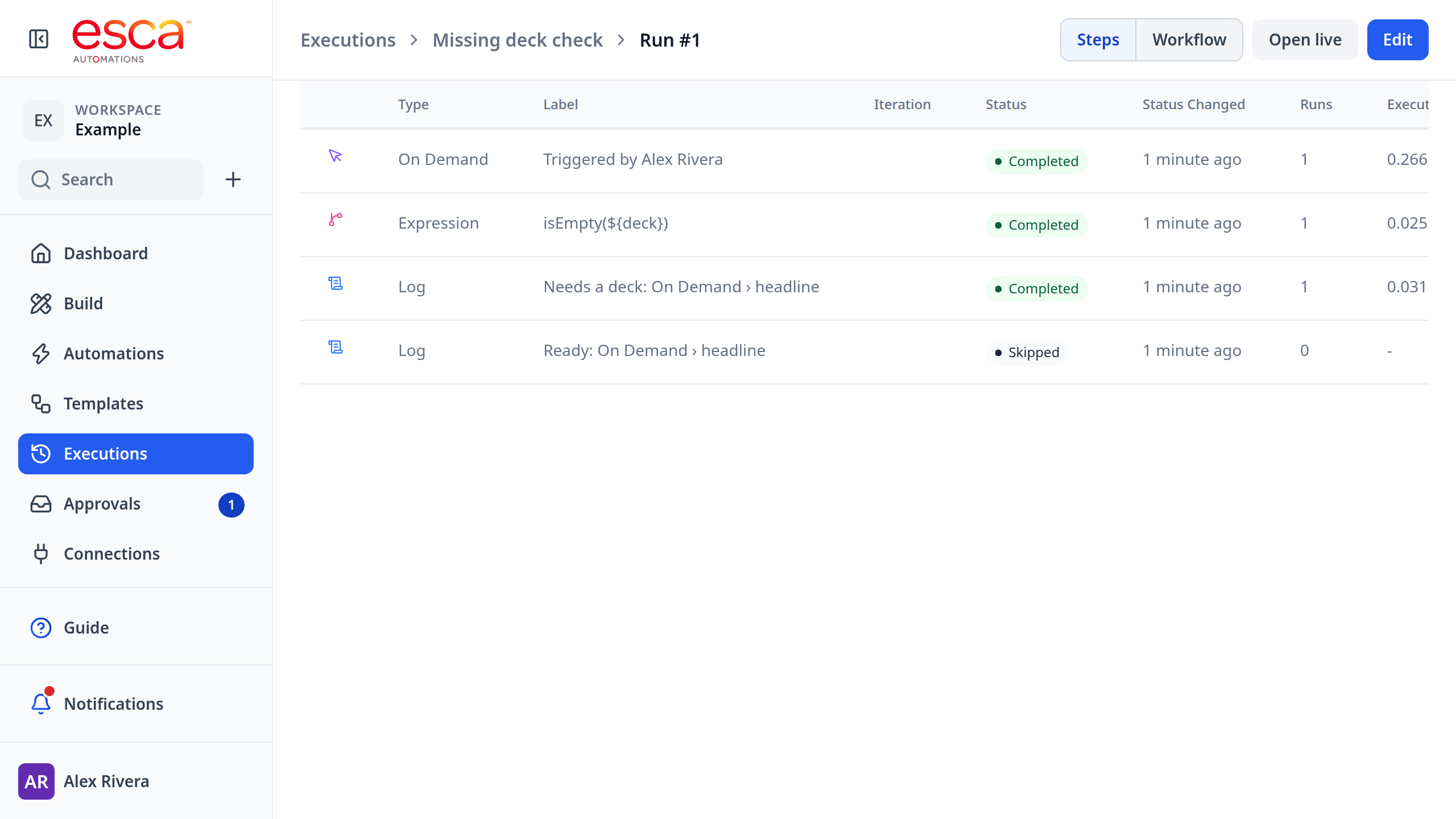
- Steps view
The automation's canvas, read-only, with each node's status on its card. While the run is live, cards change as steps progress, so you can watch the flow execute. For the first few seconds, before any step has a status, the trigger shows a pulsing border and a Starting badge.
A table of every step with its status, when it started and finished, how long it took, its tokens and cost, and View Logs and View Output links for each. This is the view to debug from: find the step that reads Failed, open its logs for the error, and its output for what it received. Steps inside a loop are listed once per pass.
Statuses
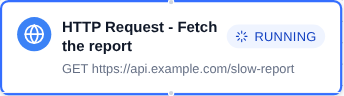
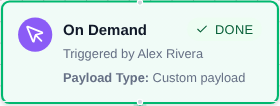
Each step moves through the statuses shown on its card:
- Starting: the trigger has fired and the run is about to begin.
- Running: the step is working. A loop shows Looping with its iteration count.
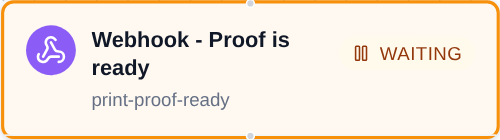
- Waiting: the step is paused for a timer or an outside event, such as a retry's delay, or a trigger the run has reached and that waits for its event to arrive.
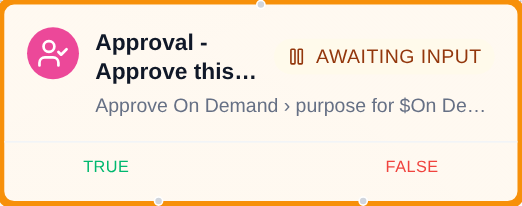
- Awaiting Input: the step is paused for a person to answer: an approval, an agent's question, or an On Demand form partway through a flow.
- Done: the step finished.
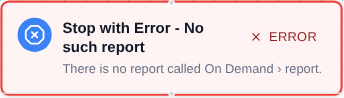
- Error: the step failed.
- Cancelled: the run was stopped before the step finished.
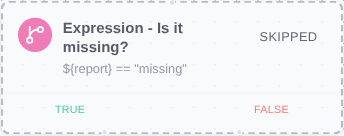
- Skipped: the flow did not route to the step.
The Steps view and the run pane use Completed and Failed for the states the canvas badges call Done and Error.
Stopping a run
Stop on a live run's page cancels it. The run is marked Cancelled at once and nothing further in it begins; steps that had not started settle to Cancelled over the next few seconds.
A step already in progress is allowed to finish, so the history matches what the step changed. You may see one last step complete after you click Stop.
Replaying a finished run
A finished run's Workflow view offers Replay. It animates the run from the beginning using the statuses, edges and log lines the run recorded, and rebuilds the run pane step by step, so you can watch a failure arrive instead of reading it from a finished table.
This Replay runs nothing again. A banner over the canvas says so for the whole replay. The Replay on a trigger's Deliveries screen is a different feature: it re-sends a delivery and starts a real run.
Controlling a replay
The bar across the top carries two measures of time: the progress bar tracks the playback, and the clock counts the run's own elapsed time, which jumps forward when long waits are compressed. Pause holds the canvas and run pane where they are, and Resume continues. While paused, the progress bar is a control: click or drag along it, or use the left and right arrow keys, to move to another moment; moving backwards replays from the start to that point. Stop ends the replay and restores the run's finished state. Replay is available only for a finished run that recorded step transitions.
Related
- Executions: the list a run opens from.
- Logs and output: what a step wrote and what it produced.
- Publishing and run modes: why a run is badged Draft, Revision or Dry Run.