Microsoft Teams connection
The saved link to an Azure Bot backed by an Entra (Azure AD) application, which posts to Teams channels as a bot. In the connection picker it is Microsoft Teams. It is bot-only: there is no webhook option.
Powers these nodes
It is also what posts an approval or an agent's question into a channel as an interactive card, and what carries the answer back.
Before starting, check these with your Microsoft and network administrators. Posting messages needs only the credentials below. Answering an approval or a question from a Teams card also needs Microsoft to reach Esca Automations: the Azure Bot's Messaging endpoint must be a public https:// URL with a valid certificate and nothing in front of it, since Microsoft delivers each reply from its own servers, not from the person's browser. A deployment on an internal network can post to Teams but cannot take answers from it. The deployment must also reach Microsoft's hosts: login.botframework.com, where replies' signing keys come from, as well as login.microsoftonline.com, graph.microsoft.com and smba.trafficmanager.net.
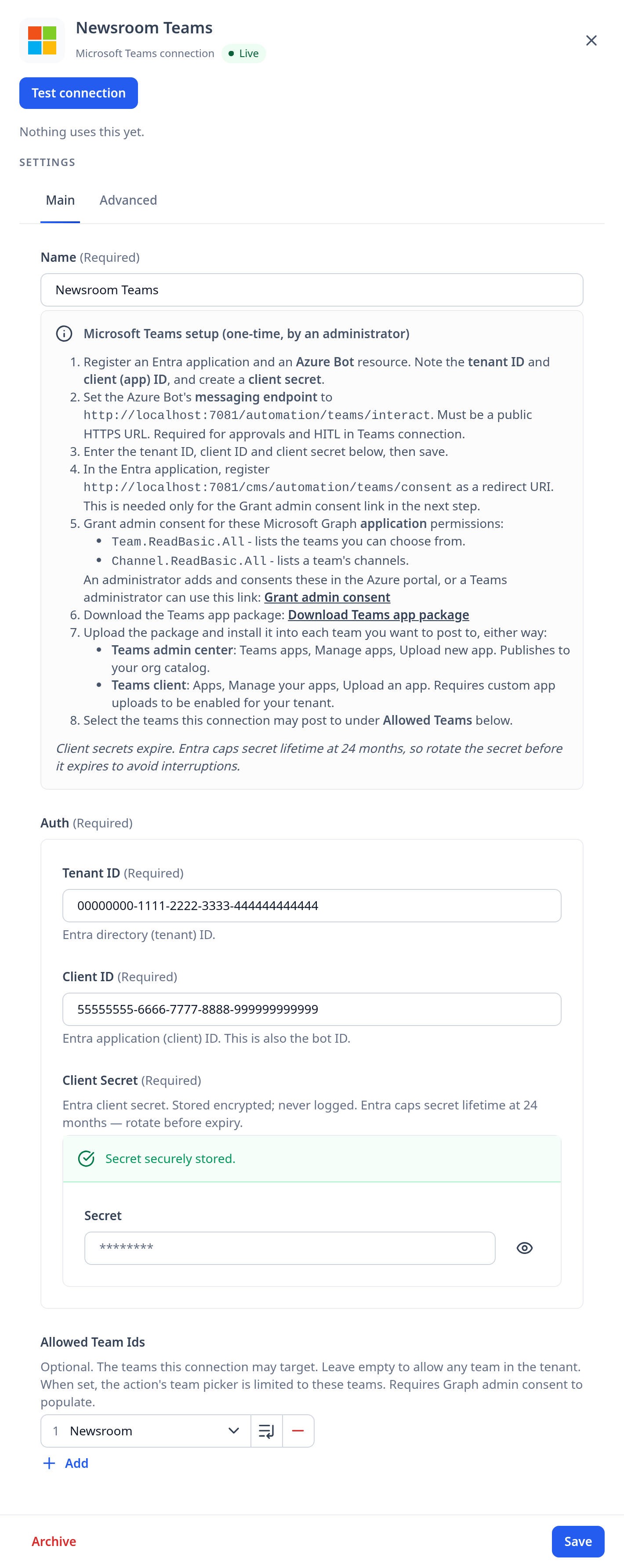
The Microsoft Teams connection reference describes each field, in the same words its Guide icon shows in the tool. Service URL exists for one case: a bot whose Bot Connector is at a different address from the public cloud's. Leave it blank otherwise.
Setting up the Microsoft Teams connection
Unlike Slack, this is a credential connection: you enter the app's identity directly rather than clicking Connect. The connection posts as soon as the three credentials are saved, but the team and channel pickers stay empty until an administrator grants admin consent.
To set up the Microsoft Teams connection:
- In the Azure portal, register an application under Microsoft Entra ID > App registrations and create an Azure Bot resource for it. Note the Directory (tenant) ID, the Application (client) ID, which is also the bot id, and a client secret you generate under Certificates & secrets. Treat the secret like a password.
- On the Connections page, open the Microsoft Teams connection, fill in Tenant ID, Client ID and Client Secret, and click Save. The form shows a setup checklist with the exact permission names and the links used in the next steps.
- Grant admin consent for two Microsoft Graph application permissions,
Team.ReadBasic.AllandChannel.ReadBasic.All, which list teams and channels for the pickers and grant no write access. A Microsoft admin uses either the Grant admin consent button on the app's API permissions blade in the Azure portal or the Grant admin consent link on the connection form; both run the same flow, and the pickers fill once it is done. - Click Download Teams app package on the connection form, then in Teams upload the package into each team you want to post to (Apps > Manage your apps > Upload an app), or publish it to your organization's catalog from the Teams admin center. The bot must be installed in a team before it can post there; consent alone is not enough.
- In the Azure portal, open the Azure Bot and set its Messaging endpoint to
https://YOUR-ESCA-HOST/automation/teams/interact, the platform's Teams interaction path. Skip this only if nobody will answer approvals from Teams. - (Optional) Under Allowed Teams, pick the teams the Teams Message action may post to. Left empty, any team in the tenant is offered.
Entra caps a client secret's lifetime at 24 months. A lapsed secret silently stops every Teams message, surfacing only as an authentication error at send time, so rotate it before it expires. The connection form carries a reminder.
The app package is interactive: the same app both posts messages and receives replies, which is what lets a person answer from inside a Teams card. If the messaging endpoint is missing or unreachable, cards still post and still show their Submit button, but tapping it has no effect. The request stays answerable on the Approvals page, so the automation can always be completed.
Answering in Teams
Choosing Microsoft Teams under an AI step's Human in the Loop, or in an Approval condition's Deliver To, asks for three things:
| Field | Required | Description |
|---|---|---|
| Connection | Yes | The Microsoft Teams connection to post through. |
| Team | Yes | The team containing the target channel. Drawn from Allowed Teams when a subset is set, otherwise from every team in the tenant. |
| Channel | Yes | The channel where the request is posted. Populated from the selected team's standard channels. |
The card opens with the automation's name and a line saying an automation has paused and needs input, followed by links to the automation and to the step that is waiting. Below that is the question, with inputs generated from its shape: a yes/no confirmation, a choice among options, and a multi-field form each render appropriately, and a field the card cannot represent faithfully falls back to a text box. When the step's Send Progress Updates is on, a collapsible Details section holds the agent's most recent response, the summary it wrote just before pausing.
The agent's individual tool calls are not shown, since tool arguments can contain content that does not belong in a channel. A request to approve a change is the exception: the card names the tool and its MCP server under the agent's account of the change, and lists the arguments in a collapsed Arguments section, cut short, with a link to the run for the whole call.
When anyone answers, in Teams or on the Approvals page, the card is replaced by a resolved version showing the answer and who gave it, so a stale card never invites a second submission.
Three behaviours to know:
- Progress is not streamed. Unlike Slack, the card appears when the agent asks its question rather than updating live as the agent works, because Teams has no streaming primitive for cards. The Details section is a snapshot taken at the moment the agent paused.
- The card's links need Brightspot's Default Tool URL. That is the Default Tool URL field in the CMS's Sites & Settings, which the platform operator sets; without it, the automation and step are still named on the card but are not clickable.
- In a dry run, the card is posted to the channel from the automation's Teams test target when one is configured. With no test target the post is skipped and the request is answered on the Approvals page, so a dry run never messages a real channel by accident.