Slack action
Runs one operation in a Slack workspace. In the action picker it is Slack, under Integration Actions. Pick the connection, choose the operation, and the form asks for what that operation needs.
Slack identifies every message by its ts, a timestamp that works as the message's id. Send Message outputs the ts of what it posted, and the Slack trigger carries the ts of the message a shortcut was used on, so a later step can reply under that message, change it, or react to it.
Posting a message
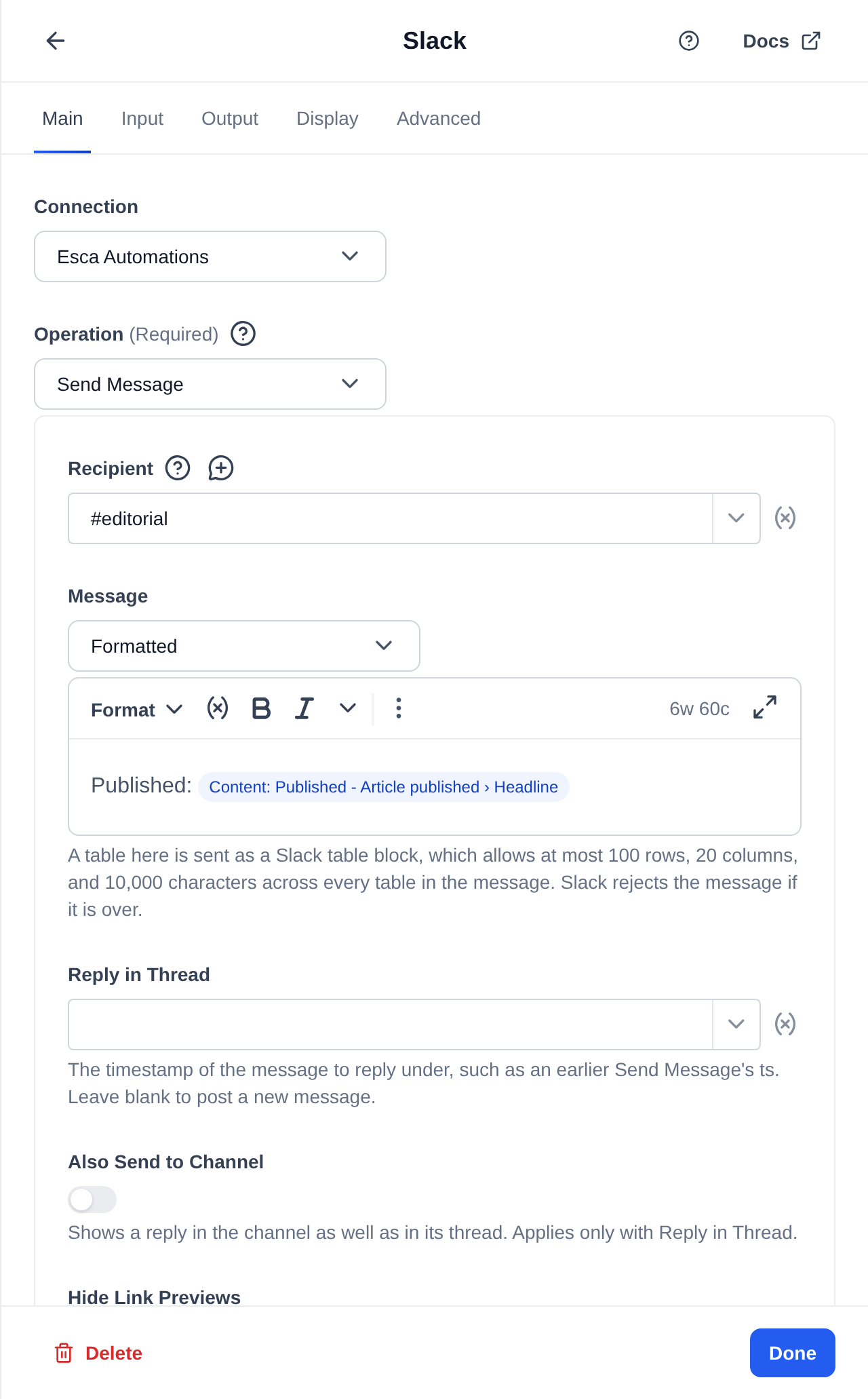
Most automations need only Send Message. To tell an editorial channel about a newly published article: add a Slack action after a Content trigger, choose the connection, leave Operation on Send Message, type #editorial as the Recipient, and in the Message field, kept on Formatted, write "Published: " and insert the article's headline from the variable picker. A dry run writes the message to the run log with a preview link instead of posting it; a live run posts it.
Fields
| Field | Required | Description |
|---|---|---|
| Connection | Yes | The Slack connection to act through. |
| Operation | Yes | What to do. Choosing one reveals its own fields. A new step starts on Send Message. |
| Test Recipient Override | No | On the Advanced tab. During a dry run, this step posts here instead of to the automation-level Slack test target; see Dry runs. Choose the connection as well as the recipient, since neither is taken from the step. Get Message reads the same in a dry run and has none. |
Operations
| Operation | What it does |
|---|---|
| Send Message | Posts a message to a person or channel. |
| Upload File | Posts a file to a person or channel. |
| Respond | Replies to the slash command or message shortcut that started the run. |
| Update Message | Replaces a message the app posted with a new one. |
| Delete Message | Deletes a message the app posted. |
| Add Reaction | Adds the app's emoji reaction to a message. |
| Remove Reaction | Removes the app's emoji reaction from a message. |
| Get Message | Reads a message and the replies in its thread. |
Send Message
| Field | Required | Description |
|---|---|---|
| Recipient | Yes | A person or channel to message; see Choosing a recipient. |
| Message | No | The message, in the form that matches how it is written; see Composing the message. |
| Reply in Thread | No | The ts of a message to reply under, such as an earlier Send Message's ts or a message shortcut's message.ts. Leave it blank to post a new message. To reply in the thread a shortcut was used in, use message.thread_ts when it is set. |
| Also Send to Channel | No | Shows a reply in the channel as well as in its thread. Applies only with Reply in Thread. |
| Hide Link Previews | No | Stops Slack expanding a preview card under each link it recognizes. |
Steps saved before Send Message was an operation
A step saved as a Slack Message before the Slack action had operations opens as a Slack step with Send Message chosen and its recipient, message and link preview setting in place, and it runs as it did.
Upload File
Posts a file to a person or channel, with an optional comment, such as a report a Write File step produced.
| Field | Required | Description |
|---|---|---|
| Recipient | Yes | A person or channel to post the file to; see Choosing a recipient. |
| File | Yes | A file from an earlier step, such as a Write File step's file, posted as it is. Typed text is posted as a file of that text, and an object or list as a JSON file. |
| File Name | No | The name Slack shows, with its extension, such as report.csv. Leave it blank to keep the name of a file from an earlier step. Text and JSON need one. |
| Title | No | Shown above the file in place of its name. |
| Comment | No | Text posted with the file, in standard markdown. |
| Reply in Thread | No | The ts of a message to post the file under. Leave it blank to post the file on its own. |
To post a file under a message a comment can't express, such as one built from blocks, send the message with Send Message, then upload the file into its thread with Reply in Thread set to Send Message's ts.
Respond
Replies to the slash command or message shortcut that started the run, through the response_url Slack sent with it to the Slack trigger.
| Field | Required | Description |
|---|---|---|
| Message | No | The reply, in any of the forms a message can take; see Composing the message. |
| Visible to Everyone in the Channel | No | Off, only the person who used the command or shortcut sees the reply. On, everyone in the channel sees it. |
| Hide Link Previews | No | As for Send Message. |
| Response URL | No | Under Advanced. Leave it blank: Respond replies to the command or shortcut that started the run, however many steps back. Set it only to reply through a response_url passed in from elsewhere, such as by the automation that invoked this one. |
Slack accepts at most five replies, and none later than 30 minutes after the command or shortcut was used, so a reply after a longer wait, such as an approval, fails. For anything that may take longer, post with Send Message to the trigger's channel.id instead. A global shortcut or a mention sends no response_url; reply to those with Send Message too.
Each reply is a new message: Slack can't change or delete a reply once it's sent. To say work is under way and then show the result in the same message, post it with Send Message and change it later with Update Message. Unlike a reply only its asker sees, everyone in the channel sees that message.
Update Message
Replaces a message the app posted with a new one, such as a "Publishing…" message an earlier step posted, once the work is done.
| Field | Required | Description |
|---|---|---|
| Channel | Yes | The id of the channel the message is in, such as an earlier Send Message's channel. |
| Message Timestamp | Yes | The message's ts, such as an earlier Send Message's ts. |
| Message | No | What the message becomes. It replaces the whole message. |
Slack lets the app change only messages it posted, and a workspace can limit how long after posting a message can be edited.
Delete Message
Deletes a message the app posted, such as a "Working on it…" message once the result is posted.
| Field | Required | Description |
|---|---|---|
| Channel | Yes | The id of the channel the message is in. |
| Message Timestamp | Yes | The message's ts. |
Add Reaction and Remove Reaction
Add or remove the app's emoji reaction on a message in a channel the app is in, such as 👀 on the message a shortcut was used on while the automation works, swapped for ✅ when it is done.
| Field | Required | Description |
|---|---|---|
| Channel | Yes | The id of the channel the message is in, such as a message shortcut's channel.id. |
| Message Timestamp | Yes | The message's ts, such as a message shortcut's message.ts. |
| Emoji | Yes | The emoji's name, such as eyes or white_check_mark, with or without the colons around it. A workspace's custom emoji works too. |
Adding a reaction the message already has, or removing one it doesn't, changes nothing and doesn't fail.
Get Message
Reads a message and the replies in its thread, such as the thread a shortcut was used in, for an AI step to summarize or draft from.
| Field | Required | Description |
|---|---|---|
| Channel | Yes | The id of the channel the message is in. |
| Message Timestamp | Yes | The message's ts. Given a reply, it reads the whole thread from the message the reply is in. |
It keeps at most 200 replies and says when there were more. The app must be added to the channel to read it, and needs the history scopes.
Choosing a recipient
Every Slack field that names a recipient works the same way: pick from the list, type one of the forms below, or insert a variable so the recipient comes from an earlier step. The list fills from the connection's workspace: its people, its public channels, and the private channels the app has been added to, marked with a lock.
| Form | Example | Works when |
|---|---|---|
| Channel name | #release-alerts | Always for a public channel. For a private channel, the app must be added to it and have the groups:read scope. |
| Channel id | C0123456789 | Always for a public channel. For a private channel, the app must be added to it. In Slack, the id is at the bottom of the channel's details. |
| Handle | @ana | Exactly one person goes by it, as their display name, username or full name. |
| Email address | ana@example.com | The app has the users:read.email scope. |
| User id | U0123456789 | Always. In Slack, open the person's profile, choose ⋮, and then choose Copy member ID. |
A recipient with no # or @ that isn't an id or an email address is read as a channel name. A person is messaged directly by the app. If the step can't find the recipient when it runs, because a handle is shared by two people, an email address isn't in the workspace, or the app lacks a scope, the step fails and says what to use instead. In a very large workspace the list may be incomplete; type the channel's name or id instead.
How the list is filled in a large workspace
The list holds at most 1,000 channels and 1,000 people. Archived channels and deactivated accounts count toward that size, because Slack reads them before leaving them out. If the field can't show every channel, it shows the channels the app has been added to first, then the others it read; if it can't show every person, it shows none of them. Either way the field says so, and typing still works. Looking a handle up works in a workspace of up to about 5,000 accounts, deactivated ones included. The list is refreshed every few minutes rather than on every open, so a channel created in Slack can take up to five minutes to appear; type its name to use it sooner. If the list can't be loaded at all, because the connection is missing a scope or none is chosen yet, the field says so.
Composing the message
The Message field offers four ways to write it. Pick the one that matches how much control you need; every one of them accepts variables.
| Type | What it is | Reach for it when |
|---|---|---|
| Formatted | A rich-text editor: bold, italic, strikethrough, links, inline and block code, bulleted and numbered lists, and tables. | Almost always. It is the default, and what you type is what Slack shows. |
| Markdown | Standard markdown, rendered by Slack. Adds headings, task lists, block quotes, and fenced code blocks with syntax highlighting. | The content is already markdown, most often an AI agent's output. |
| Blocks | An ordered list of Slack blocks configured one at a time. | You want structure a text editor cannot express, such as a chart or a two-column summary. |
| Raw Block Kit JSON | A Block Kit payload pasted verbatim. | You need exact control, or a block type not offered under Blocks. |
Formatted treats your text as text: an asterisk, underscore or backtick arriving from a variable reaches Slack as that literal character. Markdown treats the same punctuation as syntax. So if a variable might contain arbitrary prose, use Formatted; if it contains markdown you want rendered, use Markdown. The Formatted editor offers only formatting Slack can render, so underline, superscript and subscript are absent, and Markdown's toolbar is deliberately bare, since you are writing the characters yourself.
Under Blocks, configure blocks one at a time in the order Slack should show them: Header, Section, Markdown, Rich Text, Context, Divider, Image, Video, Remote File, Table, Data Table, Chart (Pie, or Bar / Line / Area), Card, Carousel, Container, Task Card, Plan, Buttons, and Link Button.
Under Raw Block Kit JSON, paste either shape Slack's Block Kit Builder produces, a bare array of blocks or an object with a blocks key, so a payload moves across without editing. Variables can be inserted anywhere in the JSON, including inside string values. A second field, Fallback Text, holds the plain text shown in notifications and by clients that cannot render blocks.
Link previews
Slack expands a preview card beneath any link it recognizes. Turn on Hide Link Previews to suppress them for a message, which helps when the message is mostly links and the previews would bury the text.
Dry runs
During a dry run with no test recipient, Send Message posts nothing and writes the recipient to the run log instead, with a Preview Message link that opens the message in Slack's Block Kit Builder, so you can see the rendered message without sending it. The recipient is still looked up, and the log shows the Slack id it was found as, so a recipient that would fail a live run fails the dry run too. With a test recipient, the message is posted there.
Respond can't reply during a dry run, since its response_url reaches the person who really used the command. With a test recipient, it posts the reply there as an ordinary message; without one, it writes the reply to the run log with the same preview link. Upload File behaves as Send Message does. Update Message, Delete Message, Add Reaction and Remove Reaction change a message only when it is in the test recipient's channel or direct message, through the test target's connection, which is where a Send Message earlier in the same dry run posted; a message anywhere else is left alone and the log says what would have happened. Get Message reads during a dry run as it does in a live run.
Output
Send Message outputs the recipient it was sent to, Slack's resolved channel id, and the message's ts, usable to thread replies. Update Message, Delete Message, Add Reaction and Remove Reaction output the message's channel and ts. Upload File outputs the recipient, Slack's file_id for the file, and its permalink. Respond has no output.
Get Message outputs:
| Field | Description |
|---|---|
channel | The channel the message is in. |
message | The message: its text, its author's id in user, and its ts. |
replies | The replies in its thread, oldest first, each with the same fields. Empty when it has none. |
truncated | true when the thread had more than 200 replies and the rest were left out. |